All You Need to Know About Google My Business: The Complete Guide

Google My Business (GMB) is a free tool that helps businesses manage their presence on Google Search and Maps. It lets businesses share important details like location, hours, photos, and customer reviews, making it easier for potential customers to find and engage with them online.

With a properly set up GMB profile, businesses can improve their visibility in local search results and attract more nearby customers.


Businesses can also use GMB to communicate directly with customers through reviews and updates. This connection helps build trust and encourages repeat visits.

By optimizing the profile with accurate information and engaging content, companies gain an edge over competitors in their local area.

This guide will walk you through creating, verifying, and maintaining your GMB listing so you can get the most out of it.

Key Takeways

  • A complete profile increases local search visibility.
  • Customer engagement improves business reputation.
  • Regular updates and accurate info drive more foot traffic.

What Is Google My Business?

Business professionals in an office gathered around a large digital screen showing a map with location pins and business icons, illustrating online business management.

Google My Business (GMB) is a free tool for managing your business presence on Google Search and Google Maps. It allows companies to share critical information like address, hours, and contact details.

The platform comes with several features that enhance visibility and customer interaction.

Google My Business vs. Google Business Profile

Google Business Profile is the updated name for the GMB platform, though a lot of people still use both terms. The change highlights that the platform is about managing your public profile across Google.

GMB originally meant the full management dashboard, while Google Business Profile often refers to the public-facing info customers see on Search and Maps. In reality, businesses use both together to update info, post content, and engage with reviews to improve local search results and customer trust.

How Google My Business Works

Google My Business works by letting businesses create or claim a profile. Once verified, the profile appears in Google Search and Maps when users search for related products or services nearby.

Google pulls business details like location, phone number, and hours directly from the profile.

The platform also lets businesses respond to customer reviews and post updates about offers or events. These actions boost engagement and can improve the business’s ranking in local search results.

Key Features Overview

Key features of Google My Business include:

  • Business Information: Add accurate details like address, phone number, website, and hours.
  • Customer Reviews: Collect, display, and respond to reviews.
  • Posts and Updates: Share promotions, events, or news directly on Google.
  • Insights and Analytics: Track how customers find and interact with the profile.
  • Photos and Videos: Upload visuals to attract attention and show off your business.

If you want more guidance, check out a complete Google My Business guide.

Benefits of Google My Business
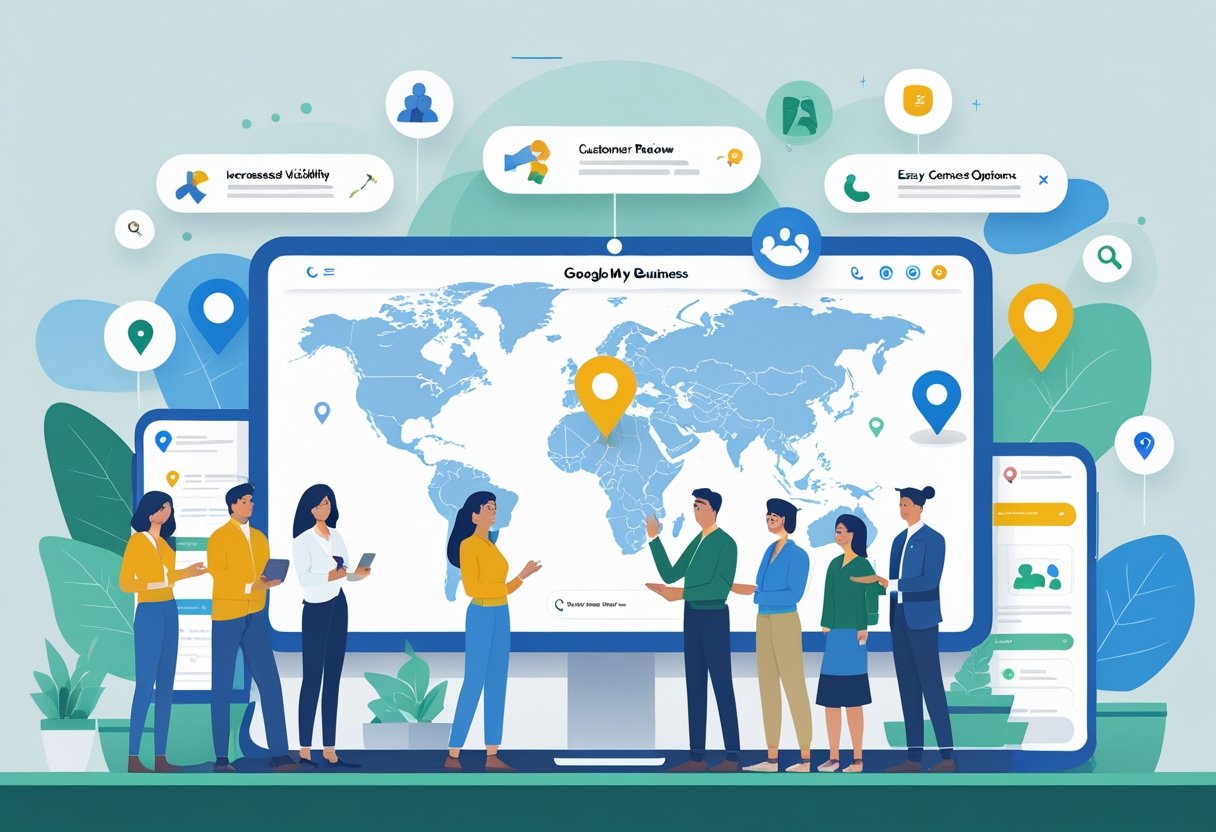
Illustration showing business owners and customers around a digital map with location pins and icons representing benefits of using Google My Business.

Google My Business gives you tools to improve your visibility and connect with customers. It helps manage online business info, boost local SEO, and use free marketing tools to track performance.

Increased Local Visibility

Google My Business helps businesses show up in the local 3-pack—the top three local results on Google Search and Maps. This placement increases your chances of being found by customers searching nearby.

Accurate and complete business information, like address, hours, and phone, improves ranking and helps Google understand your location better.

By regularly updating listings with new photos and posts, businesses stay relevant in search results. GMB also supports keywords that improve local SEO, making it easier for people searching specific services or products to discover you.

Customer Trust and Credibility

A verified Google My Business listing helps show customers that your business is active and legitimate. Reviews and ratings provide social proof and help people decide where to go.

Responding to reviews shows you care about customer feedback. Providing clear, consistent information across Google builds credibility and reduces confusion.

A well-managed GMB profile makes you look professional and reliable compared to competitors who haven’t bothered.

Free Marketing Opportunities

Google My Business offers free tools to promote your business. You can post updates, offers, or events directly on your profile, keeping customers in the loop.

The listing also lets you upload photos and videos, which draw attention and highlight what you offer. These visuals help your listing stand out in Google results.

GMB can integrate with Google Ads for paid promotions, but honestly, most features are free and effective for local marketing. You don’t need a big budget to reach local customers.

Data and Insights

Google My Business provides insights that reveal how customers find and interact with your listing. You can see which search queries brought them in, and whether they found you through Search or Maps.

Insights also show actions customers take, like visiting your website, calling, or requesting directions. Tracking these behaviors helps you figure out what’s working.

You can use this data to tweak your listing, improve local SEO, and attract more of the right people.

Setting Up Your Google My Business Account
People working together at a desk with a laptop showing business-related icons and a digital dashboard.

Setting up a Google My Business account takes a bit of care. You’ll need to create the account, provide accurate business information, and pick the best category.

These steps help make sure your business appears correctly in Google Search and Maps.

Creating Your Google My Business Account

To get started, go to the Google Business Profile website and sign in with your Google account. Enter your business name exactly as it appears in the real world.

Add your business location or service area next. Google uses this info to show your business to local customers.

After submitting the details, you’ll need to verify the listing. Verification can happen through phone, email, or postal mail, depending on what Google offers you. Once you’re verified, you can fully manage your business profile.

Business Information Requirements

A Google My Business profile should include:

  • Business name
  • Address or service area
  • Phone number
  • Website URL
  • Business hours

Add a clear, concise business description. This tells people what you offer and can include keywords folks might search for.

Photos of your business location help too—they make your profile more inviting.

All info needs to be accurate and up to date. Wrong or missing details can hurt your visibility and confuse potential customers.

Choosing the Right Business Category

Picking the correct business category is key. Google lets you choose one primary category that describes your main activity.

You can add more categories for other services, but the primary one really affects how you show up in search results.

Be specific but relevant. For example, a bakery should pick “Bakery” instead of something vague like “Food service.” That way, you’ll attract the right audience.

If you want more help, here’s a step-by-step guide to Google My Business account setup.

Verifying Your Business on Google

A business owner stands confidently in front of a storefront holding a smartphone showing a verification checkmark, with icons representing business verification around them.

Verifying a Google Business Profile is essential to manage info like business hours, location, and customer reviews. The process depends on your business type and size, but it helps your listing show up in search results and on Google Maps.

Email Verification Steps

Email verification is one of the quickest ways to confirm your business. Google sends a verification link to your registered email address.

Open the email and click the confirmation link within about two weeks—don’t let it expire.

This method works best if your email is already linked to the business domain or Google account. If you qualify, Google will offer the option during setup.

Once you’re verified, you can update your profile right away.

Key points for email verification:

  • You’ll need access to the business email
  • The link expires if you don’t use it in time
  • You get immediate profile control after confirmation

For more details, check this guide on verifying your Google Business Profile.

Phone and Postcard Verification

Phone verification means you’ll get a call or text with a code sent to your business phone number. Enter the code into your Google My Business account to confirm ownership.

This is quick but only available if Google can connect the phone number to your business.

Postcard verification is the most common method. Google mails a postcard with a unique code to your business address, usually arriving in a week or two.

Once you get it, log in to your profile and enter the code to confirm your location.

Phone and Postcard verification checklist:

Verification TypeMethodTimelineUsage
PhoneCall or SMSMinutes to hoursLocal businesses with published phone numbers
PostcardMail5-14 business daysPhysical locations needing address confirmation

More tips on phone and postcard verification are on the Google Business Profile Help page.

Bulk and Multi-Location Verification

Bulk verification is for businesses with 10 or more locations. Instead of verifying each one, you can submit a bulk request.

Google reviews your info and, if all checks out, gives you access to all locations. This saves a ton of time for chains or franchises.

You’ll need to hold permission for every address listed. Google might ask for extra proof to stop unauthorized claims.

To apply, fill out a verification form and provide:

  • Business name and contact info
  • User manager email
  • Addresses for all locations

Bulk verification is a lifesaver for managing lots of GMB listings. More details are in the bulk verification guide.

Optimizing Your Google My Business Listing

If you want to improve your GMB listing’s visibility and effectiveness, you’ll need to pay attention to the details. Accurate business data, the right categories, and a fully completed profile all help you rank well and attract customers.

Completing Your Profile

A complete Google My Business profile gives potential customers a clear idea of what you do. Add your business name, address, and phone number.

Don’t forget high-quality photos, a detailed business description, and your business hours.

Photos should show the storefront, products, or services—it’s what people want to see before visiting. Your business description should include relevant keywords but still sound natural.

Listing business hours avoids confusion and keeps people from showing up when you’re closed.

Updating posts and special offers regularly keeps your profile active, and Google seems to like that. The more complete and current your profile is, the better you’ll perform in online searches.

Consistent Business Information

Staying consistent with your business info everywhere online really matters. Your name, address, and phone number on Google My Business should match exactly with what’s on your website, social pages, and any directories.

If the details don’t line up, Google’s algorithms get confused—and that can drop your local search ranking. Customers get frustrated too when they find conflicting info.

Business owners ought to check and update their listings on all platforms from time to time. There are tools out there that’ll track your citations and listings for you, keeping everything accurate without much hassle.

Category and Attribute Selection

Picking the right categories helps Google connect your listing with the right people. The more specific you get about your main activity, the better.

Attributes let you show off features like outdoor seating, wheelchair access, or if you’re woman-owned or LGBTQ+ friendly. These show up on your profile and can help bring in your ideal customers.

Google lets you add more than one category, but it’s worth focusing on the primary one. Picking the wrong categories—or being misleading—can tank your rankings and get your business in front of the wrong crowd.

Enhancing Your Profile With Photos and Media

Dropping in quality photos and videos makes your business pop on Google My Business. Sharp, relevant images give people a real sense of what to expect and help you stand out in search results.

Using media well isn’t just about looks—it’s good for branding and can even give your search visibility a push.

Google My Business Photos Best Practices

Photos should be crisp, well-lit, and actually show your business. It’s worth uploading high-resolution images—no one likes blurry or pixelated shots.

Google wants photos between 10 KB and 5 MB, with at least 720 x 720 pixels. Try to mix it up: storefronts, interiors, products, your team, all that.

Fresh photos keep things interesting for visitors. Skip watermarks and text overlays, and don’t upload anything that breaks Google’s content rules.

Organizing your photos well helps them display better, and honestly, it just makes your business look more inviting.

Google My Business Cover Photo Guidelines

The cover photo is basically your business’s face on Google. Make it a sharp, high-quality image that really nails your brand vibe.

This is the first thing people see in Google search and Maps, so it’s got to make a good impression. Google likes 720 x 720 pixels, but going bigger is fine if it stays clear.

No blurry images, no clunky text or logos slapped on top. You can swap your cover photo whenever, but just know Google might pick a different image if it thinks another one is better.

Using Videos and Visual Media

Videos bring your profile to life in a way photos just can’t. Google My Business lets you upload videos up to 30 seconds long and 100 MB.

They should be well-lit and show off your space, your team, or your products—just keep it authentic. Clips of staff, happy customers, or even a quick behind-the-scenes tour can boost engagement.

Stuff like 360-degree photos and virtual tours are cool too. They let people look around before they ever set foot inside, and that can help your local rankings by making your profile richer.

Managing Customer Reviews

Staying on top of customer reviews on Google My Business (GMB) is huge for your online presence and trust factor. It means asking for feedback, replying thoughtfully, and handling complaints with a level head.

Soliciting and Responding to Reviews

Getting more Google reviews means more feedback and better visibility. You can ask for them through follow-up emails, links on social media, or even a note on receipts.

When you respond, keep it personal, positive, and brief. Thank people, address their comments, and skip the canned responses.

Replying regularly—whether it’s praise or criticism—shows you care about your customers. That goes a long way for credibility and can even help your local SEO.

Building a Positive Reputation

Good reviews build trust and make you look legit. To keep those rolling in, you’ll want to:

  • Deliver solid service every time
  • Highlight awesome experiences when you reply
  • Share glowing reviews on your marketing channels

Keeping your business details accurate and updating your GMB profile helps too.

Having one person in charge of reviews speeds up replies and keeps your messaging on point. It’s worth it for better customer relationships and brand loyalty.

Handling Negative Feedback

Negative reviews sting, but you’ve got to handle them with care. Here’s the playbook:

  • Thank the reviewer for their input
  • Acknowledge the issue without getting defensive
  • Offer to fix it or move the convo offline

Never get personal or start an argument. A thoughtful, calm reply can actually win people back.

If you spot a fake or inappropriate review, flag it with GMB’s tools. Stay factual in your public response and don’t let it get heated.

There’s a deeper dive on this in the managing Google My Business reviews guide.

Promoting Products and Services

Google My Business lets you show off what you sell in a way that’s clear and (hopefully) appealing. Giving detailed, accurate info about your products and services builds trust and helps you show up in more searches.

Adding Products to Your Profile

You can add individual products right to your profile. Each one should have a clear name, price (or range), and a short, punchy description.

Good images are a must—they help your products stand out and let customers know what they’re getting. Google gives you up to 1,500 characters for the description, but honestly, short and snappy works better.

Throw in a call-to-action like “Buy,” “Order Online,” or “Learn More” to nudge people along. SKU or product codes are optional, but handy if you’ve got a big inventory.

Showcasing Services Offered

Listing your services alongside products gives people a full picture of what you do. Describe what’s included, the benefits, and anything special about your service.

Keeping your business description accurate and up to date makes your GMB listing more relevant in local searches. Update services for seasonal changes or new offerings.

Sprinkle in local keywords naturally—don’t overdo it, but it can help you show up when people search for what you do nearby.

Utilizing Posts and Offers

With Google Business Profile, you can post about new products, events, or special deals. Posts can have time-limited offers, coupon codes, or discounts—great for nudging customers to act.

Use clear CTAs like “Call Now,” “Book,” or “Get Offer” to get people clicking. If you use UTM parameters in your links, you can track what’s working.

Keep your posts fresh and active. It shows Google you’re engaged, which can help your rankings. Pair visuals with concise, action-driven text for the best results.

Want more? Here’s a step-by-step on setting up and optimizing your GMB profile.

Using the Google My Business Dashboard

The Google My Business dashboard is where you manage your whole Google presence. You can update info, chat with customers, and see how your profile is performing—all in one spot.

Essential Dashboard Features

The dashboard’s got sections that make managing your listing less of a headache. The Profile Editor is where you tweak your name, address, phone, categories, hours, and holiday schedules.

You’ll also find the Photos & Videos uploader for adding visuals. The Messages tool lets you talk directly with customers, which is handy for quick questions. There’s a section for Reviews so you can respond fast, and Posts for sharing updates.

You can set service areas and connect booking tools here too. It keeps everything tidy.

Monitoring Profile Performance

Keeping an eye on performance is key. The dashboard’s Performance Insights show stuff like how many people view your profile, request directions, call, or click through to your website.

You’ll see if people found you by searching your name or by looking for your category or neighborhood. This helps you figure out what’s working and what’s not.

The charts are pretty easy to read, so you can check your numbers without getting lost in spreadsheets.

Insight Reports and Analytics

Insight reports dig deeper into how people interact with your business. You can see what kind of searches bring people in, where they’re located, and how they use your profile.

There’s even a comparison of your photo views versus competitors—handy for seeing if your visuals are up to par. Heatmaps show where most direction requests come from, which is great for targeting.

You can tie analytics to Google Ads and your website traffic for a full view of your online presence. Download reports, spot trends, and adjust your strategy as needed.

This data-driven approach can really boost your Google Business listing over time.

Google My Business and Local SEO Strategy

Google My Business (GMB) is a big deal for showing up in local searches. If you set it up right and keep it updated, it can help you rank higher, get into search features, and attract more locals.

How GMB Impacts Local Rankings

GMB affects local SEO by giving Google solid, up-to-date info about your business. That helps Google know you’re legit and match you with local searches.

Optimized profiles have consistent name, address, and phone (NAP), the right categories, current hours, and descriptions with local keywords.

Reviews matter too. Lots of good ratings and regular responses send trust signals to Google. It’s a combo that helps you compete in local results and get noticed on Search and Maps.

Appearing in the Local 3-Pack

The local 3-pack is that coveted spot at the top of Google’s results, showing the top three local businesses for a search. GMB listings are where Google pulls this info from.

To land in the 3-pack, you need a verified profile, strong relevance to what people are searching for, and to be close to the searcher’s location. Good reviews and regular updates help too.

Showing up here means more clicks, more direction requests, and more customer calls. It’s the sweet spot for local SEO.

Tips to Improve Local Search Results

Want to show up more in local searches? Here’s what helps:

  • Claim and verify your Google My Business listing ASAP
  • Make sure your NAP and hours match everywhere
  • Pick the most accurate business categories
  • Use local keywords in your business description (but keep it natural)
  • Upload sharp photos and videos, ideally tagged with location
  • Ask for and reply to reviews quickly
  • Post updates, promos, and events often
  • Check your GMB analytics and tweak your strategy

These steps help Google match you with local searchers and improve your odds of making it into the local pack. For a deeper dive, check this local SEO guide.

Frequently Asked Questions

Google My Business lets you control how your business looks on Google Search and Maps. It’s a great way to reach more locals and boost customer engagement with accurate info, reviews, and updates.

How do I create a Google My Business account?

Head to google.com/business and sign in with your Google account. Search for your business or add it if it’s missing. Fill out your business details and follow the steps to claim and verify your listing.

What are the benefits of using Google My Business for local marketing?

GMB gets your business in front of more locals, both in search results and on maps. It helps you attract nearby customers, climb search rankings, and interact with people by replying to reviews and posting updates.

How can I optimize my Google My Business profile for better visibility?

Add up-to-date info, upload good photos, write a clear description, and use keywords that fit your business. Posting updates and replying to reviews regularly also helps you show up more and build trust.

How often should I update my Google My Business information?

Update your info whenever your hours, location, services, or contacts change. Keeping things current keeps customers happy and makes your profile more likely to show up in search.

What are the verification steps for Google My Business?

You can verify your business in a few different ways—postcard, phone, email, instant verification, or even with a video. Most of the time, Google mails you a postcard that’s got a code on it.

Once you’ve got the postcard, you’ll need to enter that code online to prove you actually own the place.

Is it possible to manage multiple locations with one Google My Business account?

Yes, you can manage several locations from just one account. Businesses with lots of branches can use bulk verification, which makes things a lot simpler.

It lets you update and keep an eye on all your listings without too much hassle.

All You Need to Know About PayPal: Features, Fees, Safety, and More

PayPal is a popular digital payment platform that lets people send and receive money quickly and securely. It works by linking your bank account, credit card, or debit card to a single account, so you don’t have to enter your payment details every time you shop online or send money.

It offers a safe way to manage payments with built-in security and buyer protection.


You can make instant payments, receive money from others, and even use credit options or a debit card tied to your PayPal balance. It’s handy for both daily purchases and international money transfers.

PayPal also has services like cash back and Pay Later options. These extras add some value and convenience to the platform.

Key Takeaways

  • PayPal makes sending, receiving, and managing money online much easier.
  • It provides secure transactions with protections for buyers and sellers.
  • Users can access extra features like credit options and rewards.

What Is PayPal?

People using devices to send and receive money digitally with icons representing secure and fast global payments.

PayPal is a digital payment system that helps people send and receive money online safely. You can connect your bank accounts, credit cards, or debit cards to make fast payments.

It’s used for both personal and business transactions around the world.

History and Evolution

PayPal started back in 1998, aiming to make online payments easier and safer. When eBay bought PayPal in 2002, things really took off.

That partnership let people buy and sell on eBay without having to share their bank info. Over time, PayPal added mobile apps, debit and credit cards, and “Buy Now, Pay Later” features.

It’s not just for eBay anymore—it works with millions of online stores and services. Honestly, it’s hard to find a more trusted online payment system these days.

How PayPal Works

PayPal stores your payment info in one account. When you pay, you just log in—no need to type in your card or bank info every single time.

You can pay with your linked accounts or PayPal balance. There’s also purchase protection, like refunds for unauthorized transactions.

It supports sending money internationally, which is pretty handy if you have friends or business overseas.

Who Uses PayPal?

Millions use PayPal every day. People pay bills, shop, or send money to friends and family.

Businesses—big and small—use it to receive payments. Online sellers, especially on eBay, rely on PayPal for secure transactions.

It helps merchants send invoices, track payments, and manage money. That wide acceptance and the security features? That’s why so many stick with PayPal.

For more details on PayPal’s features, visit what is PayPal and how does it work.

Creating and Setting Up a PayPal Account

A person using a laptop displaying a PayPal signup page surrounded by icons representing online payments and security.

Setting up a PayPal account means providing some basic details, creating login info, and securing your account with verification steps. You can choose between personal or business accounts, and you’ll need to add payment methods to send or receive money.

Requirements to Open an Account

To open a PayPal account, you’ll need your full name, a valid email, phone number, and address. And, of course, a strong password.

PayPal asks you to pick two security questions for extra protection. Two-factor authentication is highly recommended. You’ll also have to link a payment method—bank account or debit/credit card.

The PayPal app makes it easy to manage and update your info on mobile.

Steps to Set Up Your Account

Head to the PayPal website or download the app. Pick your account type (personal or business) and fill in your info.

Create a secure password and pick your security questions. Then, add your payment method—a bank account or a debit or credit card.

Once you’re done, you can start sending and receiving money right away. The PayPal interface walks you through each step, so it’s not too confusing.

Verifying Your Information

Verification helps remove transaction limits and boosts your security. PayPal might ask for a photo ID or proof of address.

You’ll need to verify your linked bank account or card by confirming small deposits PayPal sends. Email or phone verification happens during sign-up using codes sent by PayPal.

Turning on two-factor authentication adds another layer of protection. It’s worth it.

Regularly reviewing your account details helps keep things secure and up to date. Verification also helps prevent fraud.

For a step-by-step guide, see how to open a personal PayPal account.

Adding and Managing Payment Methods

A person at a desk interacting with a laptop showing payment method icons including PayPal, with a smartphone and coffee cup nearby.

To use PayPal well, you’ll want to add and manage your payment options. Link your cards, connect your bank accounts, and keep an eye on your PayPal balance.

This setup helps smooth payments and gives you more control over your spending.

Linking Your Debit Card or Credit Card

You can add debit or credit cards to your PayPal account for quick online or in-store payments. No more typing card details every time.

Just enter your card number, expiration date, and security code. PayPal supports most major cards.

You can pick a preferred card for faster checkouts. If your card offers rewards or cash back, you might still get those perks when using PayPal.

It’s smart to check your card details in PayPal every so often. Update or remove expired cards to avoid payment hiccups.

Connecting Bank and Checking Accounts

Connect your checking or bank accounts to fund payments or transfer money out. You’ll need to confirm ownership by checking the small deposits PayPal sends.

Linking a bank account lets you pay directly—no card needed. Withdrawals from your PayPal balance to your bank are pretty seamless.

Make sure your bank details are spot-on to avoid delays. You can add several accounts, but most folks pick one as their default.

Managing Your PayPal Balance

Your PayPal balance shows the money sitting in your account. You can add funds or receive transfers.

Use your balance to send money, shop, or pay bills. If it’s too low, PayPal will pull from your linked cards or bank.

You can check your balance and see your transaction history in the app. Keeping a positive balance helps speed up checkouts.

You can always move money back to your bank. Managing your balance well just makes life easier.

Learn more about how to add payment methods to your PayPal digital wallet.

Making Payments and Transfers

People using digital devices connected by icons and arrows representing secure online payments and money transfers.

PayPal lets you pay for stuff, send money to friends, and make purchases fast. You can pay with your bank, credit card, or PayPal balance.

Payments work online or in person, depending on what you need.

Paying for Online Purchases

When you shop online, PayPal gives you a secure way to pay without sharing your bank or card info with sellers. You just log in at checkout and pick your preferred payment method.

PayPal Checkout makes things even faster by saving shipping and payment details. No need to type everything out every time.

Some sellers offer a PayPal QR code—scan it with the app and pay right from your phone. Handy for in-person or mobile shopping.

Send Money to Friends and Family

Sending money to friends or family with PayPal is quick and secure. Just enter their email or phone number linked to their PayPal account.

If you use your PayPal balance or linked bank account, it’s usually free. Paying with a credit or debit card might cost a bit.

For international transfers, PayPal shows you the fees and exchange rates upfront. It’s useful for splitting bills, rent, or sending gifts.

Your financial info stays private—recipients don’t see your details.

Using PayPal Checkout

PayPal Checkout works with loads of websites to make paying easier. Your shipping address and payment options are saved, so you can buy faster.

It also comes with buyer protection for disputes over missing or incorrect items. You can use credit cards, debit cards, or bank transfers.

For sellers, setting up PayPal Checkout is pretty straightforward. Shoppers get a smoother experience, which probably means fewer abandoned carts.

For more on payments and transfers, see Payments and Transfers | PayPal US.

Receiving Money Through PayPal

PayPal lets you get paid by linking payments to your email or phone number. When someone sends you money, you’ll get a notification.

You can accept payments, withdraw funds, or use instant transfers for quick access.

How to Accept Payments

To accept payments, you need a PayPal account with a confirmed email. When someone sends money, PayPal notifies you.

You can get paid by friends, clients, or customers. PayPal supports lots of currencies and international payments.

Personal transactions in the same country are usually free if funded by a bank or PayPal balance. Credit card payments or cross-border transfers might have fees.

You can also request money by sending a payment link. Makes it simple for others to pay you.

Withdrawing Funds

Once you’ve got money, you can keep it in your PayPal balance or withdraw it to a linked bank account.

Withdrawals usually take 1 to 3 business days, depending on your bank and country. PayPal doesn’t charge for standard bank transfers in most cases, but check if your bank has its own fees.

Make sure your bank details are right to avoid any delays. In some countries, you can withdraw to a debit card for a small fee—this can be faster.

Choose your withdrawal option in the PayPal wallet for easy access.

Instant Transfers

Need your money fast? PayPal offers instant transfers to eligible debit cards or bank accounts.

This usually gets funds to you in minutes, instead of days. There’s a fee—typically a small percentage of the amount.

Fees and eligibility vary by country and method. You’ll see the cost before you confirm the transfer.

Instant transfers are great if you need cash for something urgent. It’s quick, and your info stays secure.

For more details on how to receive money, check out this help page.

Security and Buyer Protection

PayPal uses strong tools to keep transactions and personal data safe. It offers clear rules to help buyers and sellers when problems come up.

Users have options to secure their accounts beyond passwords.

PayPal’s Security Features

PayPal protects users by encrypting financial info with 256-bit SSL technology—the same stuff banks rely on. This keeps credit cards, bank details, and other sensitive data safe during transactions.

It also monitors accounts for weird or suspicious activity. If something seems off, PayPal sends alerts or limits account features to stop fraud before it starts.

A lot of people turn on two-factor authentication (2FA) for extra peace of mind. That extra step—like entering a code from your phone—makes hacking way tougher.

Buyer and Seller Protection Policies

PayPal’s Buyer Protection helps you get a refund if your item never shows up or is wildly different from what was promised. Most purchases for goods and services are covered.

Sellers get some protection too, especially from unauthorized transactions or claims, but only if they follow PayPal’s shipping and delivery rules.

Buyers have to report issues within 180 days to qualify. Not everything is covered—digital goods and certain services might be out of luck.

Protecting Your Account

Always set up a strong, unique password and don’t share your login with anyone. Turning on two-factor authentication is a must for most folks these days.

It’s smart to check your account activity regularly. Spotting anything odd early can save you a headache.

Watch out for phishing scams—don’t click sketchy links or emails claiming to be from PayPal. Just go straight to the official site or app when logging in.

PayPal Fees and Exchange Rates

PayPal charges a mix of fees depending on what you’re doing and which currency is involved. These include fixed fees, percentage rates, and currency conversion charges. Knowing how these fees work can help you avoid surprises when moving money around.

Types of PayPal Fees

Fees change based on the transaction type. Domestic payments from a bank account or PayPal balance are usually free, but credit or debit cards come with a 2.9% plus a fixed fee (varies by currency).

International transfers? Those cost 5.00%, with minimum and maximums depending on the currency.

Other fees you might see:

  • Donations: 1.5% fee, or sometimes nothing if there’s no currency conversion
  • Crypto transactions: Fees depend on the network, especially when moving funds outside PayPal
  • Withdrawals: Instant card transfers can run you 1.75% of the amount

Fees depend on where you and the recipient are located, and which currency you’re using. For the fine print, check PayPal’s own fee pages.

Currency Conversion Fee

If you’re sending or getting money in a different currency, PayPal tacks on a conversion fee. Usually, it’s 3% to 4% above the mid-market exchange rate.

This fee hits you when:

  • You buy something in a foreign currency
  • You send money that needs converting
  • You use PayPal Payouts and there’s a currency switch

Besides the percentage, there might be a small fixed fee for the currency. PayPal updates rates twice a day and always adds a bit of markup.

Understanding the Mid-Market Exchange Rate

The mid-market exchange rate is basically the halfway point between what banks buy and sell currencies for. It’s the rate you’ll see on currency sites, and it’s about as fair as it gets.

PayPal gets a wholesale rate from its bank twice a day, but then they add a percentage on top for themselves.

So you’re not getting the true mid-market rate—you’re paying a little extra. It’s good to know about this markup so you’re not caught off guard when sending money abroad.

For the nitty-gritty, PayPal has a whole page on consumer fees.

International Money Transfers and Alternatives

Sending money overseas isn’t always as straightforward as it should be. You pick a service, fill in the recipient’s details, and then there’s the whole currency exchange thing. The main costs? Fees and exchange rates. There are plenty of alternatives out there, each with its own perks and quirks.

How to Send Money Abroad

To send money internationally, pick your platform—PayPal, Wise, Venmo (if it works in your region), whatever. You’ll need the recipient’s email, phone number, or bank info. Enter your amount and double-check the conversion rates and fees.

Some services (like Wise) show you real exchange rates, while PayPal might sneak in a markup. You can fund transfers by bank, card, or app balance. Delivery speeds range from instant to a few days, depending on the service.

Receiving options include cash pickup, bank deposit, or mobile wallet. Wise even lets you hold and send money in dozens of currencies with a multi-currency Wise account—handy for regular transfers.

International Payment Fees

Expect a flat fee plus a percentage of the amount you send. But don’t forget about the currency conversion markup—that’s where costs can balloon. PayPal is known for adding 3-5% on top of the exchange rate, which can sting.

Wise and similar apps use the mid-market rate and tell you all the fees upfront. Venmo and Cash App aren’t really international—mostly U.S. only, though they’re testing some cross-border features.

Key things to watch:

  • Transfer fees: fixed or variable, depending on the service
  • Exchange rate markup: the hidden cost in the conversion
  • Receiving fees: sometimes the recipient gets dinged too

If you want to keep costs down, compare your options—here are a few tips.

Wise and Other Competitors

Wise is popular for low fees and transparent rates. It’s great if you’re sending big or frequent transfers, especially with their multi-currency account.

Other options:

  • Skrill: tends to be cheaper than PayPal for sending money abroad
  • Xoom: PayPal’s own speedy cash pickup service
  • Revolut: offers international transfers and works for both individuals and businesses

These services try to fix PayPal’s pain points—like slow transfers or pricey conversions. The best choice depends on how fast you need it, where you’re sending, and how the recipient wants their money.

For a deeper dive, check out 9 Best PayPal Alternatives for International Money Transfers in 2025.

PayPal Credit, Debit, and Additional Services

PayPal offers a bunch of financial tools for different payment styles. There’s credit for buying now and paying later, debit cards for spending your balance, and other products to make life a little easier.

PayPal Credit and Buy Now, Pay Later

PayPal Credit is a digital credit line—buy now, pay later, basically. You get special financing on purchases over $149, and if you pay it off in six months, there’s no interest.

You can use this credit online wherever PayPal’s accepted. There’s also a PayPal Credit Card for both in-person and online purchases, backed by Mastercard.

Approval depends on your credit. If you don’t pay the balance in full within six months, interest kicks in from the original purchase date. No annual fee, and applying won’t ding your credit score if you’re declined.

PayPal Debit Card Uses

The PayPal Debit Card lets you spend your PayPal balance directly. It works anywhere Mastercard is accepted—online, in-store, you name it.

Need cash? Withdraw from ATMs worldwide. It’s a quick way to access your money without waiting for a bank transfer.

You can link the debit card to other apps too, making payments smoother. It’s a nice way to avoid the wait and fees of moving money out of PayPal.

Other Financial Products

PayPal also has prepaid cards and customer financing. Prepaid cards can be loaded up and used just like a debit card.

There’s purchase protection too, covering stuff that never arrives or isn’t as described.

Perks on the PayPal Credit Card include ID Theft Protection and a travel concierge, thanks to Mastercard.

For businesses, there are credit options to help with cash flow and smoother transactions.

You can find more info on PayPal’s Credit Line and Card Services page.

Popular Ways to Use PayPal

PayPal’s handy for sending and receiving money, shopping, and managing payments. It works online and in person, connects with other apps, and has tools for businesses of all sizes.

In-Person Payments with PayPal QR Code

PayPal QR codes let you pay or get paid without cash or cards. Just open the app, scan the merchant’s code, or show your own to receive money.

It’s quick, secure, and works at markets, events, or small shops. No special gear needed—just a smartphone.

Sellers get the money instantly, which is a big plus. Compared to Venmo or Cash App, PayPal’s QR codes are more flexible, especially for businesses. Plus, your financial details stay private.

Integrating PayPal with Other Apps

You can link PayPal to all sorts of apps and websites to make payments and money management easier. It connects with shopping apps, invoicing tools, and even social media.

For online stores, PayPal lets customers check out fast, no need to enter card details every time. It also works with Venmo, so moving money between platforms is possible.

Developers can add PayPal to their apps using its API—think gaming, bookings, subscriptions. This makes PayPal more than just a buying tool; it’s a way to manage money across platforms.

Using PayPal for Business

Businesses use PayPal to take payments online and in person. It supports cards, PayPal balances, and even local payment options in some countries.

You can make custom payment buttons for your site or send invoices right from PayPal. It helps with sales tracking and handling refunds.

PayPal also provides seller protections and fraud prevention—way safer than dealing with cash or checks. Compared to Cash App, PayPal’s business features are more robust and better for growing companies.

Frequently Asked Questions

Setting up a PayPal account is quick and only needs basic info. Sending or receiving money through the app is simple, and most people can figure it out in minutes. Just be aware of fees and how buyer protection works. It’s also good to know where PayPal falls short compared to other payment methods, and how to stay safe as a newbie.

How do you set up a PayPal account for personal use?

Go to the PayPal website or grab the app. Enter your email, pick a password, and fill in your details. You’ll have to link a bank account or card to send and receive money. It’s fast—and free.

What are the steps to send and receive money through the PayPal app?

To send money, log in and tap “Send.” Enter the recipient’s email or phone, type the amount, pick your payment method, and confirm. To receive, just share your email or PayPal.Me link. You’ll get a notification when funds arrive.

What are some common fees associated with using PayPal for transactions?

No fees for personal payments from a bank account or PayPal balance. But if you use a credit card or send money internationally, there are fees. Receiving money for goods or services can also cost you. Always check the charges before you hit send.

Can you explain how purchasing online with PayPal provides buyer protection?

If your item doesn’t arrive or is nothing like what was described, PayPal helps resolve the dispute and might refund you. This only works for eligible transactions made through PayPal.

What are the drawbacks or limitations of using PayPal compared to other payment methods?

PayPal can freeze funds or limit accounts if it thinks something’s fishy. Fees are sometimes higher than direct bank transfers or cards, especially for international stuff. Not every seller takes PayPal, so you might need a backup. And honestly, the dispute process can be slow or confusing.

As a beginner, how can I ensure safe and secure use of PayPal?

Pick a strong password—something unique, not just your pet’s name—and turn on two-factor authentication in PayPal’s settings. That extra step really helps.

Steer clear of weird links, and never share your login info, even if someone seems official. It’s just not worth the risk.

Take a look at your account activity every so often. If anything looks off, report it right away.

Don’t forget to keep your device’s software up to date. It’s one of those things that’s easy to ignore, but it does help protect you when you’re using PayPal.

For more details, see the PayPal Help Center – Personal.

All You Need to Know About Stripe: Comprehensive Guide for Businesses

Stripe is a payment platform that helps businesses accept payments easily and securely online. It removes the need for a traditional merchant account, which lets companies start receiving payments fast.

Stripe supports many payment types and currencies, making it a flexible choice for merchants worldwide.


It offers powerful tools for managing transactions, fraud prevention, and customizing payment processes.

While its pricing can be average compared to some alternatives, larger businesses often benefit from negotiable rates.

Stripe’s technology is designed to fit both simple shops and complex online services.

Many businesses choose Stripe for its strong security features and developer-friendly setup.

Its mix of transparency and advanced options makes it a popular solution for a wide range of merchants looking to improve how they handle payments.

Key Takeaways

  • Stripe supports diverse payment options for global businesses.
  • It offers strong security and tools to manage transactions effectively.
  • Pricing varies and can be negotiated for high-volume merchants.

What Is Stripe?

A laptop and smartphone showing digital payment symbols surrounded by icons representing online shopping and secure transactions.

Stripe is a financial technology company known for making online payments easy and efficient for businesses around the world.

It offers a range of tools that handle everything from payment processing to fraud detection and billing management.

The platform is designed to support various business models and payment methods, all with quick setup and strong security.

Company Overview

Stripe was founded in 2010 by Irish brothers John and Patrick Collison.

Headquartered in South San Francisco and Dublin, it quickly grew to become one of the leading payment service providers.

The company serves millions of businesses globally, including big names like Amazon and Spotify.

It is a private company valued in the tens of billions, processing over a trillion dollars in payments annually.

Stripe focuses on software-as-a-service (SaaS) that empowers e-commerce websites and mobile apps to accept payments smoothly.

How Stripe Works

Stripe functions as a payment processor that connects businesses with global payment networks.

When a customer makes a purchase, Stripe handles the transaction by securely transmitting payment information between the buyer’s bank, the seller’s bank, and card networks.

Developers integrate Stripe into websites or apps using easy-to-use application programming interfaces (APIs).

This allows businesses to accept credit cards, digital wallets, and other payment types without needing traditional merchant accounts.

The platform also offers tools like fraud prevention, tax calculations, and subscription billing to manage payments efficiently and reduce risks.

Stripe’s Core Products

Stripe’s product suite covers multiple payment-related tasks.

Its main offerings include:

  • Payments: Supports online and in-person transactions with multiple payment options.
  • Billing: Manages subscriptions, invoicing, and recurring payments.
  • Radar: An anti-fraud system that filters suspicious transactions.
  • Terminal: A physical card reader product for in-person payments.
  • Connect: Enables marketplaces and platforms to route payments to third parties.
  • Issuing: Allows businesses to create their own credit and debit cards.

Each product is designed to simplify tasks related to payments and financial operations for various industries and business types.

Stripe’s Role in Payment Processing

Stripe plays a key role in payment processing by acting as an intermediary between customers, merchants, and banks.

It removes the need for traditional merchant accounts and offers fast, secure transaction handling.

With its global network, Stripe supports payments in over 185 countries and multiple currencies.

It also continuously updates its platform with features like AI-powered fraud detection and new payment methods to stay competitive.

Businesses rely on Stripe to streamline payment flows, reduce costs, and improve customer experience by offering flexible checkout options and reliable service.

For more details, see What Is Stripe, and How Does It Work to Accept Payments?.

How Stripe Processes Payments

An illustration showing the flow of an online payment through Stripe from a user device to servers, banks, and merchants, with icons representing credit cards and secure data transmission.

Stripe handles payments by securely moving money from buyers to sellers through a detailed process.

It supports both online and in-person transactions, using technology like payment gateways and physical devices.

The setup also relies on a merchant account to manage funds and settle payments.

Online Payment Processing Flow

When a customer pays online, Stripe first collects the payment information through a secure form on a website or app.

This data moves to a payment gateway, which encrypts and sends it to Stripe’s payment processor.

Stripe then verifies the payment details with the customer’s bank via card networks like Visa or Mastercard.

If everything checks out, Stripe authorizes the transaction and informs the merchant’s site.

After approval, the merchant completes the sale.

Stripe then batches the transaction for settlement, moving funds from the issuing bank to the merchant’s account, usually within a few business days.

In-Person Payments with Stripe Terminal

Stripe Terminal allows businesses to accept payments face-to-face using physical card readers.

These devices connect to Stripe’s system through a point-of-sale (POS) app.

When a customer taps, swipes, or inserts their card, the Terminal securely transmits the payment data to Stripe.

Stripe processes the transaction much like it does for online payments—checking funds and authorizing the payment.

This setup supports EMV chip cards, contactless payments, and mobile wallets.

Businesses get fast, secure in-person payment processing without needing separate hardware or accounts.

Understanding Payment Gateways

A payment gateway is a key technology that links a merchant’s sales platform to the payment processor.

It handles capturing sensitive payment data, encrypting it, and securely sending it for approval.

Stripe’s gateway protects customer information during transactions, preventing fraud and data breaches through methods like tokenization and SSL encryption.

The gateway also returns the authorization result to the merchant quickly, letting them complete or decline sales in real time.

Merchant Account Relationship

A merchant account is a bank account that holds funds from customer payments.

Stripe acts as both a payment processor and an acquiring bank, simplifying this process by integrating the merchant account function directly.

This means businesses don’t need to apply for a separate merchant account from a bank.

Stripe pools funds from transactions and deposits them into the business’s linked bank account after settlement.

This streamlined approach reduces setup complexity and speeds up how quickly merchants receive money from sales.

Supported Payment Methods and Currencies

A digital dashboard showing various payment method icons and global currency symbols arranged around a central Stripe logo.

Stripe supports a wide range of payment methods and currencies, allowing businesses to accept payments easily from different countries.

It handles major credit and debit cards, mobile wallets, bank debits, and many local payment options.

Payment acceptance varies by country and currency, so Stripe adapts to the specific market to ensure smooth transactions.

Credit and Debit Card Payments

Stripe accepts most major credit and debit cards worldwide.

This includes Visa, Mastercard, American Express, Discover, JCB, Diners Club, and China UnionPay.

Customers can pay with both credit and debit cards, giving businesses access to a broad user base.

Cards can be charged in over 135 currencies.

The platform allows businesses to receive payouts in a preferred currency, which may differ from the payment currency.

Stripe supports saving card details for future payments, enhancing customer convenience.

It also has built-in security features like fraud detection and PCI compliance, which makes card payments secure.

Mobile Wallets and Digital Payments

Mobile wallets are widely accepted by Stripe, including Apple Pay and Google Pay.

These wallets allow customers to pay quickly using their smartphones or other devices.

Other digital payment options include Alipay and WeChat Pay, which are popular among Chinese consumers and travelers.

These methods support multiple currencies such as CNY, USD, and EUR, depending on the location.

Stripe’s support for mobile wallets helps businesses reach customers who prefer fast, contactless payment options.

These wallets work in various countries supported by Apple and Google, improving payment flexibility.

Bank Debits and ACH

Stripe enables payments through bank debits and ACH transfers.

In the United States, ACH Direct Debit is available for payments directly from bank accounts.

This option is widely used for large or recurring payments.

In Europe, SEPA Direct Debit is supported, allowing Euro-denominated bank payments across many EU countries.

The United Kingdom also supports Bacs Direct Debit in GBP.

Stripe supports other local direct debit methods like BECS in Australia and FPX in Malaysia.

These methods provide cost-effective bank-based payment options for businesses.

Local and Alternative Payment Methods

Stripe offers many local and alternative payment methods to match customer preferences by region.

Examples include Klarna, Afterpay, and Affirm for buy-now-pay-later financing in countries like the US, Canada, and Australia.

Europe uses payment methods like iDEAL (Netherlands), EPS (Austria), Bancontact (Belgium), and P24 (Poland).

These alternatives let customers pay directly from their bank accounts or local systems.

Other options include GrabPay (Malaysia and Singapore), MB WAY (Portugal), and OXXO (Mexico).

These services broaden payment access in markets with strong local habits.

Businesses using Stripe can select the methods available based on country and currency to optimize conversions and reach.

For further details on supported payment methods and countries, see Stripe’s payment method support.

Stripe for Businesses and Merchants

A group of business professionals collaborating around a digital screen showing financial graphs and payment icons in a modern office setting.

Stripe offers flexible payment solutions for different types of businesses.

It supports everything from simple online stores to complex platforms that handle payments between multiple parties.

Its features help merchants manage payments, automate billing, and handle compliance.

Who Uses Stripe?

Stripe is popular with businesses of all sizes.

Small and medium merchants use it for online sales because of its easy setup and reliable technology.

Larger companies value Stripe’s ability to scale and integrate with other software.

Merchants benefit from Stripe’s transparent fee structure and tools for managing payments.

It supports multiple payment methods, including credit cards, digital wallets, and local payment options.

Businesses also appreciate Stripe’s security and fraud prevention services.

This makes it a trusted choice for both new merchants and well-established sellers.

Stripe for Startups and SaaS

Startups and SaaS companies often choose Stripe for its developer-friendly platform.

It allows them to quickly build custom payment flows and subscriptions without needing complex banking relationships.

Stripe supports recurring billing, making it easier for SaaS businesses to manage monthly or yearly subscriptions.

Its APIs let startups automate invoicing and track revenue in real time.

The ability to handle global payments is important for startups aiming to scale internationally.

Stripe’s currency conversion and local payment methods help SaaS companies reach customers worldwide.

Platform and Marketplace Payments

Platforms and marketplaces use Stripe Connect to simplify payments between buyers and sellers.

It supports split payments, enabling platforms to take fees and pay vendors automatically.

Stripe Connect offers flexible onboarding for sellers and handles regulatory requirements like KYC (Know Your Customer).

This reduces the effort needed to manage payments at scale.

Platforms benefit from automated payouts and detailed reporting.

Stripe handles tax collection and compliance, making it easier for marketplace operators to focus on growth without payment headaches.

Learn more about Stripe payment processing for merchants at Stripe’s website.

Key Stripe Features and Tools

Stripe offers powerful tools for managing payments, billing, and customer transactions.

These features help businesses automate recurring charges, create smooth checkout experiences, and send professional invoices that match their brand.

Recurring Billing and Subscriptions

Stripe’s recurring billing system supports flexible subscription models.

Businesses can set up flat fees, tiered pricing, usage-based plans, or per-seat billing with ease.

It also handles proration when customers change plans mid-cycle.

The platform automatically updates expired card details and retries failed payments, reducing disruptions in revenue flow.

Customers can use Stripe’s customer portal to manage their subscriptions, update payment methods, and see billing history.

Stripe supports smart retries and sends email reminders, improving payment success rates for recurring payments.

Stripe Checkout and Customization

Stripe Checkout is a prebuilt, secure payment form that businesses can embed or link to right away. It supports multiple payment methods—cards, wallets, even buy-now-pay-later options.

If you want your checkout to actually look like your brand, Stripe Elements is the way to go. It gives developers modular UI components to build custom forms, so you can really make it yours.

Developers get full control over the look and flow using Stripe’s API, striking a balance between security and design freedom. Checkout also works on any device or browser, adapting to different screen sizes and supporting fast payment options like Apple Pay and Google Pay.

Invoicing Capabilities

Stripe’s invoicing tool lets businesses create and send invoices that match their branding. You can set up one-time or recurring bills, and customers can pay by credit card or ACH.

Payment terms are customizable, and you can automate reminders to nudge clients who forget. Tracking invoice status in real time and managing disputes is built right in.

Stripe’s invoicing connects seamlessly with its payments platform, so handling both invoicing and collecting payments happens in one spot. That’s especially handy for B2B services or companies billing US clients.

Learn more from Stripe’s detailed feature descriptions on Stripe Payments | Features and Process.

Fraud Prevention, Security, and Compliance

Stripe puts a big emphasis on protecting businesses from fraud, securing transaction data, and managing disputes. There are tools for real-time fraud detection, compliance with strict payment standards, and handling chargebacks to keep losses down.

Fraud Detection and Radar

Stripe Radar is an advanced fraud detection system built right into Stripe’s platform. It uses machine learning to analyze transactions and flag suspicious activity automatically.

You can set up custom rules to block high-risk payments based on your own criteria. Radar looks at payment patterns, location, and device data to spot possible fraud.

When Radar detects a risky transaction, it can block it or ask for extra verification. That way, you cut down on fraud without annoying real customers.

Using Radar saves time by automating fraud checks. It also benefits from insights gathered across millions of transactions worldwide, which keeps it sharp.

More details about Stripe Radar’s features and how it helps with fraud prevention are in the guide on harnessing Stripe Radar for optimal fraud prevention.

PCI Compliance and Data Security

Stripe is fully PCI DSS compliant, hitting all the global standards for payment security. That means your customers’ card data is handled safely and kept away from prying eyes.

All payment data is encrypted from start to finish, so sensitive info isn’t exposed during transmission. Stripe also uses tokenization to swap out card data for secure tokens.

Regular security updates and network monitoring help defend against breaches. You can feel fairly confident Stripe’s keeping payment details safe from cyber threats.

The platform’s focus on compliance and encryption supports secure transactions, as explained in the Stripe payment security guide.

Chargebacks and Dispute Management

Chargebacks happen when customers dispute a transaction—maybe they didn’t recognize the charge or claim they didn’t get what they paid for. Stripe gives businesses tools to manage these disputes, like detailed evidence collection and transaction records.

Merchants get early alerts about chargebacks, so there’s time to respond quickly. You can check customer identity and track communication to build your case.

Stripe suggests having clear refund and shipping policies to ward off chargebacks. Keeping an eye out for patterns helps spot potential fraud before it becomes a headache.

For more tips on preventing chargeback fraud, check out the payment fraud detection and prevention guide.

Stripe Pricing, Fees, and Payouts

Stripe charges fees based on transaction type and payment method. There are instant payout options for faster access to funds.

For international sales, VAT and currency conversion fees can apply, so it’s worth keeping an eye on those costs.

Transaction Fees Explained

Stripe’s standard fee for online transactions is 2.5% + 20p for cards from the European Economic Area (EEA). If the card’s international, the fee is 3.25% + 20p. Need currency conversion? That’s another 2%.

In-person payments are a bit cheaper: 1.4% + 10p for EEA cards, 2.9% + 10p for non-EEA. There are small extra fees for things like Tap to Pay or point-to-point encryption.

Invoices generated automatically have a 0.4% fee, capped at US$2.00 per invoice. If you’ve got big volumes or special needs, custom pricing might be on the table.

Instant Payouts

Instant payouts let businesses get their money fast. Stripe charges 50p per payout, which is a small price to pay for not having to wait days.

This service supports multiple payment rails and speeds, so funds can hit your bank account almost instantly. For businesses that need quick access to revenue, this can be a real lifesaver.

Using instant payouts may come with extra cross-border fees starting at 0.25%, and foreign exchange fees from 0.5% if you’re converting currency.

VAT and International Fees

Stripe applies VAT on some services, depending on where your business is based. VAT rates vary, and if you’re registered for VAT, you’ll need to add that to your costs.

Cross-border transactions tack on an extra 1% + 30p, plus 2% for currency conversion. These fees help cover the costs of processing payments from other countries and swapping currencies.

If you’re selling internationally, it’s smart to factor these fees into your pricing.

Learn more about Stripe’s pricing and fees.

Comparing Stripe to Other Payment Solutions

There’s no one-size-fits-all payment platform. Each offers different features, customization, hardware support, and global reach.

What’s best for you? It depends on your business size, what you sell, and how much tech muscle you’ve got.

Stripe vs. PayPal

Stripe is all about deep customization with its developer-focused API. It’s a great fit for businesses that need complex payment setups or want to sell globally—it supports over 135 currencies and has advanced machine learning fraud tools.

PayPal is super easy to set up and trusted by a ton of people. It’s best for freelancers and small businesses who want a simple, no-fuss solution. You also get options like Venmo and One-Touch payments for speedier checkouts.

FeatureStripePayPal
CustomizationHigh, API-drivenLow, simple integration
Global SupportExtensiveGood, but more limited
Fraud PreventionAdvanced (machine learning)Basic fraud tools
Best ForLarge-scale, tech-focused firmsFreelancers, small shops

Stripe vs. Square

Stripe is built for tech companies that need scalable, highly customizable payments. It’s especially good for online payments and supports trickier billing like subscriptions.

Square is aimed at small and medium businesses, especially those taking payments in person and needing POS hardware. It comes with business tools like payroll and loans, which is pretty handy for retail and service shops.

Key differences:

  • Stripe: Best for global e-commerce and custom checkouts
  • Square: Perfect for brick-and-mortar stores that want quick setup and hardware

Stripe for Shopify

Stripe is Shopify’s main payment processor, so integration is smooth for online stores. It handles multiple payment types and currencies, which is ideal if you’re selling worldwide.

Shopify Payments is more of an all-in-one solution, while Stripe is strictly about payments. That means Shopify gives you the storefront tools, and Stripe focuses on flexible, programmable payment processing.

Stores using Shopify with Stripe get:

  • Customizable checkout
  • Support for international sales and currencies
  • Advanced fraud protection like 3D Secure

If you need full ecommerce features, Shopify Payments might make more sense. But if you want payment flexibility, Stripe is a strong pick.

You can dig deeper into Stripe’s pros and cons versus competitors at Stripe vs. Square or Stripe vs. PayPal.

Integration, Customization, and Developer Experience

Stripe gives you tools to connect your website or app to payment systems securely and (mostly) painlessly. It supports different platforms and lets developers control how payments work, so you get flexibility without losing your mind.

APIs and Platform Integration

Stripe’s APIs let developers build custom payment flows or plug Stripe into existing systems. There’s support for subscriptions, one-time payments, refunds—you name it.

With Stripe Connect, you can create marketplaces that manage payments between buyers, sellers, and the platform itself. APIs work across web and mobile, with support for languages like JavaScript, Python, and Ruby.

Developers get SDKs and API keys to set up payment intents, handle customer data, and manage disputes. Automation features help with fraud detection and payout scheduling.

Integration tools work for everything from simple setups on BigCommerce to fully custom solutions.

Customization for Businesses

Stripe lets businesses customize the payment experience, including branding and UI elements. This keeps things looking professional and consistent with your brand.

Custom accounts in Stripe Connect offer deep control over payments and user interactions, though you’ll need to meet extra compliance requirements. You can fine-tune fraud prevention and set up instant payouts to build trust and keep cash flowing.

With these options, companies can build secure, scalable payment systems. Stripe takes care of the hard payment processing stuff, so you can focus on your product and customers.

For more technical details, the Stripe Developer Documentation is a solid resource.

Pros and Cons of Using Stripe

Stripe packs a punch for businesses, especially online merchants with more complex needs. You get transparent pricing and advanced technology, but it’s not always the cheapest option out there.

Benefits and Advantages

Stripe’s tech is pretty cutting-edge and the feature set is deep. It supports all sorts of payment methods and gives developers advanced APIs for customization.

Pricing is transparent, starting at 2.9% + $0.30 per transaction. If you’re processing big volumes, you can negotiate lower rates or get interchange-plus pricing.

Stripe also has tools for fraud detection and subscription billing. Support options include 24/7 premium help, which is a relief when you need answers fast.

Potential Drawbacks

Stripe can get expensive for smaller or newer businesses, thanks to flat-rate pricing. Reporting tools are basic; you’ll mostly get spreadsheets, not detailed merchant statements.

Level 2 and 3 data optimization? That’s a manual setup, and not everyone wants to deal with that. Extra fees can pop up for things like 3D Secure authentication, card updates, or advanced fraud monitoring.

Since Stripe is a payment facilitator, it’s often pricier than direct processors. If low fees are your top priority, there are cheaper options out there.

More details about Stripe’s pricing and fees are in this Stripe Review 2025.

Frequently Asked Questions

Stripe lets businesses accept payments online while keeping transactions secure and tied to banking systems. It charges fees based on transaction types and gives you different ways to handle revenue.

How can I use Stripe to accept payments on my website?

You can add Stripe’s payment gateway to your site using APIs or pre-built plugins. That way, you can accept credit cards, debit cards, and other payment methods from customers all over the world.

Customers don’t need a Stripe account to pay, which is nice.

What are the security measures Stripe uses to protect transactions?

Stripe uses encryption and tokenization to secure payment details. It’s PCI compliant, meeting industry standards for cardholder data protection.

The system keeps an eye out for fraud and suspicious activity, helping reduce risks.

In what ways does Stripe integrate with banking systems?

Stripe links up with bank accounts to process and settle payments. It supports international bank transfers and works with a bunch of currencies.

That means businesses get funds quickly and money management gets a bit simpler.

What are Stripe’s revenue streams?

Stripe mostly makes money from transaction fees charged to businesses. There are also subscription services, customizable billing tools, and payment dispute handling.

They offer a few extra business management products as well.

How is the fee structure determined for transactions through Stripe?

Fees change by country but usually include a percentage of the transaction plus a fixed cost per payment. Some payment methods or international transactions have different fees.

Stripe is pretty open about its fees on the support site.

What potential drawbacks should users be aware of when using Stripe?

Some users experience delays in fund payouts, which often depends on things like business risk or where you’re located. It’s not always predictable, and that can be frustrating.

There might be holds placed on your funds if there are disputes or refunds. That’s just part of the process, but it’s not ideal if you need quick access to your money.

Full integration on certain platforms can take some technical know-how. Not everyone’s comfortable with the setup, so you might need a developer or at least a bit of patience.

All You Need to Know About Gateways: Essential Guide for Networks

Gateways are essential devices or software that connect different networks and let them talk to each other. Think of them as translators, converting data between various protocols so information can move smoothly from one system to another.

A gateway controls traffic between networks and makes sure data is properly sent, received, and secured.


These connections matter everywhere—from tiny local networks to sprawling cloud services and the ever-growing Internet of Things. Gateways come in all shapes, including those handling APIs, messaging, databases, and even cloud integration.

Each type has a specific job in managing and securing data exchanges across different platforms.

Key Takeaways

  • Gateways enable communication between different networks by translating data.
  • They provide important security and data management functions.
  • Various types of gateways serve different roles in connecting systems and services.

Understanding the Concept of Gateways

An illustration showing a central gateway device connected to various computers and smartphones with lines representing data flow on a digital grid background.

A gateway is a connection point that links different networks, letting data get sent and received between them. It’s vital for managing traffic by interpreting protocols, routing data packets, and controlling communication paths.

Gateways often work alongside routers and modems, but their roles are different. Their unique functions help keep data moving smoothly across different systems and networks.

Definition and Core Functions

A gateway is a device that connects networks using different protocols or standards. It translates communication so networks can understand each other.

For example, it might convert IPv4 packets from a local area network (LAN) to IPv6 for the broader internet. Gateways handle both incoming and outgoing data traffic, inspecting each data packet for source and destination addresses.

They decide where to send it next—sometimes tweaking the packet to fit the destination’s protocol or format.

Key functions include:

  • Protocol translation between networks
  • Traffic control and monitoring
  • Routing packets between networks
  • Address translation to map private IPs to public IPs

This makes gateways essential for connecting a mix of networks in homes, businesses, and on the internet.

You can find more details about gateway functions at GeeksforGeeks’ introduction to gateways.

Role in Network Communication

Gateways are the bridge between different communication systems. When a device in a LAN wants to send data outside its local network, the gateway manages the transfer to another network, which might have totally different settings.

It inspects the data packet, checks addresses, and uses routing tables to pick the best path. If the target network uses a different protocol, the gateway translates it.

For example, a gateway could convert a packet traveling from Ethernet in a LAN to a Wi-Fi signal for the destination network. Gateways also help keep things secure by filtering unwanted traffic and logging transmission info.

That keeps networks more reliable and lowers risk from outside threats. The process can involve a few steps from packet arrival to transmission, as explained by Network Encyclopedia in their gateway overview.

Gateway vs. Router and Modem

Gateways, routers, and modems are all network devices, but they do different things:

DeviceMain FunctionProtocol HandlingNetwork Layer
GatewayConnects and translates between networks with different protocolsProtocol and address translationLayers 3 to 7 (varies)
RouterRoutes data packets within or between networks using similar protocolsRoutes and manages IP packetsLayer 3 (Network Layer)
ModemModulates and demodulates signals between analog and digital formsNo protocol translationPhysical Layer (Layer 1)

A router directs data packets within a network or between networks that use the same protocols, like IPv4.

A modem connects a home or business network to the internet by converting signals, but doesn’t do protocol translation.

A gateway combines routing and protocol translation, which is a must for networks that are different in how they communicate.

If you’re curious, Cisco has a pretty solid explanation of network gateways.

Types of Gateways

Illustration showing various types of gateways connected by network lines, symbolizing different functions and connectivity.

Gateways come in a bunch of forms, each with its own job in connecting networks or devices. Some focus on protocol translation, while others are key points within network structures or handle data from specialized devices.

Knowing what they do helps make sense of how data moves across different systems.

Network Gateway

A network gateway connects two different networks that use distinct communication protocols. It acts as a translator, making sure data from one network can be understood and processed by the other.

This is pretty crucial in places where devices with all sorts of protocols need to talk to each other.

It works by grabbing data packets, analyzing their format, and converting them into a compatible form before sending them on. Network gateways can operate at any layer of the OSI model, which gives them the flexibility to handle different data and protocols.

They also keep an eye on traffic to maintain security and manage data flow.

Default Gateway

A default gateway is the node that connects a local network to other networks—usually the internet. It’s the main access point for devices that want to send data outside their local subnet.

When a device needs to reach something outside its network, it sends the data to the default gateway. The gateway then routes this data as needed.

Without a default gateway, devices inside couldn’t get to external resources like websites or cloud servers.

Default gateways are usually routers or firewalls set up to direct traffic between the local network and the outside world.

IoT Gateway

An IoT gateway processes and manages data between IoT devices and cloud networks. Since IoT devices use all sorts of sensor protocols, the gateway translates these into a format that cloud applications can actually use.

It collects sensor data in the field, filters or preprocesses it, and then securely sends the info to user apps or cloud platforms.

This allows real-time monitoring and control of IoT devices. Beyond data translation, IoT gateways can provide local computing power, support device management, and beef up network security within Internet of Things setups.

Honestly, they’re a critical piece of IoT infrastructure.

For more on network gateways, check out Introduction of Gateways – GeeksforGeeks.

Gateway Protocol Handling

A futuristic gateway surrounded by glowing network nodes and interconnected lines representing data flow and communication.

Gateways have a big job: managing data as it moves between different networks. They make sure information gets sent and received correctly by interpreting all sorts of communication standards.

This means dealing with how data is formatted and understood across different types of networks.

Protocol Translation Basics

Protocol translation is at the heart of what gateways do. It lets devices using different communication rules actually understand each other.

Gateways read data using one protocol and turn it into another. For example, a gateway might translate between IPv4 and IPv6 networks, letting them communicate without issues.

This process involves figuring out the source protocol, translating message structures, and reformatting data payloads. Gateways use predefined rules and mappings to pull this off.

Protocol translation also supports things like security filtering and routing decisions during conversion.

By converting protocols, gateways prevent annoying communication failures caused by incompatible network “languages.” This enables large networks and a mix of devices to work together without ditching older tech.

A lot of gateways act as protocol converters, keeping network interaction smooth.

Protocol Conversion in Communication

Protocol conversion goes a step further, transforming data so devices in different network environments can exchange information reliably. It’s not just about translation—it also means adjusting how messages get sent and received, including timing and signaling.

Gateways doing protocol conversion handle all sorts of technologies, from industrial fieldbuses (think Modbus) to modern IP-based protocols like MQTT.

This lets old systems hook up to cloud apps without major hardware overhauls.

The conversion process usually includes:

  • Mapping message formats
  • Changing transport methods
  • Adapting control signals

It keeps data integrity and security solid across transitions.

Protocol conversion is a lifesaver in industries where old and new communication systems have to work side by side. It helps organizations save money while upgrading networks without a ton of hassle.

If you want to dig deeper, check out gateway protocol explanations at network-guides.com.

Gateways and Local Networks

A central gateway device connected to various local network devices like computers, servers, and smartphones with glowing connection lines, symbolizing network connectivity.

Gateways play a crucial role in linking local networks to the outside world. They manage how data moves between devices within a Local Area Network (LAN) and networks beyond it.

This includes handling different communication methods like Ethernet and Wi-Fi, making sure devices on the LAN can talk to external networks.

Connecting LANs to External Networks

A gateway is the bridge between a LAN and external networks, like the internet or remote networks. It translates data protocols, so devices on the local network can send and receive info from outside sources.

Without a gateway, devices in a LAN would be stuck talking only to each other.

Gateways often use network address translation (NAT) to let many local devices share a single public IP address.

This saves IP addresses and adds a bit of security by hiding internal network details.

Key functions of gateways in LANs:

  • Protocol conversion
  • Traffic monitoring and filtering
  • IP address translation

These features keep data flowing smoothly and securely between local devices and the outside world.

Ethernet and Wi-Fi Integration

Ethernet and Wi-Fi are the two main ways devices connect to a LAN. Gateways manage both, so everything works together without a hitch.

Ethernet uses cables for direct, reliable, and fast connections. Gateways handle Ethernet traffic by routing packets properly inside and outside the LAN.

Wi-Fi gives you wireless access, letting devices move around within the network. Gateways act as the access point for Wi-Fi devices, translating wireless signals into network data that Ethernet-connected devices can understand.

Together, gateways keep Ethernet and Wi-Fi devices compatible, supporting all sorts of setups in homes and businesses. They make sure data flows smoothly, no matter how devices connect.

For more on how gateways help with network integration, check out network gateway functions.

Security Functions of Gateways

Gateways provide key security functions that protect networks from threats and control data flow. They act as checkpoints, monitoring, filtering, and managing traffic between different networks.

Security at gateways means blocking unauthorized access and enabling network policies.

Firewalls and Network Protection

Gateways often come with firewall features to defend network boundaries. A firewall filters incoming and outgoing traffic based on rules you set.

It blocks suspicious or harmful data, helping stop cyberattacks like hacking or malware.

Firewalls in gateways control access by letting only trusted traffic through. They inspect data packets and can block specific IP addresses, ports, or protocols.

This helps limit exposure to attacks and unwanted use.

By combining firewall features with other security measures, gateways boost overall network defense. This layered protection really matters for organizations with lots of connections and sensitive data.

Role as Proxy Servers

Gateways can also work as proxy servers, acting as go-betweens for users and external networks. This lets them hide internal IP addresses and shield users from direct internet exposure.

As proxies, gateways can cache content to speed up access and filter web requests based on policies. They block unsafe sites and scan web traffic for malware or phishing.

Proxy features give organizations better control over internet use. They also support logging and monitoring to spot unusual behavior and improve network visibility.

This helps enforce security policies and keep things running smoothly.

Gateways in Internet and Service Providers

Gateways connect users to the internet and manage data flow between different networks. They’re the spots where different networks meet and data gets translated so devices can actually talk to each other.

These jobs are pretty crucial for internet access and network management, even if most folks never think about them.

Point of Presence (PoP) and Internet Access

A Point of Presence, or PoP, is a physical location where an internet service provider (ISP) keeps its network gear. This is where gateways link the ISP’s network to the wider internet.

PoPs are basically the front door for users to connect to ISP services. Gateways at PoPs are in charge of managing and controlling all the traffic that comes and goes.

They translate data protocols so different systems can understand each other. Without this, you’d have a bunch of confused devices shouting into the void.

Gateways also filter out harmful or unwanted data, which is a big deal for keeping networks safe.

Role of ISPs in Gateway Deployment

ISPs set up gateways to connect their customers to the internet and to other networks. These gateways usually combine modem and router functions, so you get one device doing a bunch of jobs.

This single device handles data translation, routing, and manages internet traffic for both homes and businesses. ISPs install gateways at customer locations or sometimes at centralized PoPs.

They keep an eye on usage and enforce security policies like firewalls and parental controls. Gateways also support a mix of wired, wireless, and cellular tech to keep users connected no matter what.

If you want to get into the weeds on how gateways connect networks, check out What is a network gateway? – Cisco.

Email and Application Gateways

Gateways act as checkpoints for data moving between systems, making sure communications are secure and routed properly. Whether it’s email or API traffic, they inspect everything to block threats and keep things running smoothly.

These tools play distinct roles in protecting networks and letting data flow between systems without hiccups. It’s a bit like airport security for your information, honestly. See more on data exchange.

Email Gateway Operations

An email gateway sits between the sender and receiver, scanning all messages—both incoming and outgoing. Its main job is to stop spam, viruses, phishing, and malware before they reach your inbox.

It checks message headers, attachments, and links for anything suspicious. Email gateways also defend against social engineering by validating sender domains to block spoofing.

Suspicious messages get quarantined or rejected, and admins can review them if they want. Many email gateways offer archiving for compliance and business continuity, so users can still access emails if the main server goes down.

A lot of these tools run in the cloud, protecting both office and remote users without slowing down devices.

Application and API Gateways

Application gateways are like bouncers for web and API traffic. They take incoming requests, route them to the right backend service, and enforce security rules along the way.

They handle authentication, rate limiting, and threat detection to keep applications safe from DDoS or injection attacks. API gateways manage the flow between client apps and backend APIs, authenticating users, transforming data formats, and tracking usage.

API gateways help developers control access and enforce policies across multiple APIs. Both types of gateways give you analytics and logs—handy for spotting trends, troubleshooting, or beefing up security.

Cloud Storage and Virtual Gateways

Gateways bridge the gap between on-premises systems and cloud services or virtual networks. They help manage storage, security, and connectivity with a fair bit of efficiency.

Cloud Storage Gateway Basics

A cloud storage gateway connects local storage to the cloud, letting you keep fast access to files through caching while still benefiting from cloud storage. It’s perfect for hybrid setups—think backup, archiving, or disaster recovery.

Some key features:

  • Data encryption for security in transit and at rest
  • Compression and deduplication to save space
  • Multiple operation modes (file, volume, or tape-based)
  • Integration with AWS, Azure, Google Cloud, and other big names

Cloud storage gateways make it easier to manage cloud resources and keep data available, without forcing everything into the cloud. They’re pretty much a must for businesses juggling huge piles of data and needing both speed and scalability (more here).

Virtual Networking Use Cases

Virtual gateways connect networks across cloud and on-premises environments, making secure communication possible between different locations. They’re often used to manage VPN connections, letting branches, remote workers, or partners access the main network.

Common scenarios include:

  • Branch-to-Azure VPNs using IPsec or ExpressRoute
  • Point-to-site VPNs for remote employees
  • Routing and firewall management between networks
  • Supporting hybrid clouds by linking local and cloud systems securely

These gateways usually sit in the same region as your virtual network but store metadata in your default cloud region. Setup and management matter if you want fast, secure connections (read more).

Gateways in the Internet of Things Ecosystem

Gateways in IoT are the behind-the-scenes pros handling data flow and communication between devices and the cloud. They juggle a lot to keep IoT systems running smoothly.

Managing IoT Device Data

IoT gateways collect data from sensors and devices scattered all over the place. They filter and combine this data, so less of it needs to be sent to the cloud, cutting down on network load and storage costs.

Gateways also store data temporarily during internet outages, so nothing gets lost. They keep tabs on device health and can make real-time decisions right on the spot.

This local processing means faster responses and less waiting for the cloud to catch up. Security is huge here—gateways encrypt data in transit and authenticate devices before letting them connect.

Edge Computing and Protocol Bridging

IoT gateways often support edge computing, so they can process data locally instead of always sending it to the cloud. This cuts down on lag and saves bandwidth.

They also bridge different protocols. IoT devices might use Zigbee, BLE, or LoRa, while the cloud prefers MQTT or HTTP. The gateway translates between these, letting all sorts of devices talk to each other.

By handling protocol translation, gateways allow centralized control of lots of IoT devices in homes, factories, or cities—without every device needing to speak every language. That’s a real win for scalability and management.

If you’re curious about the nuts and bolts, check out this expert guide.

Practical Uses and Modern Applications

Gateways are the glue holding networks and devices together, making sure data gets where it needs to go. They control traffic, translate protocols, and keep things secure across all kinds of settings.

Home Networks and Smart Devices

At home, gateways are usually built into your router or Wi-Fi box. They connect your household’s network to the internet and manage traffic between all your devices—phones, laptops, smart fridges, you name it.

Gateways help translate between various network protocols. For example, your smart thermostat uses the gateway to reach cloud services. They also handle security features like firewalls to keep threats out.

Modern gateways support the latest Wi-Fi standards and juggle multiple connections at once. With more smart devices piling up in homes, this is pretty much essential for keeping things running smoothly.

Enterprise Network Solutions

Enterprises lean on gateways to link their internal networks with outside services securely and efficiently. These gateways handle big data loads and enforce advanced security rules like authentication and encryption.

In bigger setups, gateways balance traffic between cloud services, data centers, and office networks. They provide load balancing to spread the workload and avoid bottlenecks.

API gateways help businesses streamline communication between microservices, offering a single endpoint for clients and making the whole system easier to manage.

By monitoring and logging traffic, gateways help IT teams troubleshoot and keep performance on track. They integrate with routers and firewalls to create layered security, keeping data flowing safely inside and outside the company.

If you want to dig deeper, check out Understanding Gateways: Types, Functions, and Best Practices.

Frequently Asked Questions

Gateways play a big part in connecting different networks and handling data flow. They translate between communication protocols and help devices on one network talk to those on another.

What constitutes a gateway in a networking context?

A gateway is a device that connects two different networks—often with totally different protocols. It acts as a translator, so systems that wouldn’t normally get along can communicate.

How does a gateway differ from a router?

A router moves data within the same kind of network. A gateway connects networks with different protocols or architectures.

Routers work mostly with IP addresses, while gateways operate at a higher level to convert communication formats.

What are the primary functions of a network gateway?

Gateways handle protocol translation, data routing, and sometimes security stuff like traffic filtering. They make sure data can pass between networks or systems that wouldn’t otherwise be compatible.

Can you provide an example of a network gateway in use?

Think of a home network gateway connecting your Wi-Fi network to the internet. It translates between your private IP addresses and the public IP address used online.

What is the significance of a gateway IP address in a network?

The gateway IP address is the device your gadgets use to send data outside the local network. It’s basically the launch pad for getting traffic to other networks.

What differentiates between the various types of network gateways?

Types vary depending on what they actually do and the kinds of networks they’re bridging. For instance, protocol gateways handle translating different protocol formats.

Cloud gateways, on the other hand, help hook up your on-premises network to cloud services.

All You Need to Know About Artificial Intelligence (AI): Key Concepts, Tools, and Applications

Artificial Intelligence (AI) is a technology that lets machines do things we usually think only humans can do, like recognizing speech, making decisions, or solving problems. It’s changing the way we live and work, mostly by helping computers learn from data and get better over time—no constant hand-holding required.

This gives computers a serious speed and accuracy boost for all sorts of complex tasks.


AI pops up everywhere—from the systems recommending your next binge-watch to those virtual assistants that actually (sometimes) understand what you’re saying. Under the hood, these systems lean on machine learning or deep learning to sift through information and spot patterns.

If you get how AI works, it’s easier to see why it’s taking over industries like healthcare, finance, and transportation.

The power of AI is in its knack for adapting and learning. Of course, that brings up some big questions about ethics and what the future of work will even look like.

Key Takeways

  • AI lets machines handle tasks that need human-like smarts.
  • It uses learning methods to improve and tackle tricky problems over time.
  • AI’s rise brings both cool opportunities and some serious ethical questions.

Defining Artificial Intelligence

A humanoid robot with visible neural circuits surrounded by digital data streams and a futuristic city with smart technology in the background.

Artificial intelligence is all about building machines that can do things people usually do with their brains. That means learning from data, solving problems, and making decisions.

The field has roots in both theory and real-world inventions, and it’s evolved a lot over the years.

Understanding AI and Its Core Principles

Artificial intelligence is basically designing computer systems to act like they’re smart—learning from experience, recognizing patterns, and making decisions from data.

AI systems pull this off using things like machine learning and natural language processing.

There are two main flavors: narrow AI, which is laser-focused on specific jobs, and general AI, which would be able to do pretty much anything a human can. Most of what we have now is narrow AI—think speech recognition or those endless recommendation feeds.

Some big ideas behind AI include adaptability, problem-solving, and autonomy—so machines can get better and handle new stuff without being told exactly what to do.

Evolution and History of Artificial Intelligence

The concept of artificial intelligence isn’t exactly new—it’s been floating around since ancient times. But it became an official field in the 1950s, with the term “artificial intelligence” first popping up at a 1956 research conference.

Early AI was all about symbolic reasoning, but those systems couldn’t really handle anything too complicated.

AI’s history is a bit of a rollercoaster, with bursts of excitement and long “AI winters” when things stalled out. But as we got more data and better computers, machine learning and robotics took off.

Now, instead of just following rules, AI can actually learn and improve on its own.

Alan Turing and Foundational Theories

Alan Turing is kind of the OG of AI history. He came up with the idea of a universal machine—the Turing Machine—that could, in theory, simulate any computation.

That concept is basically the backbone of modern computers and AI.

Turing also dreamed up the “Turing Test,” a way to see if a machine can act so smart you can’t tell it’s not human. It’s still a big deal in AI research.

His work made it possible to even talk about intelligence as something machines could have or be tested for. If you’re curious about the roots of AI, check out what is artificial intelligence.

Types and Hierarchy of AI

A multi-layered pyramid illustrating different categories of artificial intelligence with interconnected nodes and technology symbols around it.

AI comes in a bunch of different types, depending on what it can do and how broad its skills are. Some systems are built for specific tasks, while others are (theoretically) aiming for human-level smarts or beyond.

These categories help us make sense of what AI can do now—and what it might pull off in the future.

Narrow AI (ANI)

Narrow AI, or Artificial Narrow Intelligence (ANI), is basically a specialist. It does one job, and that’s it.

Think virtual assistants like Siri, recommendation engines, or the navigation in self-driving cars.

ANI is really good at its one thing, but don’t expect it to do much else. It doesn’t know or care about anything outside its programming.

Most AI you see today—including language models like ChatGPT—fits in this box.

Its real strength is chewing through massive amounts of data and nailing those narrow, well-defined jobs.

Artificial General Intelligence (AGI)

Artificial General Intelligence (AGI) is the dream: an AI that can understand, learn, and tackle just about anything a person can.

AGI doesn’t exist yet, but plenty of researchers are chasing it. It’d be able to reason, solve problems, and adapt to new situations without needing a custom program for every new thing.

Getting there would mean big leaps in algorithms, processing power, and a deeper understanding of how humans actually think.

Artificial Superintelligence (ASI)

Artificial Superintelligence (ASI) is the next (maybe scary?) step—an AI that’s smarter than humans in every way. That means creativity, emotional smarts, problem-solving, the works.

ASI is still just a theory, but people love to speculate about what it could mean. It’d be able to improve itself and change society, science, and business at a breakneck pace.

Of course, we’re nowhere near this yet. It would take some wild breakthroughs for machines to not just learn, but actually innovate on their own.

Weak AI vs Strong AI

You’ll hear about Weak AI and Strong AI, which are really just ways to talk about how “aware” or “conscious” an AI is.

  • Weak AI does specific tasks, runs on set algorithms, and isn’t conscious—most AI today is in this camp.
  • Strong AI would have actual self-awareness, feelings, and the ability to understand things for itself. That’s more in the realm of AGI and beyond.

This split helps clarify all the debates about where AI is headed. Weak AI is here and useful, but strong AI is still just a topic for late-night arguments and ethics panels.

Want more on these categories? Take a look at the 7 types of AI explained or the Artificial Intelligence hierarchy.

How AI Works: Concepts and Components

A humanoid robot with a glowing neural network head surrounded by icons representing data, algorithms, machine learning, cloud computing, and digital brain waves in a high-tech environment.

AI works by chewing through tons of information, spotting patterns, and then using what it learns to solve problems. It all comes down to good data, clever models, and a whole lot of automation.

Training Data and Data Processing

Training data is where it all starts. These are examples—images, text, numbers—that help the AI figure out what’s what.

If the data’s messy or off-target, the AI won’t learn much. Data processing is about cleaning things up and getting it all into a format the AI can actually use.

You want to ditch the junk and keep only the good stuff. The quality and amount of training data make a huge difference in how well an AI works.

Voice assistants, for example, get better the more real-world speech they hear.

AI Models and Algorithms

AI models are like blueprints for thinking. They use algorithms—step-by-step instructions—to crunch data and make predictions.

There are all sorts of models out there. Supervised learning uses labeled data (where the answers are known), while unsupervised learning digs for hidden patterns in unlabeled data.

Reinforcement learning? That’s more trial and error, learning by getting rewards (or not).

Which algorithm you pick depends on the job. Neural networks are great for images and speech, while decision trees are handy for sorting stuff into categories.

Automation and Problem Solving

Automation is what lets AI handle repetitive or complex jobs without bugging a human every five minutes. Once it’s trained, an AI can chew through new data and spit out solutions in no time.

It breaks big problems into smaller chunks, weighs the options, and predicts what’ll happen—then picks the best move. This is gold in areas like medical diagnosis, fraud detection, or even playing chess.

With automation, jobs that would take a person hours can be done in seconds. That’s a game-changer for all kinds of industries.

You can dig deeper into the parts of AI at Key Components of Artificial Intelligence (AI).

Machine Learning: The Backbone of AI

A detailed illustration showing a glowing neural network at the center connected to various AI elements like robotic arms and digital brains, representing machine learning as the foundation of artificial intelligence.

Machine learning (ML) is what lets computers get smarter over time without someone rewriting the code every day. It’s all about finding patterns, making predictions, and getting better with experience.

Different methods are used depending on how the data is labeled and how feedback is given.

Overview of Machine Learning (ML)

Machine learning is a branch of AI focused on building systems that get better at their jobs just by practicing. Algorithms search for patterns in the data and use those insights to handle new situations.

The basics? You gather data, pick out the important bits, train a model, and then see how well it does. This process powers things like voice recognition, recommendation engines, and fraud detection.

Machine learning is split up by how it learns—supervised, unsupervised, and reinforcement learning. Each one is good for different types of problems.

Supervised Learning Techniques

Supervised learning is all about teaching a model with labeled data, where you know both the question and the answer. The idea is for the model to learn the connection so it can predict answers for new stuff.

Popular algorithms here include decision trees, support vector machines, and neural networks. You’ll see these in things like spam filters or predicting house prices.

The model tweaks itself to get closer to the right answer by comparing its guesses to the real thing. But it only works well if you’ve got good, clearly labeled data.

Unsupervised Learning Applications

Unsupervised learning is what you use when you don’t have labeled data. The AI just tries to find hidden patterns or groups inside the data, with no idea what the “right answer” is.

Clustering (like k-means) groups similar things together, while dimensionality reduction makes big piles of data more manageable.

It’s handy for customer segmentation, spotting strange activity in security, or organizing a mountain of documents. If labeling is too expensive or just not possible, this is the way to go.

Reinforcement Learning Explained

Reinforcement learning (RL) is a bit different. Here, an agent learns by doing—trying things out, getting rewards or penalties, and slowly figuring out the best moves.

The cycle goes like this: the agent acts, the environment reacts, and the agent updates its strategy. It’s all about maximizing long-term rewards.

RL is big in robotics, game playing, and self-driving systems. What makes it unique is that it learns from consequences, not just a fixed set of examples.

If you want the nitty-gritty on machine learning and how it fits into AI, IBM’s got a pretty solid machine learning guide.

Deep Learning and Neural Networks

Deep learning is where things get really interesting. It uses complex algorithms to help machines spot patterns in huge data sets—kind of like how our brains work.

Layers of artificial neurons process info, letting neural networks handle stuff like images, speech, or text.

Understanding Deep Learning (DL)

Deep learning is a chunk of machine learning that’s all about training neural networks. These models have multiple layers, so they can analyze raw data without humans having to spell out what to look for.

Each layer takes the data and turns it into something more abstract.

Unlike old-school machine learning, where people have to define the features, deep learning figures them out by itself. That’s why it’s so good with messy, unstructured data like images, sound, or language.

It’s not perfect, but deep learning is a big reason AI has gotten so impressive lately—especially for the really tough problems.

Artificial Neural Networks

Artificial neural networks, or ANNs, are inspired by how our brains work. They’re made up of nodes (neurons) stacked into layers: you’ve got your input layer, then one or more hidden layers, and finally, the output layer.

Each connection between neurons has a weight, which changes as the network learns. During training, these weights get adjusted so the network’s predictions get closer to the real answers.

Layers crunch numbers to transform input data into something meaningful. Activation functions like ReLU or sigmoid make things less linear, which lets the network handle trickier problems.

ANNs are everywhere in AI—classification, regression, clustering—you name it. They’re really the backbone of deep learning models.

Applications of Neural Networks

Neural networks pop up in all sorts of places. For instance, in image recognition, they can pick out faces or spot a car in a photo.

Speech recognition? Neural nets are behind that too, turning your voice into text with surprising accuracy.

Recommendation engines on Netflix and YouTube? Yep, neural networks analyze what you like and suggest new stuff. Self-driving cars use them to make sense of their surroundings and decide what to do next.

They’re also central to natural language processing—think translation, sentiment analysis, or chatbots. Machines are getting better at understanding and generating language that actually sounds human.

If you want to dig in more, check out how deep learning models use artificial neural networks at Built In’s deep learning article.

Natural Language Processing and Large Language Models

Ever wonder how machines can make sense of what we say or write? That’s where AI’s language skills come in—helping computers read, analyze, and respond to us in ways that sometimes feel surprisingly natural.

Natural Language Processing (NLP) Basics

Natural Language Processing, or NLP for short, is a branch of AI focused on helping computers “get” human language. It relies on algorithms to break down text and speech, making things like translation, sentiment analysis, and information extraction possible.

NLP splits language into pieces—words, sentences, meanings. It wrestles with ambiguity and context, trying to figure out what we really mean. By chewing through tons of data, NLP finds patterns and relationships, so its responses get sharper over time.

It’s powering a lot of what we use today: search engines and voice assistants, to name a couple. Basically, it turns the way we talk into something machines can actually work with.

Large Language Models (LLMs)

Large Language Models are a big leap in AI’s ability to handle language. They’re trained on mountains of text and can spit out, understand, or even manipulate language at a level that sometimes makes you do a double take.

Think OpenAI’s GPT-3, GPT-3.5, GPT-4, or Google’s Gemini. These models have billions of parameters and generate text that can sound eerily human.

They’re used for writing, summarizing, answering questions—you name it. LLMs use generative AI to create content that mostly makes sense in context.

Sure, their “understanding” isn’t quite like ours, but they’re pretty good at mimicking conversation and writing.

Chatbots and Conversational AI

Chatbots are where NLP and LLMs meet real-world conversation. They take what you type (or say) and try to respond in a way that feels natural.

Modern bots like ChatGPT, built on GPT-4, can chat in detail, answer questions, and help with all sorts of tasks. They use generative AI to keep their replies relevant and, at times, surprisingly thoughtful.

Conversational AI isn’t just about talking—it’s about managing dialogue, too. It’s used everywhere: customer service, education, personal assistants. The quality really depends on how well the models handle context and uncertainty, which, let’s be honest, isn’t always perfect.

Curious for more? Try Natural Language Processing and Large Language Models Explained, or see what’s new at Applications of natural language processing and large language models.

Computer Vision and Image Recognition

Computer vision lets machines “see” by analyzing images and videos. Image recognition goes a step further, breaking down what’s in the picture—objects, patterns, even faces.

Technologies like facial recognition depend on these skills, but things like deepfakes have made the landscape a bit more complicated.

Image Classification and Recognition

Image classification is about sorting images into categories, based on what’s in them. Machines look at pixels and figure out if it’s a cat, a car, or a skyscraper.

Deep learning models—especially Convolutional Neural Networks (CNNs)—are the go-to here. They learn to spot features like edges, shapes, and textures.

Image recognition takes it further. It doesn’t just label the image, but actually finds and locates specific objects inside it. Techniques like object detection draw boxes around what matters.

Popular methods? YOLO (You Only Look Once) and R-CNN, which try to balance speed and accuracy.

Key terms:

  • Image classification: Labeling the whole image
  • Object detection: Spotting and tagging multiple things in an image
  • Convolutional Neural Networks (CNNs): Special AI models for image stuff

These tools show up everywhere—from medical imaging to self-driving cars. Want more? Here’s a Computer Vision guide from GeeksforGeeks.

Facial Recognition Technologies

Facial recognition figures out who someone is by analyzing their facial features. It looks for landmarks—eyes, nose, mouth—and picks out patterns unique to each face.

It’s used for unlocking phones, security systems, and even by law enforcement. Algorithms like Eigenfaces and deep learning methods help it work even with weird angles or bad lighting.

But it’s not perfect. Accuracy can dip with different populations, and privacy is a big concern. There’s ongoing work to cut down on bias and stop spoofing—like tricking systems with photos or videos.

Facial recognition brings together computer vision and AI, and it’s become a key player in a bunch of industries.

Deepfakes and Related Challenges

Deepfakes use AI to create fake but realistic images or videos—usually by swapping faces or tweaking expressions. They’re powered by generative models like GANs (Generative Adversarial Networks), which learn to make visuals that fool even sharp eyes.

It’s impressive tech, but also risky. Deepfakes can spread misinformation, sway opinions, or even ruin reputations.

Spotting deepfakes is tough. It means looking for oddities in movement, lighting, or even tiny pixel details. Researchers are hustling to build detection tools that can flag this stuff before it causes trouble.

If you’re working with visual data, knowing about deepfakes isn’t optional anymore. They show both the power and the pitfalls of AI in computer vision.

AI in Speech and Voice Technology

AI’s made huge strides in how machines handle speech. Now, devices can turn spoken words into text and talk back in voices that sound almost real.

This tech is everywhere—making it easier to talk to machines and get things done hands-free.

Speech Recognition Systems

Speech recognition uses AI to turn what you say into written words. Deep learning models listen to audio, break it into phonetic sounds, and then piece it together as text.

These systems get better by learning from lots of voices, accents, and background noise.

How do you know if it’s any good? The word error rate (WER) tells you—lower is better. Modern systems can transcribe quickly and accurately, even with distractions.

You’ll see speech recognition in live captions, call center transcripts, or voice commands. Businesses use it to analyze conversations and improve customer service.

Popular assistants like Alexa and Google Assistant rely on speech recognition for snappy, accurate understanding.

Voice Assistants and Smart Speakers

Voice assistants—Alexa, Google Assistant, you know the ones—use AI to chat with you naturally. They mix speech recognition with text-to-speech to make the whole thing feel seamless.

They’ll control your smart home, set reminders, play music, or answer trivia. AI keeps getting better at handling different accents, slang, and the weird ways we phrase things.

Smart speakers with these assistants let you go hands-free. They’re convenient, accessible, and support multiple languages. Businesses are jumping in, too, using voice tech to automate support and boost engagement.

Voice assistants rely on huge datasets and clever algorithms to juggle complex conversations and respond fast. They’re a staple of modern tech life.

If you’re curious about the nuts and bolts, here’s a solid AI voice calls explainer.

Real-World Applications and Industry Use Cases

AI is everywhere these days, shaking up how work gets done. It’s making things safer, more efficient, and sometimes just plain easier by crunching data and automating the boring stuff.

Autonomous and Self-Driving Cars

Self-driving cars lean on AI to read the road, spot obstacles, and figure out traffic. Sensors and cameras feed real-time data, so the car can make driving decisions without a human at the wheel.

Companies like Tesla and Waymo are pushing this tech to cut down on accidents and human error. Machine learning helps with navigation and dodging obstacles, while AI systems keep getting smarter with every mile.

It’s not just cars—autonomous trucks and delivery bots use AI to streamline logistics. Still, there are hurdles: weather, messy traffic, and a patchwork of laws. Progress is steady, though.

Healthcare and Fraud Detection

In healthcare, AI speeds up diagnosis by scanning medical images, test results, and patient records. It can spot diseases early and suggest treatments, which is a big deal for outcomes and costs.

AI’s also fighting fraud in insurance and medical billing. It looks for weird claims or patterns, saving money and hassle for everyone involved.

Automated tools mean more accuracy and faster decisions, letting doctors and nurses focus on what matters—patient care.

Marketing, Sales, and Service Automation

AI is a game-changer in marketing. It personalizes content based on what customers actually do, not just what they say. Tools dig into behavior to suggest products or deals, driving engagement and sales.

In sales, AI sorts and scores leads so teams can zero in on the best prospects. It also nudges reps with next steps or pricing tips, thanks to predictive analytics.

Customer service gets a boost from chatbots and virtual assistants—they handle routine questions around the clock. Sentiment analysis tracks feedback on websites and social, so companies can tweak strategies on the fly.

AI Tools and Everyday Solutions

Generative AI tools like Midjourney let you create images or content without being a tech whiz. Coding assistants (hello, Microsoft Copilot) help programmers write better code, faster.

AI platforms can knock out back-office work—scheduling, invoices, data entry. No-code AI tools mean even small businesses can digitize without hiring a developer.

All this frees up people to focus on creative or strategic work, not just repetitive tasks. AI isn’t just for big companies anymore. For more examples, check out real-world business uses of AI.

Ethical Considerations, Challenges, and Future Trends

AI brings a whole set of tough questions—fairness, privacy, security, and more. There are technical headaches and legal gray areas, too. Meanwhile, new tech like quantum computing is on the horizon, and people are scrambling to keep up.

AI Ethics and Responsible Use

AI ethics is about building and using AI in ways that are fair and safe. It means having clear guidelines for how AI makes decisions and making sure it respects basic rights.

Responsible use? That’s about avoiding harm, keeping data private, and making someone accountable when things go wrong.

Organizations have to teach users and developers about risks. Transparency matters, so people know what AI’s doing. Laws are lagging behind, which leaves some gaps.

Ethics also means dealing with job loss honestly. Training can help workers shift roles, but it takes real effort. Building trust takes more than a press release.

Bias, Transparency, and Security

AI can pick up biases from the data it’s trained on. That can lead to unfair results, especially in hiring, lending, or law enforcement.

Fixing bias takes careful testing and regular audits. Transparency helps, too—if people can’t see how AI made a decision, trust goes out the window.

Security is a worry. AI handles a lot of sensitive info, so keeping it safe from hackers is a must. Attacks on AI could cause real harm or manipulation.

Managing these risks isn’t easy. It takes both technical fixes and ethical oversight.

Emerging AI Trends and Quantum Computing

AI’s not slowing down. We’re seeing bigger language models, smarter automation, and deeper integration in health and finance.

Quantum computing could be a game-changer. It uses quantum bits to crunch numbers way faster than regular computers, which could supercharge AI.

But let’s be real—quantum AI is still experimental. There are big questions about hardware and security.

If you’re planning ahead, keep an eye on these trends and invest in research. The future of AI might look a lot different than today.

Learning Resources and AI Courses

Education plays a huge role in understanding and working with AI. There are loads of online courses out there, ranging from beginner to advanced.

Platforms like Coursera, edX, and Udacity come to mind—they’ve got classes on AI basics, machine learning, and even ethics. Some universities and big-name companies are jumping in too, offering certificates and degrees focused on AI skills.

You’ll find courses covering data science, algorithms, and responsible AI practices. It’s a lot to take in, but these programs really do help folks get ready for careers and keep up with what the industry wants.

Honestly, with how fast AI keeps evolving, it feels like you’ve got to keep learning just to stay afloat.

Frequently Asked Questions

Artificial Intelligence leans on a few core elements: data, algorithms, and a good chunk of computing power. You’ll see it everywhere these days—from healthcare to finance to transportation—helping improve efficiency and decision-making.

What are the key components of Artificial Intelligence?

At its core, AI has machine learning, letting systems learn from data. Then there’s neural networks, which kind of mimic the brain’s structure.

Natural language processing is a big one too, helping machines understand and generate human language. Of course, none of this works well without strong data quality and plenty of processing power.

These pieces let AI recognize patterns, make predictions, and—hopefully—get better over time.

How is Artificial Intelligence applied in real-world scenarios?

AI’s behind voice assistants, fraud detection in banking, and those eerily accurate recommendation systems on streaming platforms. It even helps optimize supply chains and backs up medical diagnostics by crunching massive piles of health data.

In manufacturing, you’ll find AI robots handling repetitive tasks. That’s a big win for productivity—and, honestly, safety too.

What is the significance of the 30% rule in AI?

So, the 30% rule? It’s the idea that companies putting at least 30% of their resources into AI-driven automation and digital transformation see real jumps in efficiency.

It’s kind of a benchmark—enough investment to get results, but not so much that you’re overdoing it.

Could you explain the basic concepts underpinning Artificial Intelligence?

AI, at its heart, is about machines doing things we’d usually need people for. That means learning from experience (machine learning), understanding language (natural language processing), and tackling problems.

Algorithms chew through data, spot patterns, and make decisions. With more feedback and data, AI systems tend to improve—sometimes surprisingly fast.

What are the ethical considerations in the development of AI technology?

Ethics in AI is tricky. There’s bias—sometimes systems pick up unfair stereotypes from their training data.

Privacy is another headache, since AI often gobbles up huge amounts of user data. And don’t forget the risk of job losses or the need for transparency; people want to know how AI makes choices if we’re going to trust it.

How do the ‘7 C’s of Artificial Intelligence’ frame our understanding of the field?

The ‘7 C’s’—Connection, Cognition, Communication, Creativity, Compliance, Courage, and Compassion—shape how we think about AI. Each one highlights a different capability, from linking massive data sources to dreaming up creative solutions.

If you’re curious, these ideas sort of nudge AI to act more like us: more ethical, more thoughtful, maybe even more helpful when it comes to tricky problems.

For more detailed insights on common AI questions, see the Top 20 Questions About Artificial Intelligence.

Best Website Search Engine Optimization: Strategies & Tools Guide

Optimizing a website for search engines isn’t just a smart move—it’s essential if you want people to actually find you. The best website search engine optimization is a blend of clear content, technical polish, and clever keyword use.

A well-optimized site improves rankings, drives targeted traffic, and enhances the overall user experience.


Getting SEO right starts with basics: fast load times, mobile-ready design, and a tidy site structure. Content should match what people are searching for, with keywords woven in naturally—search engines will thank you.

On top of that, you need to keep an eye on your progress and use the right tools for ongoing tweaks. If you’re not tracking, you’re guessing.

Key Takeaways

  • A strong technical foundation is crucial for better search engine rankings.
  • Clear, relevant content with targeted keywords improves visibility.
  • Regular analysis and tool use help maintain and grow SEO performance.

Core Foundations of Website Search Engine Optimization

A workspace with a computer showing a website layout with SEO icons like a magnifying glass, graphs, and gears, surrounded by symbols of connectivity and global reach.

Getting a handle on SEO means understanding what really drives search engine results. It’s about knowing how SEO works, why search intent matters, and how search rankings can make or break your organic traffic.

Mastering these basics helps you reach the right people—and actually get seen online.

Understanding SEO and Its Importance

SEO, or Search Engine Optimization, is the art (and science) of making your website more visible on search engines like Google. By tuning up both the content and the technical side, your site can climb higher in organic results.

When you rank higher, you get more clicks—without paying for ads. That’s a pretty big deal for most businesses.

SEO covers a lot: keywords, structure, page speed, backlinks, you name it. The aim? Make your site easy to understand and genuinely useful for both search engines and humans.

It’s no wonder businesses lean on SEO—it’s cost-effective, and it builds trust with folks looking for what you offer.

The Role of Search Intent and Keywords

Search intent is basically what someone hopes to find when they type in a query. Figuring this out tells you what kind of content you should create.

There are four main types: informational, navigational, commercial, and transactional. Each one needs a different approach.

Keywords are the actual phrases people type into the search bar. Picking the right ones means you’re targeting what your audience really wants.

Say someone Googles “how to fix a leaky faucet”—they’re after a guide, not a sales pitch. You’ve got to match that intent.

If you organize your content around the right keywords and intent, you’re way more likely to show up in the results. Mixing in related terms keeps things natural and helps with relevance.

Search Rankings and Organic Traffic

Search rankings are simply where your site lands on the SERP. If you’re not on page one, let’s be honest, you’re pretty much invisible.

The top three spots get most of the clicks. That’s just how it goes.

Ranking well depends on content quality, smart keyword use, backlinks, and technical SEO. If you want organic traffic, you need to nail all of these.

A fast, mobile-friendly site with good navigation keeps folks around longer too. Want to dig deeper? Check out this SEO basics guide from Search Engine Journal.

Essential On-Page SEO Techniques

A computer monitor showing a website dashboard with SEO metrics, surrounded by icons representing keywords, technical settings, checklists, and website structure.

On-page SEO is about making each page as search-friendly as possible. Little tweaks—like how you write page titles, meta descriptions, and structure your content—can have a big impact.

Internal links matter too. They help both users and search engines find their way around your site.

Title Tags and Meta Tags Optimization

Title tags are like your page’s elevator pitch to search engines. Stick your main keyword near the start and keep it under 60 characters so it shows up right.

Each page should have a unique title. Duplicate titles? Not great for SEO.

Meta descriptions won’t boost your ranking directly, but they do affect who clicks. Keep them short (under 160 characters), highlight what’s important, and make sure they actually match the page content.

If you mislead people, they’ll bounce—and Google notices.

Quality Content Creation and Headings

Content needs to be original, clear, and aimed at what users want. Focus on the keywords, but don’t force it.

Headings (H1, H2, H3) break things up and make scanning easier. Use keywords in them, but keep it sounding natural.

Short paragraphs, lists, and bullet points help with readability. Up-to-date info builds trust, and good writing keeps people on the page.

Internal Linking Strategies

Internal links tie your site together, passing authority and guiding visitors to related stuff. Use descriptive anchor text with relevant keywords—no one likes “click here” links.

Linking from high-traffic or authoritative pages to new or less popular ones can give them a boost. It also helps with indexing and keeps people exploring your site.

Technical SEO and Website Performance

A workspace with multiple screens showing website analytics, code, performance graphs, and SEO-related icons representing technical SEO and website performance.

Technical SEO is the backbone of a healthy site. If your structure is a mess or your site’s slow, you’re leaving rankings on the table.

Elements like site structure, crawlability, and mobile-friendliness all matter. Broken links and duplicate content? They’ll hurt both your rankings and your visitors’ experience.

Technical SEO Audits and Tools

You can’t fix what you don’t know is broken. That’s why regular technical SEO audits are a must.

Common issues: broken links, duplicate content, sluggish load times, crawl errors. Tools like Google Search Console, Screaming Frog, and Semrush make spotting problems way easier.

Audit reports help you zero in on what needs fixing. Maybe it’s corrupted links, maybe missing metadata—either way, you’ll know.

And don’t just do this once. Make audits routine so you catch problems before they tank your rankings.

XML Sitemaps and Schema Markup

XML sitemaps are like a roadmap for search engines. They help bots find and index your pages quickly.

Keep your sitemap updated—add new pages, drop the junk. This helps with faster, more accurate indexing.

Schema markup is a bit more technical, but it’s worth it. Adding structured data gives search engines extra info about your content, which can earn you rich results like review stars or FAQs.

Use tools like Google’s Rich Results Test to make sure you’ve set things up right. Schema and sitemaps together make your site easier to understand for both people and bots.

Mobile and Image Optimization

With Google’s mobile-first indexing, your site needs to look and work great on phones. A responsive design is non-negotiable.

Make sure your mobile and desktop versions have the same content—otherwise, you could lose rankings.

Image optimization is about speed and accessibility. Use formats like WebP, compress images, and add descriptive alt text.

Lazy loading helps pages load faster, which keeps visitors happy and improves your Core Web Vitals. Better speed, lower bounce rates, higher rankings—what’s not to like?

Advanced SEO Strategies and Tools

A professional working at a desk with multiple screens showing SEO analytics, graphs, and website data, surrounded by icons representing search optimization and digital connections.

Once you’ve got the basics, it’s time to go further. Think deeper keyword research, smarter link building, and tracking your progress with the right tools.

These strategies can really move the needle for organic traffic and rankings.

Backlink Building and Analysis

Backlinks are still a huge deal for domain authority and rankings. The trick is getting links from reputable, relevant sites—not just any old page.

Podcasts, partnerships, and creating genuinely useful resources can help you earn quality backlinks. It takes effort, but it’s worth it.

Tools like Ahrefs and Semrush let you see which links are helping and which might be hurting. Watch out for spammy or toxic backlinks.

Regular backlink audits are a good habit. They help you stay on top of your link profile and spot negative SEO before it becomes a problem.

If you’re on WordPress, plugins like Yoast SEO can make managing internal links and optimizing for backlinks a bit less of a headache.

Effective Keyword Research Tools

Keyword research is the backbone of any good SEO strategy. Tools like Semrush, Ahrefs, and Google Search Console give you the data you need—search volume, competition, click-through rates.

Don’t just chase the highest-volume keywords. Long-tail and comparison keywords can bring in more targeted, ready-to-convert visitors.

Competitive analysis features in these tools help you spot keyword gaps and new opportunities. And don’t forget local SEO—location-based keywords can put you on the map in your area.

For e-commerce, focus on product-related keywords to drive more organic sales. Keep refreshing your keyword strategy using analytics so you don’t get stale.

Ongoing SEO Audit and Rank Tracking

SEO isn’t set-and-forget. Regular audits help you spot technical issues, content gaps, and performance trends.

Tools like Screaming Frog crawl your site for broken links or slow pages so you can fix them fast.

Rank tracking software shows how you’re doing for your main keywords over time. This helps you see what’s working and what needs a tweak.

Monitoring bounce rates and user engagement gives you clues about where your site could be better. Platforms like WordPress, Wix, and Webflow have SEO integrations or plugins to help with this.

Staying on top of audits and tracking keeps your site competitive and avoids nasty surprises in search rankings.

Frequently Asked Questions

Good SEO is all about targeted keywords, speedy sites, and getting quality backlinks. The right tools make a difference—so does understanding the basics.

What are the top SEO strategies for optimizing a website’s search ranking?

Start with thorough keyword research to find out what your audience is searching for. Create high-quality, relevant content that matches user intent.

Make sure your site loads quickly, works on mobile, and has a logical structure. Earning links from reputable sites is still key for higher rankings.

How does one choose the right SEO tools for small businesses?

Look for tools that are simple, affordable, and cover the basics—keyword research, site audits, and rank tracking.

Clear reports and actionable advice are a must. Try free trials or basic versions before you commit.

What are the best practices for beginners to learn and implement SEO effectively?

Start with keyword research and on-page SEO essentials like titles and meta descriptions.

Keep your content fresh and focused on user needs. Use Google Search Console to monitor your site’s health and progress.

Can you recommend any effective, free SEO software tools?

Free tools? Sure. Google Search Console for indexing and monitoring, Google Analytics for tracking traffic.

Ubersuggest is handy for keyword ideas, and Moz’s Link Explorer gives you a peek at your backlink profile. Most have limited free features, but they’re a solid starting point.

What are some great examples of websites with successful SEO?

Sites like Home Depot and Casper are killing it—they rank high for their main keywords and serve up genuinely helpful content.

They’ve nailed keyword research, built strong backlink profiles, and their sites are fast and mobile-friendly. There’s plenty to learn from their approach if you want to see SEO done right.

How can leveraging SEO tools impact a website’s online visibility?

SEO tools dig up errors that can quietly wreck your rankings—think broken links or sluggish page load times. They also shine a light on potential keyword goldmines and give you a peek at what your competitors are up to.

If you use these tools regularly, you can catch site health issues before they snowball. Plus, you’re better equipped to roll with the ever-changing search algorithms from Google or Bing.

Curious about the nitty-gritty of SEO? You might want to check out Moz’s Beginner’s Guide to SEO or this Search Engine Journal piece for more context.

For more details on SEO FAQs, visit Semrush SEO FAQ.

Local SEO Services Company: Strategies, Benefits, and Selection Guide

A local SEO services company helps businesses show up more often in nearby search results. They focus on optimizing Google Business Profiles, building local citations, and targeting those all-important “near me” searches.

This makes it easier for people in the community to find and actually choose local businesses over the competition. It’s a game of being seen at just the right moment.


These companies dig into keyword research, review management, and content creation—all tailored to specific places. They also double-check that your business info is accurate and consistent across online directories, which is surprisingly critical for strong local rankings.

With real-time tracking and reporting, you can actually see how these efforts translate into calls, visits, and (hopefully) sales.

Choosing the right local SEO company really means finding one that actually gets your market and uses the right tools for ongoing improvement.

A good agency will blend technical skills with local know-how to keep you growing and visible online.

Key Takeaways

  • Local SEO companies help you get seen in local search results.
  • Accurate info and targeted strategies are key to climbing those local rankings.
  • Measuring real results is what keeps your local marketing on track.

What Is a Local SEO Services Company?

A team of marketing professionals collaborating around a digital screen showing a city map with location pins and analytics in an office setting.

A local SEO services company helps businesses get found online in specific areas—think neighborhoods, cities, or even a couple of zip codes. They use targeted strategies to make sure your business pops up in local search results, Google Maps, and other location-based listings.

These companies are all about boosting visibility for businesses that want to reach nearby customers.

Key Functions of a Local SEO Company

A local SEO company does a few things really well. First, they’ll dig into local keyword research to figure out what your potential customers are actually typing into Google.

They also optimize your Google Business Profile, making sure your contact info, photos, and hours are all accurate.

Managing local citations is another big piece—making sure your business name, address, and phone number show up the same way on directories and social media. Google cares about this stuff more than you might think.

Another key area is online reviews. The company will nudge customers to leave reviews and respond to them, which boosts your reputation and rankings.

Many agencies also work on building backlinks from relevant local sites, adding more credibility. All these efforts help your business show up higher in local packs and maps.

Local SEO Versus General SEO

Local SEO is pretty different from general SEO. It zooms in on geographic areas—cities, suburbs, neighborhoods—while general SEO is more about going big, attracting a national or global audience.

General SEO focuses on your website’s content and backlinks. Local SEO, though, adds location signals, telling search engines you serve people nearby.

For example, a plumber wants to rank for “plumbing service in Chicago” instead of just “plumbing.” Local SEO also means optimizing your Google Business Profile, local citations, and reviews—stuff that general SEO usually skips.

If you’re running a physical store, clinic, restaurant, or any service that relies on local customers, this is really where you want to focus.

Typical Clients for Local SEO Services

The typical clients? Usually, it’s businesses with a physical location or those offering services in certain areas. Think restaurants, dentists, mechanics, lawyers, salons—you get the idea.

Local SEO agencies also work with franchises or chains that need consistent listings for a bunch of locations. They’ll handle updates to contact details and roll out SEO strategies tailored to each spot.

Service providers who travel to clients—landscapers, tutors, home repair folks—can show up in more local searches with the right help.

Even big companies with strong national SEO sometimes bring in local SEO agencies to target specific markets or expand into new regions.

These clients are looking to boost local traffic, get found more often, and drive foot traffic or phone calls.

A solid local SEO company offers custom digital marketing services that actually fit your business size, industry, and goals.

Curious for more? Check out Semrush’s What Is Local SEO? for a deep dive.

Core Local SEO Services and Strategies

A team of professionals working together in an office, analyzing a digital map with location pins and graphs representing local SEO strategies.

Local SEO isn’t just about tossing your business onto Google Maps and hoping for the best. It’s a focused approach: researching the right keywords, optimizing business profiles, managing citations, and making sure your website actually works for local customers.

Each element is a building block for reaching people nearby.

Local Keyword Research and Optimization

Local keyword research means figuring out what people in your area are searching for. It’s not just “pizza” but “pizza in Springfield” or “best pizza near me.” That local twist is everything.

Optimizing your content with these keywords—putting them in titles, headings, meta descriptions, and the actual website copy—helps you match how people search. Tools and a bit of competitor snooping help you find the best terms.

If you’re not targeting the right keywords, you’re probably missing out on leads who are ready to act.

Google Business Profile Optimization

Optimizing your Google Business Profile is huge. You want all your details—phone, address, hours, services—up to date and accurate.

Adding sharp photos and posting regular updates or offers can make a big difference. Don’t forget about reviews, either. Responding to them (even the not-so-great ones) shows you care.

A well-done profile helps you show up in Google Maps, local packs, and even voice searches. First impressions online count for a lot.

Citation and Business Listing Management

Citation building is all about listing your business’s name, address, and phone number (NAP) on directories and platforms like Yelp, Bing Places, and even local chambers of commerce.

Consistency is a must—tiny differences can confuse search engines and hurt your rankings. Daily monitoring and updates keep your info correct.

A strong citation profile builds trust with search engines and helps you move up in local search results.

On-Page and Technical SEO Improvements

On-page and technical SEO cover the stuff on your site that affects search engine crawling and user experience. On-page means adding local keywords to service pages, creating city-specific content, and using schema markup.

Technical SEO is about site speed, mobile-friendliness, HTTPS, and fixing errors found in website audits. Since most local searches happen on mobile, a fast, user-friendly site is non-negotiable.

All these improvements help search engines understand your business and rank you higher, while making life easier for your visitors.

For more on this, Fuel Online’s Local SEO Optimization has a great breakdown.

Driving Results with Local SEO

A team of marketing professionals working together around a digital table showing local SEO strategy and data charts in a modern office.

Local SEO services companies are all about getting you in front of people nearby who are ready to buy. They build your online credibility, create locally relevant content, and keep refining their approach based on what your competitors are doing.

Link Building and Authority Enhancement

Link building is a big deal for local SEO. Agencies go after backlinks from trusted local sites—think news outlets, chambers of commerce, and community organizations. These links tell search engines you’re legit.

Keeping your business info consistent across citation sites also builds authority. It avoids confusion and helps you climb the search engine results page (SERP).

Quality links mean better visibility and more clicks, which can turn into foot traffic and leads. Most local SEO specialists mix manual outreach with partnerships to get the best results.

Compelling Local Content Creation

Content that speaks directly to your area helps you connect with local audiences. Local SEO services crank out blog posts, guides, and event coverage tailored to what people nearby care about.

You want local keywords in there, but it’s not just about stuffing them in. Engaging, useful content gets people interacting and supports better conversion rates.

By sharing location-specific info, businesses can stand out on search pages and build trust with potential customers. That’s how you attract leads that actually turn into sales.

Competitor Analysis and Ongoing Optimization

Keeping an eye on competitors is a must. SEO experts track their keywords, backlinks, and content to find gaps and new opportunities.

Regular audits—checking your Google Business Profile, citation accuracy, and website speed—help spot areas for improvement.

Continuous tweaks based on user behavior and seasonal trends keep your local SEO fresh. The goal? Sustained growth in organic traffic and leads, not just quick wins.

How to Choose the Right Local SEO Services Company

A business professional and a digital marketing expert discussing a local SEO strategy in a modern office with a computer screen showing maps and analytics.

Picking a local SEO company isn’t just about who has the best pitch. You want someone with the right skills, who communicates well, and whose services actually fit what you need.

Key Criteria for Evaluation

Look for experience in local SEO, real client success stories, and some industry-specific knowledge. If they’ve helped businesses like yours climb the rankings, that’s a good sign.

Transparency matters. Do they offer clear reporting and regular updates? Make sure they focus on the stuff that actually moves the needle—Google Business Profile optimization, local citations, and so on.

See if they can mesh their SEO with your broader digital marketing. Their expertise should cover both on-page and off-page SEO, including link building and directory listings.

Questions to Ask a Local SEO Agency

Get specific. Ask about their experience in your industry and see if they can show you case studies with actual results.

How do they handle keyword research and on-page SEO? Do they actively manage Google Business Profiles and citations, or just set it and forget it?

Ask about their reporting—how often will you get updates, what metrics do they track, and how do they measure success? And, how do they adapt to changes in the local search landscape?

Don’t forget to clarify pricing, contract terms, and what happens if you want to cancel.

Aligning Services With Business Goals

The right local SEO company will tailor their services to your goals. Whether you want more foot traffic, online leads, or just better visibility in a certain area, their plan should reflect that.

Talk about your target audience and how the agency plans to reach them. If you need to blend SEO with other digital marketing, make sure they’re on board.

Make sure their approach fits your budget and your expectations. Their skills in programmatic SEO, content, and conversion tracking should all support your growth.

For a deeper look, check out this guide on choosing a local SEO provider from Search Engine Journal.

Frequently Asked Questions

Local SEO services help businesses get found by nearby customers and show up in local search results. A good local SEO company uses proven strategies tailored to your area and industry.

How can a local SEO service benefit my small business?

A local SEO service boosts your chances of showing up when people nearby search for your products or services. It improves your online presence through optimized Google Business profiles, smart local keyword use, and consistent business information.

That leads to more foot traffic, phone calls, and (hopefully) sales from local customers.

If you want to dig even deeper, Moz’s Beginner’s Guide to Local SEO is a solid resource.

What should I look for when choosing a local SEO services company?

Start by checking if the company lays out their pricing and strategies upfront. You want to know what you’re getting into, right?

Look for a track record—actual results, not just promises. They should be all over local keyword research, citation consistency, and Google Business Profile optimization.

Reputation management is huge, too. If they’ve worked with businesses like yours, in your area, that’s a definite plus.

Which techniques are most effective for improving local search rankings?

You’ll want a team that knows how to create and optimize Google Business Profiles, and can build out consistent local citations on directories like Yelp or Bing Places.

Encouraging positive customer reviews matters more than you might think.

Don’t forget about location-specific keywords in your site content, and making sure your business info is accurate everywhere it appears. It’s surprisingly easy to overlook.

Can local SEO services help me stand out in a competitive market?

Absolutely. By optimizing your local listings and managing reviews, these services can help you look way more credible.

Tailored local content doesn’t hurt either. It’s about building trust and getting noticed—especially when competitors are sleeping on local SEO.

What is the average cost for hiring a local SEO services company?

Honestly, it’s all over the map. The price depends on your business size, your goals, and how tough the competition is.

Small businesses might pay a few hundred bucks a month, or it could creep into the thousands if you need more hands-on help. Transparent companies will break down costs for you, so you know what you’re paying for.

For more on pricing, check out this recent Forbes article.

How do I measure the success of the local SEO strategies implemented by the company?

Measuring success in local SEO isn’t just about one number—it’s a mix of key metrics. You’ll want to keep an eye on changes in local search rankings, shifts in website traffic, and how often your Google Business Profile gets viewed.

Don’t forget about the real-world stuff, too: more phone calls, and hopefully, more people walking through your door. These are the moments that matter.

Tools like Google Analytics and Google Search Console can help track all this over time, giving you a clearer sense of your ROI.

If you’re curious about the nitty-gritty, there’s a pretty thorough Local SEO guide that breaks it all down further.

Websites for Mobile: Design, Optimization, and User Experience

Mobile websites are meant to work smoothly on smartphones and tablets, making it easier for people to browse, shop, or just get information on the go.

With over half of all internet traffic now coming from mobile devices, having a site that adapts well to different screen sizes is, honestly, non-negotiable if you want to reach and keep visitors.

Poorly designed mobile sites? They can drive people away with slow loading, tiny text, or menus that just don’t make sense.


A successful mobile site leans into simplicity and ease of use.

Clear buttons, fast-loading images, and intuitive menus help users find what they need without frustration.

Good mobile design also means thinking about how people use their thumbs, cutting out clutter, and making sure the site looks sharp on any device.

Many top websites combine visual appeal with practical features like search bars, easy checkout flows, and well-organized content.

Their approach shows how balancing style and function can really make or break the mobile experience.

Key Takeways

  • Mobile websites must be easy to navigate on small screens.
  • Clear layouts and fast loading improve user experience.
  • Effective mobile sites combine good design with useful features.

Core Principles of Mobile Website Design

A smartphone displaying a clean mobile website interface surrounded by icons representing navigation, responsiveness, speed, and accessibility.

Mobile websites need to load quickly, display clearly on small screens, and just work—no matter where you are.

Designing for mobile users affects everything, from the site layout to how it shows up in Google search.

Understanding responsive design and why mobile-first indexing matters is honestly at the core of building a solid site.

Responsive Design Fundamentals

Responsive design means your website adapts to whatever screen it’s on, thanks to flexible grids and images.

So whether someone’s on a phone, tablet, or desktop, the experience is consistent.

You want scalable images, layouts that adjust, and text that’s readable—no pinching or zooming required.

Buttons should be big enough for thumbs, and menus? Keep them simple.

Loading speed matters, too—a responsive site should load in under four seconds, even on a slow connection.

This approach also means you don’t need separate mobile and desktop sites, which makes life easier for everyone.

It’s just less to maintain and delivers content fast and clear.

Mobile-First Indexing and SEO Benefits

Mobile-first indexing is basically Google saying, “We care about your mobile site most.”

If your mobile experience is solid, you’ll rank better.

Sites that load quickly, are easy to get around, and have clear calls-to-action just perform better in search results.

Content needs to be prioritized—put the important stuff at the top so users get what they need, fast.

Optimizing for mobile also means using smaller images and fewer scripts.

Mobile-first indexing pushes everyone to put mobile design first, which is good for users and your SEO.

Key Differences Between Mobile and Desktop Sites

Mobile sites have to focus on speed, simplicity, and easy navigation, since screens are smaller and people are often in a hurry.

Desktop sites can get away with more detail and bigger menus.

Touch replaces clicks, so buttons need to be larger and spaced out to avoid mis-taps.

Mobile users are usually after quick answers, so search features and calls-to-action should be front and center.

Forms? Only ask for the essentials—nobody wants to fill out a novel on their phone.

Desktop users might browse longer, but mobile folks want fast access to info or actions.

For more on responsive design, check out 9 Principles of Mobile Web Design from HubSpot.

Essential Elements of Effective Mobile Websites

A smartphone displaying a well-organized mobile website surrounded by icons representing fast loading, user experience, mobile-friendly design, and accessibility.

Mobile websites have to be easy to use, quick, and visually simple.

Smooth navigation, fast load times, and clean designs that focus on the essentials are what people expect now.

Navigation Strategies for Small Screens

Navigation on mobile can’t be complicated.

Menus should use familiar icons—like the hamburger menu—to save space.

Touch targets need to be at least 44×44 pixels so people don’t tap the wrong thing.

A fixed header menu means users don’t have to scroll all the way up to navigate.

Main navigation should stick to 4-8 core sections, so it doesn’t overwhelm.

If you have multi-level menus, stack them vertically for easy scrolling.

Give buttons enough space apart so people aren’t mis-tapping.

Highlighting where users are in the menu helps, too.

Always test navigation on different devices—what works on one phone might not on another.

Optimizing Load Time and Performance

Fast load times are everything for mobile websites.

Sites should load in under three seconds, or people will bounce.

Keep images compressed but still sharp.

Lazy loading delays off-screen images, making the first load faster.

Cut down on third-party scripts—they can really slow things down.

Browser caching stores files locally, so repeat visits are quicker.

Using efficient file formats like WebP also helps.

Testing with tools like Google’s PageSpeed Insights is a must.

Regular checks help you catch slowdowns before they annoy users.

Minimalist Design Best Practices

Minimalist design keeps things focused.

Too many elements or clutter just distract people and slow down your site.

Stick to a simple color palette—two to five colors with good contrast is usually enough.

Typography should be at least 16px with decent line height for readability on small screens.

Break content into short blocks for easy scanning.

White space is your friend—it keeps things from feeling crowded.

Buttons and links need to be clear and easy to tap.

Cut out anything unnecessary.

Minimalism isn’t about being boring—it’s about making things usable and fast.

For more, see Mobile Website Design Best Practices for 2025.

Enhancing Mobile User Experience

A group of people working together around a digital table with mobile devices displaying website designs.

Making mobile sites smooth and accessible is all about ease, engagement, and inclusivity.

Easy navigation, interactive content, and a bit of thoughtful design keep people around longer.

Touch-Friendly Interactions

Touchscreens mean buttons and links have to be easy to tap.

Targets should be at least 44×44 pixels—no one likes mis-taps.

Spacing between elements (8-10 pixels) helps, too.

Buttons should give feedback—like a color change or a little animation—so people know their tap worked.

Put important buttons where thumbs naturally reach, usually the lower center or edges.

Keep interactive elements in the same place across pages so people don’t get lost.

And use clear labels—especially for those using screen readers.

Incorporating Quizzes and User Reviews

Quizzes are a fun way to engage visitors and collect feedback.

Keep them short and visually simple.

Multiple-choice or sliders are best—nobody wants to type a lot on mobile.

User reviews help build trust.

Show star ratings up front and let users read summaries before diving into full comments.

Keep reviews in short paragraphs for easy reading.

Filtering options are a nice touch so people can find what matters to them.

Make sure the review submit button is easy to find and tap.

And don’t let quizzes or reviews slow down the page.

Accessibility Considerations

Accessibility means everyone can use your site.

High contrast between text and background is a must—aim for at least a 4.5:1 ratio.

Font sizes should be 16px or bigger.

Give text enough line spacing so it doesn’t look crowded.

Use clear headings and lists so screen readers can make sense of the content.

Labels for buttons and inputs should be descriptive and coded right for assistive tech.

Keyboard focus states help users who don’t use touchscreens.

Testing with accessibility tools is important—don’t just guess.

For more detail, see how to enhance mobile user experience.

Inspiring Mobile Web Design Examples

Multiple smartphones and tablets displaying colorful and modern mobile website designs arranged together.

Great mobile web design is about balancing looks and function so the experience feels right on a small screen.

The best sites use clear navigation, optimized images, and interactive touches to keep things smooth.

Strong examples show how creativity and practical needs can work together, no matter the industry.

Award-Winning Mobile Sites

Award-winning mobile sites usually stand out for their clean layouts, fast load times, and interfaces that just make sense.

Luxury brands like Yves Saint Laurent go minimalist, with big images and sticky navigation that feels elegant.

Trello’s card-based system works beautifully on mobile, letting you manage tasks with a swipe or tap.

Animation and smooth transitions can boost engagement, as long as they don’t slow things down.

These sites show that thoughtful design brings people back.

Key features you’ll see:

  • Simple, intuitive navigation
  • Visuals sized for mobile screens
  • Interactive elements that don’t bog down performance

Industry-Specific Mobile Website Inspiration

Mobile design isn’t one-size-fits-all.

For e-commerce, brands like Chobani use bright images and clear categories to make shopping easy.

Recipe sites like NYT Cooking offer organized categories and handy tools like shopping lists.

Social platforms such as Tumblr and Jambo Club use endless scrolling with smooth loading to keep people engaged.

Professional sites like Porsche rely on detailed visuals and customization features to hook enthusiasts.

Art, retail, and education sites adapt their mobile experiences to fit their unique goals.

This kind of specialization really boosts both user satisfaction and business outcomes.

For more examples, check out effective mobile web design and browse mobile website design inspiration galleries.

Frequently Asked Questions

Mobile website design takes some real attention to user experience, loading speed, and just making things easy to get around.

Picking the right tools and templates is a big part of making sure your site feels smooth and works well.

How can I ensure a website is mobile-friendly?

Use responsive design so layouts adapt to any screen size.

Test on different devices and browsers—sometimes things break where you least expect.

Optimize images, cut down on scripts, and focus on speed.

What are the top considerations when designing websites for mobile devices?

Prioritize fast load times, clear navigation, and text that’s easy to read without zooming.

Touch-friendly buttons and simple layouts make a huge difference.

Keep the most important content front and center, and avoid clutter.

Where can one find examples of effective mobile website design?

Sites like Shopify and Search Engine Journal have collections of well-designed mobile sites.

Looking at these can help you spot trends and get a feel for what works.

What are the best practices for converting an existing website to a mobile-friendly version?

Start by checking how your site performs on mobile now.

Implement responsive design or use separate mobile templates if you have to.

Simplify navigation, reduce page size, and test interactions as you go.

What should be the priority when selecting a mobile website design template?

Pick templates that are responsive right out of the box.

They should load fast and be easy to customize for your business.

Don’t forget about accessibility and compatibility with different devices—those details matter.

Can you list some free resources for creating mobile-optimized websites?

Platforms like WordPress and Wix have free themes built with mobile users in mind. You just pick a theme, and most of the heavy lifting is already done for you.

If you’re not sure whether your site’s up to scratch, Google’s Mobile-Friendly Test tool is pretty handy. It’s quick, straightforward, and gives you instant feedback—sometimes a bit blunt, but it gets the job done.

You might also want to check out Bootstrap or Google Web Designer. Both offer frameworks that make it easier to build something that actually looks good on a phone or tablet.

If you’re curious about making FAQ pages that help people help themselves (and maybe save you a few support emails), the Shopify guide on how to create FAQ page is worth a look.

The Web: Fundamentals, History, and How It All Works

The web is this sprawling, global system connecting millions of documents and resources through hyperlinks. People use it to access and share information with just a web browser—on pretty much any device that’s online.

Honestly, it’s the main way most of us explore the internet, whether we’re learning, chatting, shopping, or just wasting a little time.


Tim Berners-Lee invented the web back in 1989. It started as a small project at CERN and exploded into a vast network used by billions.

The web links documents through URLs and uses protocols like HTTP to deliver content fast. This system lets users bounce between sites and find almost anything in seconds.

It might look simple, but the web’s built on complex stuff like HTML, browsers, and servers all working together. Knowing how these puzzle pieces fit can help you see why the web keeps evolving and shaping how we live.

Key Takeaways

  • The web links millions of documents through browsers and the internet.
  • Tim Berners-Lee created the web as a universal system for sharing information.
  • It relies on specific protocols and languages to deliver and display content.

Defining the Web

A glowing globe connected by lines to various digital icons representing websites and servers, illustrating the interconnected nature of the internet.

The Web is a system for sharing and accessing information with its own set of rules and tools. It connects all sorts of content in a way that makes it pretty easy to find, view, and interact with online resources.

There are a few big ideas that really explain how it works and why it’s different from everything else online.

What Sets the Web Apart from the Internet

The Internet is this massive network of computers passing data around. It’s the base layer for things like email, messaging, and file sharing.

The Web, though, is just one part of the Internet. It’s a system of linked documents and resources you access through the Internet itself.

It uses protocols like HTTP to move data. Where the Internet is all about the plumbing, the Web is more about presenting information in a user-friendly way using web pages.

This is why you can use the Internet without ever touching the Web, but you can’t use the Web without the Internet. The Web organizes online info by linking documents with URLs and hyperlinks, building this navigable structure we all know.

Core Concepts: Hypertext, Hyperlinks, and Multimedia

Hypertext is the formatting language that powers the Web. It lets text include clickable links—hyperlinks—that connect one document to another.

Hyperlinks are basically how we get around. Click a link, and you’re off to another page. No need to type out addresses.

This linked structure makes finding related info super easy. The Web also supports multimedia—images, videos, audio—right in the page.

Putting hypertext and rich media together makes online communication and learning way more engaging. Multimedia stretches simple text into interactive experiences.

The Role of Web Browsers

Web browsers are the software we use to actually see and interact with the Web. Chrome, Firefox, Safari, Edge… take your pick.

Browsers send requests to web servers, grab documents, and show them on your screen. They interpret HTML, process media, and run scripts for interactive bits.

They also handle security—managing HTTPS connections, blocking sketchy content, and so on. Most of us interact with the Web through browsers—typing URLs, clicking links, watching videos, or using web apps.

Browsers are always evolving to support new standards and get faster. Without them, honestly, the Web wouldn’t be much fun or even usable.

Curious about the deeper tech and history? Here’s a detailed explanation of the World Wide Web.

How the Web Works

A computer connected to servers with glowing data streams showing how information flows through the web network.

The web runs thanks to a handful of key parts: devices asking for info, machines providing it, rules for talking to each other, and addresses that tell browsers where to look. Knowing these basics helps explain why websites actually load (or sometimes don’t!).

Clients and Servers

Clients are your devices—laptops, phones, tablets—running web browsers. When you type a web address or click a link, your browser sends out a request for a page.

Servers are the heavy-duty computers storing website files. They wait for requests and send back the data needed to show the page.

This back-and-forth happens over the Internet. The client asks for stuff, the server responds, and the browser assembles everything you see.

Protocols: HTTP, HTTPS, and Internet Protocol

Protocols are the rules that let clients and servers communicate. The main one for the web is HTTP (Hypertext Transfer Protocol).

It sets the format for messages and how they’re sent—using commands like GET when you want a page. HTTPS is just the secure, encrypted version—now pretty much standard for privacy.

Internet Protocol (IP) handles how data packets travel between your device and the server. It helps make sure the info takes the right path and actually gets where it’s supposed to go.

URLs and Domain Names

A URL (Uniform Resource Locator) is the address you type into a browser to find a page. It includes the protocol, domain name, and sometimes a specific path.

The domain name is like the street address for a website. Subdomains split things up further—think “developer.mozilla.org,” where “developer” is the subdomain.

DNS (Domain Name System) translates these friendly names into IP addresses. Computers need those numbers to actually find servers.

Web Documents and Content Delivery

Web content is made up of code files and assets. The main code files are HTML (structure), CSS (style), and JavaScript (interactivity).

Servers send these files when your browser asks for them. If all goes well, the server returns a “200 OK” status code and delivers the goods.

Content travels in small data packets. Your browser collects, assembles, and renders the page—including images and scripts referenced in the HTML.

Want a deep dive into these moving parts? Check out How the web works – Learn web development | MDN.

Building Blocks of the Web

The web relies on a handful of essential elements that shape what we see and do online. There’s structure, style, interactivity, and all the media that brings pages to life.

Each piece has its own job in making websites work and feel the way they do.

HTML: The Foundation of Web Pages

HTML (Hypertext Markup Language) is the backbone of web pages. It’s what tells browsers about headings, paragraphs, images, links, and so on.

Think of HTML as the skeleton. It organizes content so browsers can read and display it. No HTML, no visible web pages—simple as that.

When a browser loads a page, it reads the HTML first to figure out what to show and where. It’s basic, but absolutely critical for any website.

CSS and Web Design

CSS (Cascading Style Sheets) is what makes sites look good. HTML handles the bones, but CSS is in charge of colors, fonts, layout, and how things shift on different screens.

Developers use CSS to keep content and design separate, so they can tweak the look without messing with the structure. It powers responsive design, making sure sites work on phones, tablets, or desktops.

CSS controls things like:

  • Text color and size
  • Backgrounds and images
  • Spacing and alignment
  • Animations and transitions

This flexibility is why modern sites feel polished and easy to use. If you’re curious, there are some great examples of web design trends out there.

JavaScript and Interactivity

JavaScript gives web pages their interactive magic. It lets sites respond to clicks, typing, scrolling—you name it.

With JavaScript, you can:

  • Check forms before they’re submitted
  • Make sliders and popups
  • Load new stuff without refreshing the page
  • Build full-on web apps—email clients, games, whatever

JavaScript runs right in your browser, working alongside HTML and CSS. It’s pretty much a must-have for any modern, interactive site.

Images, Video, and Other Assets

Multimedia—images, videos, audio—make websites way more interesting. They go beyond text to create engaging, real-life experiences.

These files are linked in the HTML, styled with CSS, and hosted on web servers. When you load a page, your browser grabs them along with everything else.

Common types include:

  • JPEG, PNG, SVG for images
  • MP4, WebM for videos
  • MP3, WAV for audio

Optimizing these files is key—nobody likes a slow site. Multimedia, when used right, helps grab attention and explain things better than words alone.

Want to dig deeper? There’s a handy guide on web building blocks that covers the basics.

History and Evolution of the Web

The web started as a fix for researchers who needed to share info easily. It’s grown through a mix of invention and teamwork, shaping standards and making information accessible across the globe.

From its earliest days to now, the web’s story is full of breakthroughs and a lot of collaboration.

Origins at CERN and Tim Berners-Lee

Tim Berners-Lee invented the web at CERN in 1989. Scientists couldn’t easily share data—everything was locked on different computers and systems.

Berners-Lee came up with a way to link documents using hypertext. That was the seed for the World Wide Web, where users could read and link docs across machines.

By 1990, he’d built HTML for pages, HTTP for data transfer, and URI/URL for finding resources. He even coded the first browser and server on a NeXT computer.

Early Development and Milestones

The first web page went live in late 1990. By 1991, the web opened to users outside CERN—early pages were mostly text and links, but it was a start.

In 1993, CERN made the web’s code free—no royalties, no restrictions. That move helped the web spread fast, from research labs to the public and businesses.

The Growth of the World Wide Web

The web exploded in the ’90s. Static pages gave way to interactive sites, thanks to new languages like JavaScript and CSS. Millions of people and companies jumped in, building out what we know today.

The web’s rise also sparked debates—privacy, censorship, access for all. But innovation kept up, making the web more user-friendly and open, and cementing its place in communication, commerce, education, and entertainment. For more on the web’s rise, check out The New York Times’ look at the web’s 30th anniversary.

Major Organizations: W3 and W3C

The World Wide Web Consortium (W3C) was founded by Tim Berners-Lee in 1994 at MIT to develop web standards.

W3C’s mission is to make the web usable and accessible for everyone, no matter their hardware, software, or location. That’s a pretty tall order, but it’s what keeps the web from turning into a wild mess.

Before W3C, web protocol discussions were mostly informal, just researchers chatting and hashing things out. Bringing in W3C meant formal governance and real consensus.

It’s the group behind standards for HTML, CSS, accessibility, and other web technologies.

The W3 has grown into a global community—developers, industries, users—all focusing on a stable, interoperable web. It still guides how the web evolves, especially as new tech and wild ideas keep popping up.

For a deeper dive into the invention and impact of the web, check out the history of the World Wide Web.

Accessing and Browsing the Web

To actually see and use information online, you need software that reads web content and displays it in a way that makes sense. This software connects you to the right places on the internet and lets you hop from page to page with a couple of clicks.

Knowing how these tools work is honestly half the battle in finding the right sites or just understanding web addresses.

Popular Web Browsers: Chrome and Firefox

Web browsers are the programs you use to open and view websites. The two big names? Google Chrome and Mozilla Firefox.

Both are free and run on just about anything—laptops, desktops, phones, tablets. Chrome is famous for speed and its clean, no-nonsense design.

It gets frequent updates to boost security and add features. Firefox is also quick, but it leans into user privacy and lets you tweak things with a bunch of add-ons.

Both browsers support tabs, so you can have a dozen pages open for no good reason. They save your browsing history, and you can use privacy modes if you’d rather not leave tracks.

Honestly, picking a reliable browser like Chrome or Firefox is pretty important for safe, smooth web access. There are others out there, but these two are the crowd favorites for a reason.

Navigating Websites and Web Pages

A website is just a collection of linked web pages, all grouped under one name. Web pages themselves are the individual documents you see—text, images, videos, whatever pops up in your browser.

Usually, when you visit a website, you land on the homepage, which is like the lobby or main entrance. You move between pages by clicking links, which can take you to another page on the same site or somewhere completely different.

Every time you click a link, your browser sends a request to the server hosting that site, asking for the new page. Web pages are built with HTML code and usually use images, style sheets, and scripts to make things interactive.

Browsers interpret all this code to show you the finished page. Sites often have menus, buttons, or search boxes to help you find what you’re looking for without too much fuss.

Understanding Web Addresses

A web address—or Uniform Resource Locator (URL)—is the unique text you type into your browser to find a specific web page. Most start with “http://” or “https://”, and if you see “https”, that means it’s a secure connection.

A URL has a few parts:

  • Protocol: Tells the browser how to connect to the web server (like http or https).
  • Domain name: The main address, like google.com or bbc.co.uk.
  • Path: Points to a specific page or file, like /about or /images/photo.jpg.

URLs help your browser figure out exactly where to go online. Knowing how to read them can help you spot safe sites or type addresses without a hitch.

For more details on how browsers and web addresses work, see What is a Web Browser and How does it Work? and Browsing the web – Learn web development | MDN.

The Web in Everyday Life

The web is everywhere, shaping how we talk, find info, relax, and use new tech. It’s packed with tools for work, learning, and fun—honestly, it’s hard to imagine daily life without it now.

Web-Based Communication: Email and Beyond

Email is still a core tool for online communication. It lets you send messages instantly, no matter where in the world you are.

People rely on email for everything from scheduling to keeping records. But the web’s gone way beyond just email.

Now we’ve got messaging apps, video calls, and social media platforms. These let you chat in real time, share photos, or even jump on a group call in seconds.

It’s all made digital communication more dynamic—and, honestly, a lot more fun. The web breaks down distance and makes it easier to work or keep in touch with friends and family.

Research and Information Access

The web gives you easy access to a mind-boggling amount of information. People use it for research at school, work, or just making daily decisions.

Websites, online libraries, and databases are packed with answers and in-depth knowledge. Of course, not everything online is legit, so it’s important to check your sources.

Search engines help filter the noise, guiding you to trusted sites like government agencies, universities, or major news organizations.

Having access to health, legal, and technical info online makes it easier to make smart choices and learn on your own terms.

Search

Search engines are the backbone of web navigation. They use algorithms to sift through billions of pages and deliver results that (hopefully) match what you’re looking for.

Popular search engines like Google and Bing are constantly indexing new content. That way, you get up-to-date links when you search.

Search helps you find everything—facts, tutorials, products, services—often in seconds. Features like autocomplete, suggestions, and voice search make things even quicker.

There are also specialized searches, like for images or videos, which change how people discover and use content.

Entertainment and Multimedia Experiences

The web’s packed with entertainment options. Streaming services serve up movies, TV, and music whenever you want—no need to download anything.

You can watch videos, listen to podcasts, or play games right in your browser. Social media platforms mix in photos, live streams, and stories for interactive fun.

It’s all available pretty much anytime, anywhere. The way we spend free time and interact with media has definitely changed.

Artificial Intelligence

Artificial intelligence (AI) is quickly weaving itself into web experiences. AI powers recommendation systems on streaming platforms and social media—think Netflix picks or your Instagram feed.

It also makes search smarter, using natural language processing to better understand what you’re after. AI chatbots and virtual assistants handle quick questions or automate boring tasks online.

As AI gets better, expect the web to become even more personalized and, well, a bit more uncanny at times.

Learn more about how the Internet shapes everyday life

The Dark Web

The Dark Web is a tiny corner of the internet you can’t reach with regular browsers or search engines. You need special tools to get in, and it’s built for anonymity—both for users and the sites themselves.

This part of the web is infamous for both legal and illegal activity. It’s not all crime, but, yeah, that’s the reputation.

Hosting Servers

Hosting servers on the Dark Web is a whole different game compared to the regular web. They use networks like Tor, which bounces traffic through layers of encryption to hide the server’s real location.

Most of these servers have .onion addresses, only accessible via the Tor browser. Because locations are hidden, it’s tough for anyone to track or shut them down.

This makes the Dark Web a haven for sensitive communication and transactions under tight privacy. Hosting here means setting up systems that maintain a high level of security and anonymity.

For a breakdown of how it all works, see Dark web – Wikipedia.

Frequently Asked Questions

Lots of films dig into the web, from how to access online content to documentaries about the internet’s origins. Some focus on the actors involved, others on the difference between movie portrayals and real-life internet use, and a few get critical praise for tackling internet themes head-on.

How can I purchase tickets for a web movie online?

Tickets for web-focused movies are usually easy to find on major platforms like Fandango or your local cinema’s website. Some movies go straight to streaming, so you might not even need a ticket—just a subscription.

What are the latest web-related films released in 2023?

2023 saw a bunch of new films diving into web culture, cybersecurity, and digital life. There are dramas about social media impact and thrillers that deal with hacking—reflecting what’s actually happening online.

Are there any documentaries about the creation of the internet?

Definitely. There are documentaries that cover the history and development of the internet, often featuring interviews with early pioneers and breaking down the technical and social milestones.

Which actors have starred in a film about the web?

Plenty of well-known actors have taken roles in web-related movies. Jesse Eisenberg played Mark Zuckerberg, and Brie Larson’s been in films about digital activism, just for starters.

How does the portrayal of the internet in movies differ from its real-life use?

Movies usually ramp up the drama or simplify internet use to fit the story. Real-life online activity is way more mundane—think emails, shopping, or scrolling, not constant hacking or wild cybercrime.

What are some critically acclaimed movies that focus on themes related to the internet?

Critically praised films often dig into topics like the impact of social media, cybersecurity, and privacy issues.

These movies blend strong storytelling with tech themes that feel oddly relevant, catching the eye of both critics and regular folks.

Some, like The Social Network, really nail the atmosphere of our digital age.

WordPress Website Hosting: Economy vs. VPS

WordPress Website Hosting: Economy vs. VPS (and how to choose safely)

How Web Hosting and DNS Work Together to Put Your Website Online

Building a website is only half the journey—your content also needs a place to live and a way for people to find it. That’s where web hosting and the Domain Name System (DNS) come in. Together they make sure a browser anywhere in the world can load your pages in seconds.


What Is Web Hosting?

Web hosting is the service that stores your site’s files, databases, and software on a server connected to the internet.
When someone types your domain name or clicks a link, the host’s server delivers (“serves”) those files back to their browser.

Core jobs of a host

  • Keep your website’s files online 24/7 on a computer with a fast internet connection.

  • Provide enough CPU, RAM, and storage to handle traffic and data.

  • Offer tools such as control panels (e.g., cPanel, Site Tools, DreamHost Panel) to manage email, databases, backups, and security settings.

  • Run web server software (Apache, NGINX, LiteSpeed) and PHP/MySQL for WordPress.

Learn more about hosting types (WordPress.org).


Understanding DNS (Domain Name System)

DNS is like the phonebook of the internet. It translates human-friendly domain names (e.g., example.com) into the numeric IP addresses computers use.

Key parts:

  • Registrar – where you register the domain name.

  • Nameservers – DNS servers that store records for your domain.

  • Records – instructions such as:

    • A record → points the domain to the host’s IP address.

    • CNAME → alias for subdomains.

    • MX → routes email.

When someone visits your site, their browser asks the DNS system which IP address to connect to, then sends a request to your host.

See ICANN’s DNS basics for an overview.


How Hosting and DNS Work Together

  1. You buy a domain name at a registrar (e.g., Namecheap, GoDaddy).

  2. You choose a host (e.g., SiteGround, Bluehost, DigitalOcean) and upload your site files or install WordPress.

  3. The host gives you an IP address or nameservers.

  4. At the registrar, you set your domain’s nameservers (or A record) to point to your host.

  5. DNS propagates worldwide—usually within minutes to 24 hours.

  6. When a visitor enters your domain, DNS resolves it to the host’s IP, and the host serves the content.


Why DNS & Hosting Settings Matter

  • Performance: Pointing to the correct IP with low-latency DNS speeds up the first byte of data.

  • Uptime: A reliable host with redundant servers keeps your site online even if one machine fails.

  • Security: DNSSEC and SSL/TLS certificates help prevent hijacking and encrypt the traffic between your host and visitors.

  • Email delivery: Correct MX records ensure messages go to the right inbox (or to a third-party mail provider).


Choosing a Host and Configuring DNS

When selecting hosting, consider:

  • Server resources (RAM, CPU, SSD storage).

  • SSL certificates (free Let’s Encrypt or paid).

  • Backups & support – daily snapshots and 24/7 help are essential for business sites.

  • Caching/CDN integration for speed.

For DNS:

  • Use your host’s nameservers if you want simple, automatic record management.

  • Use your registrar or a third-party DNS (e.g., Cloudflare) if you need advanced routing, CDN, or security.


Example Flow

  1. Register mygreatsite.com at Namecheap.

  2. Sign up for hosting at SiteGround.

  3. SiteGround gives you ns1.siteground.net and ns2.siteground.net.

  4. Log in to Namecheap → set nameservers to SiteGround’s.

  5. Upload your WordPress files or use the 1-click installer.

  6. After DNS propagates, visiting mygreatsite.com will show your live site from SiteGround’s servers.


Conclusion

Hosting is the home for your website, while DNS is the map that tells browsers how to find it. A stable, secure host plus correctly configured DNS ensures that every click leads visitors straight to your content—quickly and safely.


WordPress Hosting, Decoded (2025)


The big picture: “economy” (shared) vs. VPS

  • Economy (shared) hosting = dozens to hundreds of sites share the same server resources. It’s cheap and simple, but you trade away isolation and performance headroom. When shared servers aren’t well-hardened, a neighbor’s vulnerable site can make the whole box noisier and riskier. WordPress’s own hardening guide calls out baseline practices (locking down file perms, limiting access, keeping PHP/plugins updated, etc.).
    On better shared platforms, providers add OS-level isolation (e.g., CloudLinux LVE + CageFS) and secure PHP builds to limit “cross-tenant” fallout.

  • VPS hosting = your own slice of a server with allocated CPU/RAM and root access (or a managed layer). Far more control, stronger isolation, better throughput—but you or your host must maintain the stack. “Unmanaged” clouds (DigitalOcean/Linode/Vultr) deliver raw servers; email, backups, and software hardening are on you unless you add tools/services. DigitalOcean, for example, blocks SMTP by default to fight abuse—so you typically use a third-party email service.


Why “hardening” matters (especially on cheap shared hosts)

Attackers scan for known WordPress/plugin/PHP weaknesses. On budget hosts that don’t (a) aggressively update PHP, (b) isolate users, or (c) enforce sane file permissions and default policies, a compromise spreads faster and resource abuse degrades everyone’s performance. WordPress’s hardening handbook and CloudLinux docs outline the guardrails your host should have: strong file perms, least-privilege accounts, timely patches, per-account process limits, chroot-like isolation (CageFS), and hardened PHP builds. If your host skimps here, you’ll see more hacked sites and noisy-neighbor slowdowns.


Control panels & ease of use

  • cPanel/WHM is the industry workhorse: email accounts, DNS, databases, file manager, backups, WordPress tools, all in one. It’s beginner-friendly but powerful, and many managed VPS plans include a license.

  • SiteGround Site Tools is a modern, cPanel-alternative control panel with per-site tools, staging, caching, and security baked in.

  • DreamHost Panel is a clean, homegrown panel with one-click WordPress, email, and account tools.


SSL certificates & caching: speed and safety

  • SSL/TLS (HTTPS) encrypts traffic and helps enable HTTP/2/3 features like multiplexing, usually making sites faster and more reliable. Let’s Encrypt provides free, automated certificates that most hosts integrate.

  • Caching (page, object, CDN) slashes server work and Time-to-First-Byte (TTFB), a key part of Core Web Vitals (LCP). Even basic HTTP caching is a proven win for real-world performance.


ECONOMY (SHARED) HOSTS — details, pros/cons, support snapshots

Best balanced pick for most WordPress sites: SiteGround
Why: excellent isolation/hardening, daily backups, first-party caching (SG Optimizer), Google Cloud infrastructure, and a modern control panel (Site Tools).

SiteGround — Recommended

  • Bio: Founded 2004 (Sofia, Bulgaria); global data centers; strong WordPress focus. DreamHost

  • Panel: Site Tools (cPanel alternative).

  • Backups: Automated daily backups across plans.

  • Caching: SG Optimizer plugin + server-level caching.

  • Infra: Runs on Google Cloud.

  • Support rating (Trustpilot, Sep 2025): “Excellent,” ~4.8/5 with ~24K reviews.

  • Try/Buy: siteground.com

Pros: Strong isolation/security, great tools, fast stack, daily backups included.
Cons: Higher renewals than ultra-budget hosts; CPU limits enforce fair use.


Bluehost

  • Bio: U.S. host (Newfold Digital). Popular entry-level WordPress option.

  • Panel: cPanel-based.

  • Email: Included on shared tiers; onboarding-friendly.

  • Support rating (Trustpilot, Sep 2025): 4.5/5 (≈25K reviews shown).

  • Plans: bluehost.com/hosting

Pros: Beginner-friendly, deep WordPress guides, bundled email/SSL.
Cons: Heavier upsells; backups often tied to add-ons/upper tiers.


HostGator

  • Bio: Long-running budget host (Newfold Digital).

  • Panel: cPanel.

  • Backups: Available; CodeGuard add-ons common; verify your plan.

  • Support rating (Trustpilot, Sep 2025): 4.5/5, ~15K reviews.

  • Pricing overview: VPS/dedicated price grids (with/without cPanel) published transparently.

  • Plans: hostgator.com/web-hosting

Pros: Low entry pricing, cPanel familiarity, frequent promos.
Cons: Renewal jumps; shared neighbors; backups sometimes add-on.


GoDaddy (Linux cPanel hosting)

  • Bio: Massive global registrar/host.

  • Panel: cPanel for Linux hosting.

  • Support rating (Trustpilot, Sep 2025): 4.5/5, ~127K reviews.

  • Plans: godaddy.com/hosting/web-hosting

Pros: 24/7 phone/chat, huge ecosystem, easy domain/SSL bundling.
Cons: Aggressive upsells; backup/email specifics vary by SKU.


Namecheap

  • Bio: Registrar + host known for fair pricing.

  • Panel: cPanel on shared.

  • Support signal (Trustpilot): 18K+ reviews; generally positive.

  • Plans: namecheap.com/hosting/shared

Pros: Value pricing, straightforward cPanel, good chat support.
Cons: Data-center/plan differences; verify backup cadence.


DreamHost

  • Bio: Founded 1996 (Los Angeles). WordPress-heavy focus; one of WordPress.org’s longstanding recommendations.

  • Panel: DreamHost Panel (not cPanel).

  • Email: Included on most plans; Shared Starter excludes email (add from ~$1.67/mo/mailbox).

  • Support signal (Trustpilot): ~7.5K reviews; largely positive.

  • Plans: dreamhost.com/hosting

Pros: Clean panel, transparent policies, generous money-back windows.
Cons: Fewer data centers than hyperscalers; Starter plan email is extra.


VPS OPTIONS — managed vs. unmanaged

Managed VPS (closer to shared ease)

  • InMotion Hosting — U.S. provider with managed VPS options and cPanel/WHM licensing available; tailored WordPress stacks.
    Plans: inmotionhosting.com/vps-hosting

  • DreamHost VPS — simple scaling (RAM/SSD tiers), email included, WordPress installer. VPS “Business 2GB” promos from the low teens (check live pricing).
    Plans: dreamhost.com/hosting/vps

  • ScalaHosting — managed VPS with SPanel (their lightweight cPanel alternative) and WordPress tooling. Good balance of control and simplicity.
    Plans: scalahosting.com/managed-vps

Unmanaged cloud VPS (DIY or hire a manager)

  • DigitalOcean — simple pricing, snapshots, block/object storage. No native email hosting; SMTP is blocked by default—use third-party email (e.g., Mailgun, Zoho, EmailEngine) or request exceptions.
    Plans: digitalocean.com/pricing

  • Akamai (Linode) — developer-friendly, predictable pricing; great docs/community. (Akamai acquired Linode in 2022.)
    Plans: linode.com/pricing

  • Vultr — broad global regions; fast NVMe on many plans.
    Plans: vultr.com/pricing

  • IONOS — aggressive entry-level VPS pricing, optional managed layers.
    Plans: ionos.com/servers/vps

  • OVHcloud — large EU-centric provider, good bandwidth pricing; self-managed by default.
    Plans: ovhcloud.com/en/vps

Pros of VPS: Isolation, consistent performance, root control, custom stacks, better scaling.
Cons: More responsibility (patching, backups, monitoring). Unmanaged clouds do not bundle cPanel, email, or backups—you add and maintain them (or pay for a managed layer).


Email: what you actually get

  • Shared/economy plans typically include webmail and IMAP/SMTP out of the box (cPanel).

  • Some shared exceptions: DreamHost’s Shared Starter excludes email (paid add-on).

  • VPS/cloud: often no email by default; platforms like DigitalOcean block SMTP unless you request an exception—best practice is to use a reputable email provider (higher deliverability, easier DNS/auth).


Backups: your recovery plan (RPO/RTO)

  • Look for daily automated backups + on-demand snapshots + easy one-click restores.

  • Included vs add-on varies a lot: SiteGround includes daily backups by default, while budget hosts often rely on paid add-ons or “best-effort” backups—read the fine print.


Support & customer-service signals (quick snapshot)

Current Trustpilot snapshots (today is Sep 16, 2025); scores change—use these links to check live:

  • SiteGround: Excellent, ~4.8/5 (≈24K reviews).

  • GoDaddy: Excellent, 4.5/5 (≈127K reviews).

  • HostGator: Excellent, 4.5/5 (≈15K reviews).

  • Bluehost: 4.5/5 shown (≈25K reviews).

  • Namecheap: 18K+ reviews; broadly positive profile.

  • DreamHost: ~7.5K reviews; largely positive.

(Tip: big review counts + fast responses to negatives usually signal a mature support org.)


How to choose (fast checklist)

  1. Traffic & spikes: If you’re >30–50k monthly visits or run WooCommerce/LMS, jump to SiteGround’s higher shared tiers or a managed VPS for headroom.

  2. Risk tolerance: If uptime and recovery matter, prefer hosts with daily backups + staging + strong isolation (e.g., SiteGround, DreamHost, managed VPS).

  3. Email needs: If you need “it just works” email, shared/managed VPS is easier. On clouds (DO/Linode/Vultr), plan a proper email service.

  4. Control panel comfort: Prefer cPanel if it’s familiar; consider Site Tools (SiteGround) or DreamHost Panel for cleaner UX.

  5. Budget vs renewals: Intro prices look great; check renewal and add-ons (backups, email, malware scanning, CDN).


TL;DR recommendations

  • Most small/medium WordPress sites: SiteGround (best balance of speed, security, tooling, and support; daily backups and modern panel included).
    👉 siteground.com

  • If you want cPanel on managed VPS: InMotion or ScalaHosting (SPanel) for a “shared-like” experience with VPS isolation.

  • If you’re dev-savvy and want raw control: DigitalOcean/Linode/Vultr + your own stack (and third-party email).


Sources & further reading

  • WordPress hardening guide (official).

  • CloudLinux isolation (LVE, CageFS, HardenedPHP) for safer shared hosting.

  • Let’s Encrypt: free, automated SSL certs.

  • HTTP/2 & performance (why HTTPS often speeds things up).

  • HTTP caching basics (real-world speed).

  • SiteGround: Site Tools, backups, SG Optimizer, Google Cloud infra.

  • DreamHost: plans, panel, email on Shared Starter.

  • Trustpilot snapshots: SiteGround, Bluehost, HostGator, GoDaddy, Namecheap, DreamHost.


How to pick the right WordPress theme (the smart way)

Choosing the right Theme for your WordPress Site

Start with structure, not style: wireframes > colors

Before you shop for themes, map the page structure you actually need. Low-fidelity wireframes (simple boxes for headers, nav, hero, sections, CTAs, footers) help you confirm hierarchy, content needs, and conversion paths without getting distracted by fonts and colors. Even quick pencil sketches work; move to higher fidelity only when layout decisions are stable. Useful primers from UX leaders: NN/g on step-by-step wireframing, wireflows for mapping flows, and choosing fidelity levels. Nielsen Norman Group+2Nielsen Norman Group+2

A lightweight wireframing workflow

  1. Identify your key templates: Home, Service/Category, Single Post/Case Study, Product (if e-commerce), Contact, Legal.

  2. For each, sketch: navigation, above-the-fold message, trust elements (reviews, logos), content blocks, CTA placement.

  3. Test your sketches with 3–5 target users.

  4. Only then shortlist themes that can natively realize those layouts (or that work well with your preferred builder).

Custom design vs. existing theme

  • Use a quality theme if your layouts are conventional, timeline is short, and you want a polished result with minimal engineering.

  • Go custom (child theme or bespoke block patterns) if you need unusual layouts, tight performance budgets, or brand-specific UI components. Block-first themes (e.g., Astra, GeneratePress, Blocksy, Kadence) plus the native Editor or a light builder make custom work faster while keeping Core Web Vitals healthy. (See each vendor’s plan pages below for current capabilities and pricing.) Astra+2GeneratePress+2

Let demographics & UX shape the visual system

Your audience’s age, device mix, reading patterns, and confidence with web forms should guide typographic scale, spacing, contrast, and interaction patterns. Authoritative UX research (NN/g; Baymard) shows that clear hierarchy, accessible type, and predictable product/info pages consistently outperform “flashy” design. Material Design’s typography guidance is a solid baseline for readable scale and rhythm. For commerce, lean on Baymard’s evidence-backed guidelines (e.g., clear price/total cost, “save” features, robust images) to reduce friction and boost conversion. Baymard Institute+4Nielsen Norman Group+4Material Design+4


The 12 most popular WordPress theme/membership providers (bios, plan notes & links)

Pricing shifts—always check the vendor page for latest figures.

  1. Envato Elements (ThemeForest ecosystem) – Unlimited creative subscription covering WP themes, templates, stock assets. Huge catalog and template kits for popular builders; ideal for agencies needing variety under one license.
    Links: Elements WordPress catalog; background: Shutterstock announced it would acquire Envato (Elements owner) in 2024. Envato Elements+2Envato Elements+2

  2. MonsterONE by TemplateMonster – Unlimited downloads across thousands of WP themes and kits. Strong niche coverage (Elementor/WPBakery builds) and marketing site templates; good for volume builders.
    Links: WordPress themes page; membership overview. MonsterONE Subscription+1

  3. Elegant Themes (Divi) – Makers of Divi, a visual theme/builder with a vast layout ecosystem and marketplace. Membership includes themes & plugins; popular with designers who want an all-in-one page building workflow.
    Links: Join/pricing; Divi overview. Elegant Themes+1

  4. Astra (by Brainstorm Force) – Ultra-light, block-first theme with 300+ starter templates; integrates cleanly with Gutenberg, Elementor, Woo. Pro tiers add advanced headers, layouts, and Woo features.
    Links: Pricing; plan comparison; vendor products page. Astra+2Astra+2

  5. GeneratePress – Performance-first theme with a small footprint and Theme Builder powered by blocks. Loved by devs for stability and speed; premium unlocks site library and advanced layout controls.
    Link: Pricing (GP Premium). GeneratePress

  6. Kadence WP – Modern block theme + Kadence Blocks; strong starter sites and WooCommerce UX. Membership tiers (Express/Plus/Ultimate) scale site limits and features; active development cadence.
    Links: Pricing; pricing model philosophy. Kadence WP+1

  7. Elementor Pro (Template Kits & Theme Builder) – Leading visual builder with Theme Builder, Woo, dynamic content, and a large kit library. Suitable if you prefer designing in a visual canvas with block compatibility.
    Links: Elementor Pro plans; 2025 review/feature snapshot. Elementor+1

  8. StudioPress / Genesis Pro (by WP Engine) – The Genesis framework + StudioPress themes, optimized for performance and SEO. Genesis Pro bundles pro tooling and theme access; StudioPress themes are also included for WP Engine agency partners.
    Links: StudioPress; Genesis Pro; WP Engine partner note. StudioPress+2StudioPress+2

  9. Themify – Theme club known for the Themify Builder, Ultra, and robust design skins. Membership (annual or lifetime) grants access to all themes/plugins—good value for designers who like Themify’s workflow.
    Links: Pricing; current promos. Themify+1

  10. CSSIgniter – Long-running shop with dozens of niche themes and useful plugins; Elementor kits included. Affordable club pricing for unlimited sites and straightforward licensing.
    Links: Pricing; overview. CSSIgniter+1

  11. ThemeIsle (Neve & Hestia) – Makers of Neve (fast, FSE-ready) and Hestia; offers an “All-Access” pass for themes/plugins (incl. Otter Blocks). Popular for lightweight, builder-friendly sites.
    Links: All-Access pricing; Neve theme page. Themeisle+1

  12. Thrive Themes (Thrive Suite) – Conversion-focused theme/builder + marketing plugins (leads, quizzes, courses, scarcity). Best fit when CRO and funnel components are core to your site.
    Link: Thrive Suite pricing. Thrive Themes


Checklist: match theme capability to your business & audience

Audience & demographics

  • Reading comfort: pick a type scale that suits your users’ age and devices; lean on proven typography systems (Material Design) for legibility. Material Design+1

  • Accessibility: high contrast, large tap targets, predictable interactions. NN/g’s UX basics are a strong baseline for teams. Nielsen Norman Group

Content & layout

  • Ensure the theme can natively support your wireframed sections (hero + proof + benefits + CTA + FAQs + footer). Avoid forcing layouts that fight the theme.

  • For commerce, verify product page patterns against Baymard’s research (images in scale, clear pricing/total cost, robust descriptions, save/favorites). Baymard Institute+1

Performance & maintenance

  • Favor block-first, modular themes (Astra, GeneratePress, Kadence) that keep CSS/JS lean and let you build with patterns instead of heavy page builders. Astra+2GeneratePress+2

  • Confirm update cadence and support SLAs on the vendor’s pricing/plan pages.

Design extensibility

  • If you’ll customize heavily, verify: child-theme support, custom post types, global style controls, hooked layouts, and compatibility with your builder (or pure Gutenberg).


A simple 5-step selection process

  1. Wireframe your key templates and define success metrics (click-through, lead form completion, newsletter signups, checkout). Nielsen Norman Group

  2. Shortlist 3–5 themes/memberships that natively match your wireframes and content densities.

  3. Prototype with starter sites (most providers offer them) to validate typography, spacing, and component availability.

  4. Run quick user checks with representative users (demographics matter). Adjust hierarchy and copy before you lock the theme. Nielsen Norman Group

  5. Harden for production: audit performance, accessibility, and e-commerce UX against research-backed checklists (Material, Baymard). Material Design+1


Bonus: when a custom design pays off

  • You have strict brand guidelines and a design system you want to mirror in WordPress.

  • You need specialized patterns (pricing matrices, comparison tables, complex product cards) not covered by starter sites.

  • You’re targeting distinct demographic segments and need alternate templates/flows per segment (e.g., senior vs. Gen Z, mobile-first vs. desktop). Use block patterns and template parts to maintain consistency while varying content.

Best Atlanta Web Design Companies - OnToplist.com

Newsletters: The Most Underrated Growth Engine in Your Marketing Stack

The Complete Guide to Newsletters: Tools, Testing, and ROI

Email newsletters continue to be one of the most powerful marketing channels — delivering a $36–$45 ROI for every $1 spent (Litmus ROI study).

In today’s crowded digital landscape, businesses and creators face an uphill battle to keep their audiences engaged. Social algorithms change without warning, advertising costs continue to climb, and customers are bombarded with content from every direction. Amid these challenges, email newsletters stand out as one of the few marketing channels you truly own. They let you build a relationship directly with subscribers — no intermediaries, no gatekeepers. Whether you’re a freelancer sharing expertise, an e-commerce brand driving sales, or a B2B company nurturing leads, newsletters deliver a direct, measurable way to stay top of mind and provide consistent value.

Beyond their reach, newsletters excel because they blend marketing and customer service into one channel. A well-crafted email can educate, entertain, solve problems, and invite readers further into your sales funnel. Compared with fleeting social posts, newsletters allow space for storytelling, case studies, offers, and curated insights, all while encouraging personal interaction through clicks, replies, and shares. When paired with modern tools — from automation to advanced testing — newsletters give organizations of any size the power to communicate strategically and profitably, making them a cornerstone of sustainable growth. By pairing a clear strategy with the right tools and disciplined testing, newsletters become a dependable driver of sales and client engagement.


Why Newsletters Matter


Frequency and Quality: Finding the Sweet Spot

  • Begin with monthly or biweekly sends and scale as engagement supports it.

  • Keep cadence consistent to train subscriber expectations.

  • Prioritize quality — provide useful, inspiring, or problem-solving content.


The Sales Funnel Role

  • Awareness: Share guides, curated articles, and trends.

  • Consideration: Show case studies or comparisons (HubSpot on content funnels).

  • Decision: Include offers, testimonials, and ROI examples.

  • Post-Purchase: Deliver onboarding and loyalty tips.


Top Newsletter Platforms: Pros, Cons, and Costs

PlatformBest ForProsConsCost (Approx.)
MailerLiteCreators & SMBsClean UI, solid free plan, landing pages, A/B testingLimited automation in free tierFree up to 500 subs / 12k sends; paid from ~$10/mo
ActiveCampaignBusinesses with automation & CRM needsAdvanced workflows, CRM integration, split automation testingSteeper learning curve, cost rises with list size~$19/mo (1k contacts); $59+ for advanced
MailchimpAgencies & SMEsTemplates, analytics, multivariate testsFree plan restricted; big lists expensiveFree for 500 subs; paid from ~$13/mo
SubstackWriters & creatorsSimple publishing, paid subs, discoveryFew automation/segmentation tools; 10% feeFree; 10% fee on paid
OmnisendEcommerceCart recovery, SMS+email, A/B for contentPricier for large listsFree for 250 contacts; from ~$16/mo
Zoho Campaigns / SenderStartups & small listsBudget friendly, automation, A/B testingLess polish, fewer advanced workflowsZoho ~$7/mo (1k subs); Sender ~$10/mo

💡 Tip: Compare pricing models — some bill per subscriber, others per number of emails.


A/B and Multivariate Testing: Optimize for Performance

Testing transforms assumptions into data-backed wins.

What to Test

Best Practices

  1. Define a clear hypothesis before testing.

  2. Use statistically valid sample sizes (Email A/B testing basics).

  3. Measure clicks and conversions, not just opens.

  4. Deploy winning variants automatically (supported by MailerLite, Mailchimp, ActiveCampaign).

  5. Iterate regularly — audiences evolve.


Measure What Matters

  • Deliverability: bounces, spam complaints (ReturnPath guide).

  • Engagement: click-to-open, scroll depth, read time.

  • Conversions: tracked sales, demos, or sign-ups.

  • List health: growth, inactive segments, unsubscribes.


Final Thoughts

A well-structured newsletter program, paired with testing and the right platform, creates measurable, sustainable growth. Whether you’re a solo creator or scaling company, newsletters can be your most consistent marketing asset.

Understanding the Basics: Customer Database, Leads, Prospects

Top CRM Tools for Managing Leads, Prospects & Customers

Before talking about CRMs and tools, it helps to clarify what these terms mean and how they relate.

TermDefinition / RoleHow It Fits in the Funnel
Customer DatabaseA central repository of data about your existing customers (and sometimes contacts) — names, contact details, purchase history, support history, preferences, etc. It may also include leads/prospects depending on how your business defines them.Post-acquisition / ongoing relationship phase; retention, upsell, customer service.
LeadA person or organization that has shown some interest in your product or service (e.g. via filling out a form, downloading content, etc.), but is not yet qualified.Earlier in the funnel; awareness & interest stage.
ProspectA lead that has been qualified – meaning you have enough information to believe they might buy; sometimes they have ongoing conversations with sales. They are more likely than a general lead to convert. Some frameworks include a further stage (opportunity) as a prospect with serious buying intent.Middle to late funnel; serious consideration.
  • As per Growbots, “Leads are potential customers at the start of the sales funnel … Prospects are a step up from leads … Opportunities represent prospects with serious buying intent.” growbots.com

  • And Klipfolio similarly draws distinctions among leads, prospects, and opportunities to help tailor marketing/sales behavior. Klipfolio


Why Use a CRM (Customer Relationship Management System)

A CRM is software that centralizes and manages your interactions and relationships with leads, prospects, and customers. Key functions:

  1. Centralized Database
    Stores contact information, interaction history, touchpoints (emails, calls, website visits), notes. You have one source of truth. Helps avoid duplication, data loss.

  2. Lead / Prospect Management & Segmentation

    • Tracking leads from different channels (website, social, events).

    • Qualifying / disqualifying leads (lead scoring).

    • Segmenting prospects/customers for targeted messaging (based on demographics, behavior, stage in funnel).

  3. Marketing Automation & Campaigns
    Automate follow-ups, drip email campaigns, nurture sequences as leads move toward becoming prospects. Triggered messaging based on behavior (e.g. abandoned cart, content download).

  4. Sales Pipeline Management
    Visualizing stages of prospects / deals; moving deals forward; forecasting; setting reminders / tasks; assigning ownership.

  5. Data, Analytics & Reporting
    Measuring important metrics (see below); forecasting revenues; discovering bottlenecks; determining customer lifetime value; churn; retention; upsell.

  6. Integration Capabilities
    Connect CRM with marketing tools, email, website analytics, e-commerce, support tools, social media, etc. Also APIs for custom needs.


Key Metrics & ROI: How to Measure Success

To know whether your database, leads, and prospects efforts are paying off, you’ll need to track metrics. Some of the most useful:

MetricWhat It MeasuresWhy ImportantSample Benchmarks / Considerations
Number of Leads GeneratedVolume of new leads entered into your CRMShows top of funnel activity. If low, market reach or lead gen efforts weak.Varies by business size & channel.
Lead Quality / Lead ScoringHow many leads meet your “ideal customer profile” / behave in desired waysHelps prioritize sales resources; higher quality leads tend to convert better.Tools often give numerical score; many CRMs have predictive scoring.
Conversion Rate (Lead → Prospect → Customer)Percent of leads that become prospects; percent of prospects that buyMeasures funnel effectiveness at each stage. If big drop-off, investigate roadblocks.Depends on industry; e-commerce may have lower %; B2B higher per lead.
Sales Cycle LengthTime it takes from lead generation until closing a dealFaster cycles are often better; long cycles tie up resources.Track by stage and see how you can reduce friction.
Customer Lifetime Value (CLV / LTV)Expected revenue or profit over entire relationship with customerHelps know how much you can spend to acquire customers and still profit. Wikipedia 
Cost Per Lead (CPL) / Cost Per Acquisition (CPA)How much you spend to get a lead or customerKey for budgeting and evaluating ROI. 
Return on Investment (ROI) / Return on Ad Spend (ROAS)Revenue generated vs cost of marketing, sales efforts etc.Ultimately, this shows whether your activities are sustainable. 
Retention / Churn RatesHow many customers stay vs leave over timeImportant if your revenue depends on repeat business / subscriptions. 

Some resources for more detailed sets of metrics:

  • CRM Metrics That Work: 10 Ways to Measure ROI (BuddyCRM) has an excellent breakdown. BuddyCRM

  • Measuring Lead Generation ROI: Key Metrics You Should Track (AiContentfy) also offers insight. AIContentfy


Examples of Popular CRM Tools & Apps: Pros, Cons, Use Cases

Here are some of the leading CRMs, with strengths, limitations, and ideal users. For each, I’ll include key features, typical costs (where available), and decisions to watch out for.

CRM ToolKey Features / StrengthsProsCons / LimitationsBest For Whom / Use Cases
Salesforce (Sales Cloud etc.)Very powerful, very customizable, large ecosystem (AppExchange), strong forecasting, workflows, automation, analytics.Deep customization; strong scale for large teams; many integrations; advanced features (AI, security, etc.).Steep learning curve; can be expensive especially when scaling with add-ons; sometimes overkill for small businesses. TechRepublic+1Enterprises; businesses with complex sales processes; companies needing compliance, multi-division/region needs.
HubSpot CRMUnified sales + marketing + service tools; excellent inbound marketing functionality; user-friendly interface; good free tier.Easy to use; great onboarding; strong content/inbound & marketing automation; modular pricing so you can grow.Advanced features are expensive; customization less deep than Salesforce; can get pricey once scaling. Moving data out / switching may be harder due to integrations. ONSAAS+1Small to medium businesses; marketing-led businesses; companies wanting faster time to value; those who prefer usability over deep technical complexity.
Zoho CRMPart of larger Zoho suite; good multichannel features (email, social, chat); AI “Zia” assistant; strong value pricing.Cost-effective; flexible; good integrations; many features even at lower tiers. Wikipedia+1Free/cheaper plans may lack advanced features; UI and user experience sometimes less polished; advanced customization or enterprise scale may require extra effort.SMBs; startups wanting robust tools without enterprise budget; teams already using other Zoho products.
PipedriveVery focused on sales pipeline visualization; simple, intuitive; good email, communication integrations.Clean interface; low barrier to entry; inexpensive; excellent for tracking deals visually; strong reminders / activity scheduling.Less strong on marketing automation; fewer “all in one” features compared to bigger players; sometimes less suitable for large, highly custom workflows.Small-to-mid sales teams; businesses where sales pipeline visibility and simplicity are priorities; organizations that outsource marketing or have separate marketing tools.
Microsoft Dynamics 365 (Sales / Customer Engagement etc.)Seamless integration with Office 365 / Microsoft stack; enterprise features; powerful reporting; robust customization; AI features.Deep integrations especially for companies using Microsoft tools; powerful scalability; enterprise security and governance.Can be expensive; complexity can slow onboarding; sometimes more resource overhead (technical, admin).Mid-sized to large organizations that are Microsoft shops; those with complex sales / regulatory or multi-team environments.
SuiteCRM (open source)Open-source fork of SugarCRM; many modules: leads, opportunities, reports, workflows, etc.; code extensible. WikipediaNo licensing fees; high customizability; control over data; good for those with internal dev/IT support.Requires technical resources to set up, host, maintain; less polish out of box; support/community can vary; scaling and security depend heavily on internal capabilities.Organizations with technical capability; those wanting openness and full control; non-profit or budget-constrained businesses; those concerned about licensing costs.

Putting It All Together: How to Use CRM Effectively

Here are some best practices so your CRM actually delivers ROI, not just more software.

  1. Define clear lead-/prospect stages
    Ensure your team has shared definitions for what a “lead” is, when it becomes a “prospect”, what “opportunity” means, and what actions or behaviors trigger those transitions. This aligns sales + marketing.

  2. Lead Scoring & Qualification
    Use explicit (demographics, firmagraphics, budget) + implicit (website behavior, email opens, content downloads) criteria to score leads so your sales team focuses on higher potential prospects. This reduces wasted effort.

  3. Maintain clean data
    De-duplicate, update, and verify data regularly. Bad data destroys trust, misleads reporting, and means you’ll waste time/money.

  4. Automate nurture flows
    Not every lead is ready to buy. Use automated email sequences, content offers, retargeting, etc. to nurture leads until they are prospects.

  5. Align Sales & Marketing
    Marketing should feed good leads; sales should give feedback. Use Service Level Agreements (SLAs) about how many leads, how quickly follow-ups happen, what qualifies, etc.

  6. Monitor metrics & iterate
    Track the key metrics (conversion rates, cost per acquisition, sales cycle length, CLV, retention) regularly. Use dashboards. Identify where drop-offs happen. Run experiments (A/B tests of messages, offers, workflows).

  7. Forecasting & Budgeting
    Use your CRM data (lead volume, conversion rates, average deal size) to forecast revenue and set budgets. This lets you judge ROI properly and plan investment in lead generation.


ROI Case Example (Hypothetical)

To illustrate, here’s a simplified example:

  • You run a campaign (ads + content) spending $5,000.

  • The campaign generates 200 leads. (CPL = $25)

  • Using your lead scoring / qualification process, 40 of those are prospects (converted from lead → prospect = 20%).

  • From those prospects, 10 make a purchase. So prospect → customer conversion rate = 25%.

  • Average order value is $500. So revenue = 10 × $500 = $5,000.

Thus here revenue equals spend (ROI = 0 additional profit). But:

  • If those customers continue buying, say you expect over their lifetime to generate $1,500 each (CLV = $1,500), then total expected revenue over time = 10 × $1,500 = $15,000.

  • Subtracting other costs (fulfillment, support, etc.), say $3,000, leaves $12,000. So ROI = ($12,000 − $5,000) ÷ $5,000 = 140%.

This kind of model informs how much you can spend per lead/prospect and still be profitable.


Useful Readings & Resources

  • CRM Metrics That Work: 10 Ways to Measure ROI from BuddyCRM — good for understanding what to track. BuddyCRM

  • Lead Generation vs Prospecting: Goals, KPIs, Tactics (ThomasNet) — on distinguishing and optimizing early funnel stages. blog.thomasnet.com

  • Comparison of the Most Popular CRMs for 2025 (Forecom Solutions) — breakdowns of tools’ pros/cons & pricing. Forecom Solutions

  • TechRadar: Best CRM Software 2025 — full reviews and ranking by usability, features, etc. TechRadar

CRM Tools + Updated Pricing

Customer databases, leads, and prospects are the foundation of every thriving sales pipeline. A good Customer Relationship Management (CRM) platform helps you organize contacts, track opportunities, nurture prospects, and understand ROI.

Below is a detailed look at the most popular CRM tools, their pricing, and key pros and cons.


Why Costs Matter in CRM Selection

The right CRM balances features and affordability. Consider:

  • User licenses: Prices are almost always per user per month.

  • Feature tiers: Many platforms charge more for automation, AI, or analytics.

  • Support & onboarding: Premium help is often part of higher tiers.

  • Growth: As you add contacts or users, you may need to upgrade.


CRM Pricing and Feature Comparison

Salesforce

  • Pricing

    • Starter Suite – ≈ $25/user/month

    • Pro Suite – ≈ $100/user/month

    • Enterprise – ≈ $165/user/month

    • Unlimited & AI-powered tiers – $330+/user/month
      View Salesforce pricing

  • Strengths

    • Enterprise-grade customization

    • Advanced analytics and forecasting

    • Huge AppExchange marketplace

  • Drawbacks

    • Expensive at scale

    • Steep learning curve

    • Add-on fees (API, storage, etc.)


Zoho CRM

  • Pricing

    • Free plan (limited features)

    • Standard – $14/user/month

    • Professional – $23–35/user/month

    • Enterprise/Ultimate – $40–52/user/month
      Explore Zoho CRM plans

  • Strengths

    • Affordable tiers with generous features

    • AI assistant (“Zia”)

    • Integrates well with other Zoho apps

  • Drawbacks

    • Advanced analytics on higher plans

    • UI less polished than premium tools


Pipedrive

  • Pricing

    • Essential – $14/user/month

    • Advanced – $39/user/month

    • Professional – $49/user/month

    • Power – $64/user/month

    • Enterprise – $99/user/month
      Check Pipedrive pricing

  • Strengths

    • Clean, intuitive interface

    • Excellent pipeline visualization

    • Affordable for sales teams

  • Drawbacks

    • Limited marketing automation

    • Phone support only on higher tiers


HubSpot CRM

  • Pricing

    • Free plan (basic CRM features)

    • Starter Hubs – $20–45/user/month

    • Professional & Enterprise tiers — from hundreds to $4,000+/month (depending on hubs & seats)
      See HubSpot pricing

  • Strengths

    • Outstanding free tier

    • All-in-one marketing, sales, and service

    • Easy onboarding and clean design

  • Drawbacks

    • Costs rise sharply with extra seats or hubs

    • Complex pricing bundles for advanced users


Microsoft Dynamics 365

  • Pricing

    • Sales Professional – ≈ $65/user/month

    • Sales Enterprise – ≈ $95/user/month

    • Premium / AI & field service – $135+/user/month
      See Microsoft Dynamics pricing

  • Strengths

    • Native integration with Microsoft 365 & Teams

    • Excellent analytics and security

    • Suitable for complex enterprise workflows

  • Drawbacks

    • Higher cost for advanced plans

    • Technical setup required


SuiteCRM (Open Source)

  • Pricing

    • Free to download and use

    • Hosting/support may cost $10–50/user/month depending on provider
      Learn about SuiteCRM

  • Strengths

    • No license fees

    • Full control and customization

    • Large open-source community

  • Drawbacks

    • Requires technical skills

    • Interface less polished out of the box


Tips for Maximizing ROI

  • Start with a free trial or freemium plan before committing.

  • Factor in setup, training, and data migration costs.

  • Review your funnel metrics — lead conversion, sales cycle, lifetime value — regularly inside your CRM.

  • Re-evaluate tiers as your team or database grows.


Final Thoughts

Investing in the right CRM platform helps you manage leads and prospects efficiently, automate outreach, and forecast revenue. Whether you need an enterprise suite like Salesforce or an affordable, user-friendly option like Zoho or Pipedrive, weigh features, usability, and total cost of ownership before choosing.

Pay-Per-Click (PPC)

Pay-Per-Click (PPC) Advertising

Pay-Per-Click (PPC) is an online advertising model where advertisers pay a fee each time one of their ads is clicked. Rather than paying just to display an ad (impressions), you pay only when a user takes action (a click). The goal is to drive traffic to your site, landing page, or offer, with a high likelihood of conversion. Wikipedia

In practice, PPC involves bidding on keywords relevant to your business, writing ads that appear in search engine results (or on other ad networks), and optimizing placement, bidding, and targeting to get the most value for spend.


Google PPC (Google Ads)

How Google Ads Campaigns Are Structured

Google Ads is quite feature-rich. At a high level:

  • Campaigns: These are top-level containers. You choose things like the campaign type (Search, Display, Video, Shopping), location targeting, budgets, bidding strategy, ad schedule, etc.

  • Ad Groups: Under each campaign you have one or more ad groups. Each ad group holds keywords (search terms) and the ads that will be triggered by those keywords.

  • Keywords: Terms or phrases that trigger your ads when users search them. You can choose match types (exact, phrase, broad, broad modifier, etc.) to control how strictly a search query must match your keyword.

  • Ads: The actual creatives (text, perhaps accompanied by images or videos, depending on type). Headlines, descriptions, extensions.

  • Landing Pages: Where users land after clicking. Relevance and quality of landing page are crucial for conversions and for Quality Score (more below).

  • Bidding & Budgeting: You set bids (either manually or via automated strategies). Bid modifiers for device, location, time of day. Daily budgets per campaign.

Keyword Research Tools & Strategy

Finding good keywords is central. Some key practices and tools:

  • Tools:

    • Google Keyword Planner (inside Google Ads) — for search volume, competition, suggested bid, keyword ideas. Ernst Media+2TechWyse Internet Marketing+2

    • Other third-party tools like SEMrush, Ahrefs, Moz, Ubersuggest — to get keyword difficulty, search trends, CPC estimates, and competitor keyword data.

  • Strategy:

    • Use a mix of high-intent keywords (e.g., “buy X”, “X service near me”) and lower cost long-tail keywords (more specific, lower volume but often with less competition).

    • Negative keywords to avoid irrelevant clicks.

    • Group keywords in ad groups by theme so ads are relevant to the keyword.

Placements & Ad Types

  • Search Ads: The classic PPC — ads that appear when someone types a query into Google Search.

  • Display Ads: Banner/image/video ads on Google’s Display Network (partner websites, apps).

  • Shopping Ads: Product listing ads (for ecommerce) that show up with images, prices. Google Merchant Center comes into play.

  • Video Ads: Via YouTube / Google video inventory.

  • Extensions: Sitelinks, callouts, structured snippets, etc. These can improve ad visibility and CTR.

Key Metrics: How Google Measures Performance

You’ll want to measure a number of metrics to understand success and find optimization levers.

Some of the most important:

MetricWhat It Tells YouGood Benchmarks / Notes
CPC (Cost Per Click)How much you pay each click; lower CPC means stretch your budget furtherVaries a lot by industry. According to WordStream, in 2025 average CPC across many industries is ~$5.26 for Google Search. WordStream
CTR (Click-Through Rate)How appealing your ad is (headline, relevance, etc.)Higher CTR means ad is resonating; aids Quality Score
Quality ScoreGoogle’s evaluation of how good your keyword, ad copy, landing page match are, plus expected CTR, ad relevance, landing page experience. Affects CPC and ad position. Wikipedia+2MonsterInsights+2 
Conversion Rate% of clicks that lead to a desired action (sale, sign-up, etc.)If this is low, you may have good traffic but poor landing page or misaligned ad-to-offer match
Cost Per Acquisition (CPA) / Cost Per Lead (CPL)How much you pay to get a conversion or leadKey to know what you’re willing to pay to acquire a customer or lead
ROAS (Return On Ad Spend)Revenue generated divided by ad spendIf ROAS <1, losing money; ideally want significantly higher depending on margins
ROIMore holistic than ROAS, includes cost of goods, other costs, profit marginGoogle has guidance on calculating ROI: “(Revenue – Cost) / Cost” etc. Google Help

Campaign Optimization Tips

  • Use smart bidding where possible (target CPA, maximise conversions, etc.).

  • A/B test ad copy, landing pages.

  • Use day-parting / schedule adjustments (when conversions are more likely).

  • Device, geo, and demographic bid adjustments.

  • Clean negative keyword list regularly.

  • Focus on relevance: ad copy that aligns tightly with keyword and landing page. This improves Quality Score and can reduce CPCs.

Google provides benchmarks: e.g. the 2025 Google Ads Benchmarks Report gives average CPCs, conversion rates, cost per lead by industry. WordStream


Bing / Yahoo and Microsoft Advertising

Google is dominant, but Microsoft Advertising (aka Bing Ads) is a viable alternative or complement. It often includes Yahoo / AOL / partner network inventory. KME.digital+2TechWyse Internet Marketing+2

Differences & Advantages

  • Lower Competition / Lower CPC: In many industries, CPCs on Bing are lower than on Google. For example, a study found in some verticals (automotive, insurance) Bing’s CPC was significantly lower (32-59%) compared to Google’s. Instapage

  • Demographic advantages: Bing tends to have an older, often more affluent demographic, which can be valuable depending on your product. Sachs Marketing Group+1

  • Unique features: Microsoft Ads supports some targeting options Google does not (or has different constraints), and can integrate with LinkedIn profile targeting (helpful for B2B) in certain cases. Sachs Marketing Group+1

Things to Consider

  • Search volume is usually lower than Google, so total reach may be less.

  • Ad performance can vary: even with lower CPC, sometimes conversion rates are lower, so the cost per conversion (or ROI) may not always be better. You’ll want to test. Instapage+1


Social Media & Other PPC Platforms

Besides search engines, social networks are major PPC platforms. They operate differently, typically emphasizing targeting by audience rather than intent (though retargeting and intent‐like behaviours exist).

Some platforms:

  • Meta (Facebook / Instagram Ads): Great for awareness, retargeting, audience interest / behavior targeting. Ads show in feed, stories, etc.

  • LinkedIn Ads: Especially for B2B, reach professionals, job titles, industries.

  • TikTok, Snapchat, Pinterest: Depending on product or audience, can work well for lifestyle, visual content, younger demographics.

These platforms often allow:

  • Detailed audience segmentation (age, location, interests, behaviors).

  • Retargeting (show ads to users who have visited your site or interacted with your content).

  • Rich creative formats (video, carousel, dynamic ads).

Metrics are similar (CTR, CPC, conversions, ROAS), but behavior tends to differ: CTRs tend to be lower than search because people are not necessarily looking for purchase when browsing social. The cost per click or cost per action depends heavily on audience targeting and ad creativity.


Keyword Research & Tools Across Platforms

Good keyword research informs both search PPC (Google, Bing) and even social PPC (for ad copy, interest targeting, etc.). Tools and methods:

  • Google Keyword Planner — baseline tool for Google. Provides search volume, competition, suggested bids. Ernst Media+1

  • Microsoft Advertising keyword tools — similar insight for Bing / Microsoft network.

  • Third-party tools: SEMrush, Ahrefs, Moz, Ubersuggest, KeywordTool.io etc. These help with competitive keyword research, difficulty, trend analysis.

  • Search query reports: After your campaign has run, look for actual search terms that triggered your ads. Use this to refine negative keywords and to find additional profitable keywords.


Metrics & ROI: How to Measure

Understanding all these metrics is great, but you’ve got to tie them back to business outcomes. ROI and ROAS are key.

  • ROI: Return on Investment = (Revenue from ads − Cost of ads including landing page costs or fulfillment, etc.) ÷ Cost. Google’s help page gives its formula. Google Help

  • ROAS (Return on Ad Spend): Revenue divided by ad spend. If you spend $1000 on ads and get $4000 in sales directly attributable to those ads, your ROAS is 4:1.

Other useful metrics/tools:

MetricDefinitionWhy It’s ValuableHow to Track / Tool Examples
CPC – Cost Per ClickHow much each click costsHelps you budget, measure efficiency of keyword/ad matchGoogle Ads, Microsoft Ads dashboards
CTR – Click Through RateClicks ÷ ImpressionsRelevance of ad copy + targeting 
Conversion RateConversions ÷ ClicksHow well landing page + offer + audience match work 
CPA / CPLCost per Acquisition (or Lead)Key for budgeting; helps judge if campaign is profitable 
Quality ScoreGoogle’s internal metric influencing CPC & PositionImproves cost efficiency; if QS is high you pay less for better placement 
Customer Lifetime Value (CLTV)Value of a customer over their lifetime relationshipHelps determine how much you can afford to pay per conversion 
Attribution ModelHow you credit conversions (last click, first click, data-driven)Affects how you evaluate ROI; different platforms support different models 

Tools to use:

  • Google Analytics / GA4: Track conversions, attribution, behavior on site, landing page performance.

  • Google Ads reporting: built-in metrics, segmentation by device, location, ad group, etc.

  • Microsoft Advertising reports: same idea for Bing / Microsoft’s network.

  • Third-party dashboards & reporting tools (DashThis, Supermetrics) that combine data from multiple PPC sources.

  • PPC audit tools (e.g. SEMrush, Ahrefs) to see how you stack up vs. competitors.


Benchmarks & Examples

  • As of 2025, Google Ads Benchmarks Report shows average CPCs, conversion rates, cost per lead by industry. For example, average CPC ~$5.26 across industries for Google Search; cost per lead (CPL) in some industries can be well over $100 (e.g. attorneys) vs much lower in simpler industries. WordStream

  • MonsterInsights indicates that average Conversion Rate for Google Ads is ~6.96%, CTR ~6.42%. These are useful for setting expectations. MonsterInsights

  • From comparative studies: in certain verticals, Bing’s CPC is significantly lower but trade-offs exist in volume or conversion rates. Instapage+1


Putting It All Together: Sample Process

Here’s what a well-structured PPC campaign process might look like end-to-end:

  1. Set goals
      What do you want: sales, leads, brand awareness, app installs?
      What ROAS/CPA is acceptable given your margins?

  2. Research & Planning
      Keyword research (search volume, intent, competition).
      Competitor analysis.
      Audience targeting (geo, demographics).
      Budgeting and bidding strategy decision (manual vs automated).

  3. Campaign Build
      Create campaigns/ad groups based on themes.
      Write ad copy / design creative.
      Set up landing pages.
      Set conversion tracking (important!).

  4. Launch & Monitor
      Monitor CPC, CTR, conversion rates.
      Check search query reports; add negative keywords.
      Adjust bids, ad schedules, device targeting.

  5. Optimize Continuously
      A/B test ad copy and landing pages.
      Tweak keywords or pause underperforming ones.
      Use bid automation if applicable.

  6. Measure ROI / ROAS / Long-term Metrics
      Credit conversions properly (attribution).
      Include all costs (ad spend + landing page + fulfilment).
      Evaluate CLTV (if repeat customers).

  7. Scale or Pivot
      Scale winning campaigns.
      Explore other platforms (Bing, social channels).
      Reinvest budget into the best performing ads / channels.


High-Quality References & Resources to Dive Deeper

Here are some excellent, reliable resources:

  • PPC Metrics: How to Measure Success | Pure Visibility — deep guide into the KPIs, what to track, actionable tips. Pure Visibility

  • Google Ads Benchmarks 2025 (WordStream) — current average CPC, CTR, CPL by industry. WordStream

  • Bing Paid Advertising & Comparison to Google Ads (KME Digital) — how Microsoft Advertising works and how it stacks up. KME.digital

  • PPC Campaign Management and Optimization Guide for Better ROI (Ernst Media) — includes keyword research, long-tail strategy, optimization. Ernst Media

  • How to Measure the ROI of Paid Advertising (Digital Marketing Institute) — covers attribution, lifetime value, conversion modeling. Digital Marketing Institute

Why Investing in a Search Marketing Strategy Is One of the Best Long-Term Moves for Your Business

Search Engine Marketing

Search marketing (SEO + sometimes SEM) isn’t a quick fix—it’s a strategic investment. The businesses that commit to doing SEO well over time tend to win on visibility, trust, traffic, and ultimately revenue. Below, we’ll cover why it’s worth it, what you should expect (and when), how to measure success, and why hiring professionals often accelerates and improves results.


What Happens When You Put Time into SEO & Search Marketing

SERP & Search Engines: The Competitive Landscape

  • Search Engines like Google, Bing, Yahoo and others constantly tweak their algorithms and what shows up on Search Engine Results Pages (SERPs). Features like featured snippets, “People Also Ask”, image/video carousels, local packs, etc., can shift the amount of organic real estate available. Gen3 Marketing

  • As SERP features proliferate, simply being in position #1 may not capture as much click share unless you also win the rich snippets, local packs, or other prominent features. That means SEO isn’t just about keywords, but about optimizing for the whole SERP landscape.

Long Time Horizon with Compounding Benefits

  • SEO is cumulative. Works you do early (technical cleanup, content creation, UX improvements, link building) continue to pay off later.

  • According to FirstPageSage’s SEO ROI Statistics 2025, most campaigns begin seeing positive ROI over a 6-12 month period, with peak returns often in the second or third year. First Page Sage

  • A meta-analysis of recent studies (2022-2024) found that SEO interventions (good content, keyword optimization, backlinking) are strongly correlated with gains in organic rankings and traffic. ResearchGate


What Resources You Need to Commit

To build an effective search marketing strategy, here are key resource areas:

  • Keyword & SERP research: Identifying which searches your audience is making, what intent they have (informational, transactional, local), and what features on SERPs you could also compete for.

  • Content creation & optimization: Blogs, landing pages, FAQs, product/service pages, etc. Good content that matches search intent is foundational.

  • Technical SEO / Site architecture: Fast loading, mobile responsiveness, structured data/schema, secure site (HTTPS), clean code, good internal linking, crawlability.

  • Link building / Authority building: Getting high quality, relevant external sites to link to you (or otherwise endorse you) is still one of the strongest ranking signals.

  • Monitoring & iteration: Tracking metrics, analyzing what’s working and what’s not, tweaking content, adjusting strategy when Google changes things.


Metrics & KPIs You Should Track

If you invest time & resources, you need to measure progress. Here are metrics that truly matter, as opposed to vanity ones:

MetricWhat It ShowsWhy It Matters
Organic TrafficHow many visitors arrive via non-paid searchShows your visibility and reach; baseline growth indicator.
Keyword Rankings + SERP Feature PresenceWhere you rank for priority keywords; whether you get rich snippets, local pack, etc.Helps you see competitiveness and opportunities in fully owning SERP presence.
Click-Through Rate (CTR) from SERPsOf those who see your listing, how many click throughTells you how compelling your titles/snippets are; helps improve with tweaks.
Conversion Rate (from organic traffic)How many visitors do what you want (lead, buy, call, etc.)End goal – traffic is nice, but converting traffic is what makes ROI.
Bounce Rate / Dwell Time / Engagement MetricsHow users engage once they land on your pagesHelps signal if content is meeting intent, if UX is good; can affect ranking.
Page Speed / Core Web VitalsTechnical performance of pagesGoogle and users care; slow sites lose traffic, especially mobile.
Backlinks / Domain Authority / Referring DomainsExternal signals of authorityCritical for trust in search engines.
SERP Impressions / VisibilityHow often you’re shown in search resultsGood forward indicator; even if click rate is small now, impressions show growth.

Sources like “SEO Metrics That Actually Matter in 2025” (Nine Peaks) and guides from AWR (Advanced Web Ranking) lay out which ones are most actionable. SaaS SEO Agency+1


ROI: What Kind of Returns You Can Expect

  • The SEO ROI Statistics for 2025 report shows that SEO campaigns tend to have higher ROI than many paid channels over time. For instance:
    • 57% of B2B marketers see SEO as their most effective digital channel.
    • SEO often beats PPC in terms of sales or lead generation, especially long-term. SeoProfy

  • From FirstPageSage: a “thought-leadership SEO campaign” that includes high quality content (~8 content pieces/month), deeper keyword strategy, strong technical foundation, can deliver extremely high returns (ROAS well over 7-9× in many cases) when done over 9-12 months. First Page Sage

  • Case studies also show big gains from SERP features. For example, a study by OneupWeb found that sites increasing their count of SERP features saw increases in sessions, impressions, and CTR. OneUpweb


The Effect of Proper Strategy Over Time

Putting in the work, rather than doing one-off fixes, tends to generate these benefits:

  • Stabilizing rankings: Over time, consistent content + quality backlinks + good technical health mean your site is less likely to dip from algorithm changes.

  • Broader keyword reach: As you optimize, you capture more long-tail keywords and niche / question-based searches (e.g. voice search, PAA, etc.).

  • Momentum (compounding content): Older content that remains useful, updated, and linked to can keep sending traffic long after it’s created.

  • Trust & authority signals: More mentions, links, reviews, social proof build up. Search engines interpret them as credibility, which helps ranking.

  • Cost amortization: Once you’ve invested in infrastructure (site speed, UX, SEO best practices), the incremental cost of adding new content or keywords declines.


What Happens Without a Professionally-Driven Strategy

Some common pitfalls when search marketing is done haphazardly:

  • Chasing vanity metrics (e.g. “ranked #1 for a keyword that has no volume”)

  • Poor keyword research → creating content nobody searches for

  • Lack of focus on conversion → traffic comes but leads / sales don’t

  • Technical debt (slow site, poor mobile experience) hurting performance

  • Competitors investing consistently and overtaking you


Why Working with an Experienced Search Marketing Company (like Your Web Pros) Multiplies Results

Here’s how a professional, experienced agency strengthens your return, speeds up results, and reduces risk:

BenefitWhat an Experienced Firm BringsHow It Improves ROI / Metrics
Strategic Keyword & SERP PlanningThey understand search intent, competitive SERP features, keyword difficulty, content gap analysisLess trial-error; you go after keywords that are winnable and valuable; earlier ROI.
Technical ExpertiseEnsures site speed, mobile-friendliness, correct indexing, schema, crawlability, etc.= lower bounce, better rankings, fewer penalties; foundations support growth.
Content Quality & OptimizationBetter content that satisfies user intent, is well structured, optimized for on-page and off-page SEOHigher engagement, more shares/links, better authority.
Authority Building & Link StrategiesAccess to partnerships, outreach, digital PR, content link acquisitionEnhances domain authority, which lifts many pages; more organic visibility.
Ongoing Monitoring, Adjustment & A/B TestingThey monitor rankings, traffic, SERP changes, algorithm updates; adjust strategy when neededKeeps you resilient; avoids stagnation; captures new opportunities.
Better Use of ResourcesAvoids wasted effort on low-return activity; focuses on “highest bang for the buck” tacticsLower cost per lead over time; better efficiency; better ROI curves.

Example ROI Timeline

Here’s what a typical timeline might look like when investing in a full search marketing strategy:

TimeActivitiesExpected Outcomes / Metrics
Month 0-3Audit site (technical SEO, onsite content), keyword research, fix major technical issues, begin content planSome early wins in site speed, minor ranking improvements; perhaps slow but positive traffic growth.
Month 4-6Publish content, build links, start optimizing for SERP features, tweak UX & mobile experienceTraffic rising; keyword rankings improving; more clicks; better engagement; some conversions.
Month 7-12Scale content, refine strategy, optimize high-return pages, possibly expand topics / geographiesStrong organic traffic, good visibility on many keywords; conversions growing; positive ROI over cost of strategy.
Year 2+Maintain & iterate; expand; compound past content; leverage authority; possibly reduce ad spend as organic gains ramp upHigh traffic stability; lower acquisition cost; brand authority; durable ROI; strong margin contribution from organic.

Sources & References

  • SEO ROI Statistics 2025 — FirstPageSage: shows typical ROI timelines and ROAS figures. First Page Sage

  • SEO ROI Statistics for 2025 — Seoprofy: industry-specific ROI numbers (B2B, real estate, legal, etc.). SeoProfy

  • 10 Important SEO Metrics to Track in 2025 — Backlinko: metrics that matter now vs gimmicky ones. Backlinko

  • Measure SEO Success Beyond SERP Rankings — Jeremy McGilvrey: focusing on traffic, conversion, user engagement over just rank. Houston Web Design Company

  • SERP Features Impact — OneupWeb: case studies showing that gaining SERP features (snippets, PAA, etc.) significantly correlate with more sessions and impressions. OneUpweb


Conclusion: Make the Strategic Choice

If you treat your website or online presence like an ad-hoc project, you’ll get ad-hoc results: maybe some traffic, maybe some leads, but typically not consistent growth or scalable ROI.

Investing time and resources in a well-planned search marketing strategy pays off because:

  • Search engines are where users start most buying journeys — visibility there matters more than most other channels.

  • Organic traffic, while slower to build, is compound interest: past investments continue to generate returns.

  • Revenue from properly done SEO tends to outperform paid channels long term (costs lower, trust higher, traffic more stable).


Why Your Web Pros Is Your Best Partner for Search Marketing

Here’s why choosing Your Web Pros means you get more than just basic SEO work — you get growth, predictability, and sustainable ROI.

  • We don’t just optimize pages — we build full SEO strategies aligned with your business goals: target keywords, conversion goals, competitive SERP features.

  • We audit technical issues before you spend on content that won’t rank; we fix architecture, speed, mobile, schema, indexing.

  • We deliver content that aligns with search intent, which increases dwell time, reduces bounce, improves engagement, and helps both users and search engines favor your site.

  • We build authority through clean link outreach, partnerships, digital PR, reviews, citations — not spammy backlinks.

  • We monitor metrics holistically — traffic, rankings, conversions, user behavior — and adapt. We look at both short-term wins and long-term value.

  • Transparent reporting, so you see what you get: traffic growth, leads/sales generated, how your share of clicks or impressions is increasing over time.

If your business is serious about growth — more leads, more customers, better visibility in search — then investing in a professionally managed, well-executed search marketing strategy is one of the smartest decisions you can make. And with Your Web Pros, you get a partner with proven experience, tools, strategy, and focus to make those results real.

Local Search Marketing: Why It Matters & How to Dominate Your Local Map Pack

Local Search Marketing Guide: GBP, Bing/Yahoo, NAP & Reviews

In an era where people pull out their phones and search “near me” dozens of times a day, local search marketing is a must for any business with a physical location or defined service area. Success depends on doing more than just having a website. To win local visibility, you need consistent listings (sometimes called “citations”), accurate business details, strong reviews/ratings, and optimization on multiple search platforms.

Below I’ll cover:

  • What local search marketing is

  • Key platforms and their requirements (Google Business Profile, Bing / Yahoo)

  • NAP & citations: what they are, why accuracy matters

  • Reviews / ratings: what role they play for trust, conversions, and rankings

  • Best practices & pitfalls

  • Why Your Web Pros is your go-to partner for getting this right


What is Local Search Marketing?

Local search marketing refers to optimizing a business’s online presence so it appears in search results when people search for “business type + location” (or use “near me,” maps, etc.). Common components:

  • Business profiles/listings (on search engines, maps, directories)

  • On-page signals (address, schema, locality content)

  • Reviews & ratings

  • Citations (mentions of business name/address/phone)

  • Trust, proximity, relevance

These factors determine who shows up in the Local Pack (map results), Maps searches, and other location-based queries.


Key Platforms & Requirements

Here are what some of the major search engines / directories require or best practices for their local business listings.

Google Business Profile (GBP)

Google Business Profile (formerly Google My Business) is arguably the most critical. Key requirements:

  • Claim and verify your listing

  • Provide accurate business name, address, phone number (NAP) that exactly matches what’s on your website and other directories

  • Choose correct business categories

  • Hours of operation

  • Add photos, services, descriptions, attributes (e.g. “wheelchair accessible,” “free WiFi,” whatever is relevant)

  • Keep listing up to date (hours, holiday hours, special announcements)

  • Collect / respond to reviews

If any of this is off or inconsistent, Google may distrust your listing, or users may get bad impression. Also, incomplete profiles or those with missing photos or few reviews often perform worse. Google’s local ranking factors weigh GBP heavily for local visibility. (See multiple local ranking factor reports; see the section below.)

Bing Places & Yahoo (via Bing Data)

Because Yahoo local search is largely powered by Bing in many markets (and uses the same underlying business listing data or directory partners), optimizing for Bing Places for Business helps both Bing and Yahoo presence. Requirements / best practices:

  • Claim your location(s) in Bing Places for Business, or create a new listing if none exists. BrightLocal+2RankWatch+2

  • Use a valid, local address. If you’re a service-area business (you travel to customers), follow Bing’s rules on address display/hiding if allowed. Bing Places+1

  • Use a local phone number rather than a toll-free number where possible. Avoid call-tracking numbers unless they are stable and clearly associated with the location. Fingerprint Marketing+1

  • Ensure your listing is verified. Bing uses verification (often via mail PIN) to ensure accuracy. Bing Places+1

  • Complete your profile: website URL, business hours, photos, description, categories. The more complete, the more trust and ability to be surfaced in local queries. BrightLocal+1

Yahoo! Local

Yahoo’s local listings are less big than Google or sometimes Bing depending on your region, but important for reach. Often, Yahoo pulls from Bing Places or shared data networks. So ensuring accuracy in Bing Places tends to help your Yahoo local presence. Also, if Yahoo has its own “claim your business” path in your country, do that.


NAP & Citations: What They Are & Why They’re Critical

What is NAP?

  • NAP = Name, Address, Phone number (sometimes expanded to NAPW – adding Website) of your business

  • These are the core details that must be consistent across all your listings (GBP, Bing, Yahoo, directories, social platforms, your website) MedResponsive+2On The Map Marketing+2

What are Citations?

  • Citations = online mentions or listings of your business information (NAP + optionally website, hours, description) in directories, review sites, mapping apps, etc. BrightLocal+1

  • They serve as signals to search engines that your business is legitimate, stable, real, and in a particular location. They also help users find you in multiple places.

Why Consistency Matters

  • Inconsistent NAP (different name, spelling, phone numbers, address abbreviations) can confuse search engines. It may reduce trust or lead to “duplicate” or conflicting listings. Search engines like GBP, Bing Places, etc., use machine matching to verify your business’s identity. Inconsistent data weakens those signals. MedResponsive+2Shopify+2

  • For users: inconsistent data leads to frustration—if directories show old addresses, wrong phone numbers, inconsistent business hours. That hurts trust and can reduce customer conversion.


Ratings & Reviews: Trust, Authority, Decision Factors

Why Ratings & Reviews Matter

  • Review count, rating average, recency (how recent reviews are) are powerful trust signals for potential customers and search engines. People often read reviews before deciding which business to contact.

  • Google, Bing, Yahoo often show star ratings in search or map results; good ratings help click-through and can help ranking in competitive local search.

  • Responding to reviews is also seen as a signal of engagement. Businesses that respond to negative reviews in a professional, constructive way tend to build more trust.

Research & Data

  • According to local search rankings surveys (e.g. Whitespark’s Local Search Ranking Factors), reviews are consistently among the top signals for local pack / map-pack ranking. Search Atlas – Advanced SEO Software+1

  • BrightLocal and other citation / local SEO tools show that citations + review signals together help improve visibility in Google’s Local Pack. BrightLocal+1


Trust & Authority: How These Elements Combine

These components (GBP listings, Bing/Yahoo, NAP/citations, ratings/reviews) all feed into “trust” and “authority” from two audiences:

  1. Search engines – they want to show results that are credible, accurate, relevant, and useful. A business that consistently provides accurate data, gets good reviews, is verified, and shows strong engagement gets rewarded in rankings.

  2. Human users / potential customers – when someone searches for a business in their area, they’ll judge based on results: Is the address nearby? Do reviews look good? Are the hours correct? Do photos look professional? Do multiple listings match? All that builds confidence. If any of that is off, they may skip you for a competitor.


Best Practices for Local Search Marketing

Here are actionable steps to build and maintain strong local search visibility:

  1. Claim & verify your business in all key profiles

    • Google Business Profile

    • Bing Places for Business (which helps with Yahoo too)

    • Any country-/region-specific directories or major local directory sites

  2. Ensure NAP consistency everywhere

    • Standardize your business name (e.g. “Your Web Pros LLC” – not “YourWebPros”)

    • Use precise address format, same abbreviations etc.

    • Use consistent phone number format (e.g., include area code, avoid “smart redirect” call forwarding numbers)

  3. Build citations intentionally

    • Prioritize high-authority directories & sites relevant to your region or industry (§ directories, Chambers of Commerce, niche directories)

    • Track where you have listings and where you don’t; fix or merge duplicates

    • Audit regularly, update hours, links, etc. as needed

  4. Optimize your GBP and Bing/Yahoo listings

    • Fill out all fields (categories, description, photos, services)

    • Post updates if relevant (offers, news, events)

    • Use accurate service areas if you serve customers outside a storefront

  5. Get reviews & manage reputation

    • Prompt customers for reviews (in person, after purchase, via email, QR codes)

    • Make it easy (links, instructions)

    • Respond to reviews — express thanks, address concerns

    • Monitor reviews across platforms

  6. On-page & website signals

    • Include address & phone (consistent NAP) on your website (footer, contact page)

    • Use structured data/schema markup for LocalBusiness, including address, hours, geo coordinates, etc.

    • Ensure your site is mobile-friendly, fast, easy to navigate

  7. Monitor & update

    • Regularly check that listings are accurate (especially if your business moves or phone number changes)

    • Monitor duplicates and incorrect listings

    • Watch analytics and search visibility


Pitfalls & Common Mistakes

  • Allowing inconsistent listings (typos, old addresses, old phone numbers)

  • Multiple duplicate listings unclaimed or claimed by others

  • Ignoring Bing Places / Yahoo as if only Google matters

  • Not enough reviews or bad reviews unmanaged

  • Overlooking structured data or website-level local signals

  • Neglecting to verify listings


Sources & Further Reading


Why Your Web Pros is the Partner You Need

At Your Web Pros, we specialize in making local search marketing work for real businesses. Here’s why you’ll want us in your corner:

  • Proven track record: We’ve helped businesses in many industries (retail, services, healthcare, etc.) claim and optimize their GBP, Bing/Yahoo listings, build authoritative citations, and get more visibility in maps and “near me” searches.

  • Attention to detail / accuracy: We audit all outgoing listings, enforce NAP consistency, remove duplicates, ensure your business hours, service area, photos, and categories are optimized.

  • Reputation & reviews strategy: We help clients build review pipelines, respond thoughtfully to reviews, and use reviews as signals for both search engines and human trust.

  • Ongoing maintenance & monitoring: Local search is not “set it and forget it.” We monitor your listings, competitors, updates to platforms (GBP, Bing, Yahoo), and make sure your local presence remains strong.

  • Full transparency & reporting: We provide analytics on how your GBP / Bing listings are performing, how your local traffic has grown, and how you rank for important local keywords.

If your business wants to attract more foot traffic, phone calls, booking requests, or sales from people in your area, Your Web Pros is built to get you seen, trusted, and chosen. Get in touch, and let’s make your local search presence a force.

WordPress vs. Wix: Costs, Pros & Cons, What’s Best for Your Website

WordPress vs. Wix: Costs, Trade-Offs, SEO, Flexibility & Which to Pick

What Are They, Exactly?

  • WordPress.org (Self-hosted WordPress): Open-source content management system (CMS). You host your site (or pay a host), install software, themes, plugins, etc. High flexibility, many moving parts.

  • Wix: Proprietary, cloud-based website builder. Hosting, templates, builder tools, security, and many features are bundled. More limited for raw customization and switching hosts or exporting everything.


Detailed Cost Breakdown (2025)

Here are real numbers and estimates based on recent comparison studies:

Cost ComponentWordPress (Self-Hosted)Wix (2025 Premium Plans & Features)
Base SoftwareFree (WordPress core is GPL)There is a free tier, but limited, with Wix branding, domain not custom, etc. Website Builder Expert+1
HostingShared hosting: US$3-10/month; Managed WordPress or specialized host can run US$20-80+ / month depending on traffic, resources. Davydov Consulting+1Hosting included in Wix plans; you don’t separately manage server infrastructure. Davydov Consulting+1
Domain Name~US$10-20/year (for common TLDs)Free for first year with many Wix plans; then renewal fees apply. Davydov Consulting+1
Template / ThemesThere are free themes; premium themes often cost US$30-100+ one-time or/year. Custom theme development much more. Website Builder Expert+1Many Wix templates free; premium templates included in higher plans. You can’t easily switch templates without rebuilding content/layout. Enzuzo+1
Plugins / Apps / ExtensionsPlugins are abundant — free & paid; advanced features (SEO, security, backups, performance) often require paid plugins or developer resources. Cloudways+1Wix Apps or built-in features; simpler to enable, but sometimes less configurable. Some “advanced” features cost more or only available with higher-tier plans. Davydov Consulting+1
Maintenance, Updates, SecurityWordPress site owners need to manage updates of core, theme, plugins; backups; security hardening; potential costs of plugins or external services. Cloudways+1Wix handles updates, hosting security, SSL, backups, etc., by default. Less hands-on required. The Blogsmith+1
Ecommerce / Advanced FeaturesWooCommerce or other ecommerce plugins, custom shipping/payment/integration often needed; cost rises with scale. Slickplan+1Wix has built-in ecommerce in their relevant plans; good for small→medium stores; for very complex stores or heavy custom logic, may be restrictive. Elite Strategies+1

Examples from recent studies:

  • According to Davydov Consulting, Wix’s “Classic Editor” plans range from about US$16/month (Combo) up to ~US$45/month (VIP) for features such as custom domain, SEO, and e-commerce components. Davydov Consulting

  • From WebsiteBuilderExpert, Wix premium plans run in similar tiers (~US$17 to ~US$159/month depending on features, storage, support). Website Builder Expert


SEO & Performance: Strengths, Weaknesses, Real Quotes

SEO is often a deciding factor. Both platforms have made improvements, but trade-offs remain.

Wix SEO: What’s Improved & What’s Still Limiting

Strengths:

  • Built-in SEO tools & checklists: Wix now offers a guided checklist to help with SEO basics: meta tags, titles, sitemaps, alt text. Cybernews+1

  • Automatic optimizations: Caching, image optimization (e.g. auto-WebP), server-side rendering for search engines, improved URL structure, better mobile performance. The Blogsmith+1

  • Better crawlability/indexation: Previously, features like robots.txt or custom sitemaps were limited; now Wix gives more control over those technical parts. Seobility+1

Weaknesses / Limitations:

  • Code bloat / global script/style loads: Even unused scripts/styles may load site-wide, slowing down page speed. Seobility+1

  • Advanced SEO harder: Deep structured data, fine-tuned performance at scale, complex URL customizations, or custom server-side logic are harder or impossible. Website Builder Expert+1

Quote:

“Wix SEO tools are a good starting point for beginners … Some advanced website owners will find Wix SEO tools to be limiting and not enough for larger sites.” — Cybernews review of Wix in 2025. Cybernews

Another:

“The attraction of Wix — and the reason it’s so popular with small business owners — is that it’s ridiculously easy to set up a website … But it’s that inherent simplicity that makes Wix less appealing to SEO professionals.” — from Seobility’s “Tested: Is Wix Good For SEO in 2024?” Seobility

WordPress SEO: Strengths & What You Get

  • Full control: You choose hosting, caching, CDN, which themes/plugins are used, custom code, structured data, etc. You are not limited by a closed environment. (Many SEO experts prefer WordPress for large, content-rich sites because of this.) Slickplan+1

  • Plugin ecosystem: Plugins like Yoast SEO, Rank Math, etc., give tools that go deep — from redirect management, custom schema, fine control over headings, local SEO, international SEO.

  • Scalability and performance tuning: Better ability to optimize load times (server selection, caching layers, asset optimizations), especially for large sites.

  • Data ownership and portability: Since WordPress is open source, you can move hosts, export your site data, alter backend when needed. Not tied to proprietary platform restrictions.

But: you must manage all this—hosting, security, performance, backups, plugin updates, etc. If neglected, you suffer downtime, security vulnerabilities, or slow performance.


Pros & Cons: Side-by-Side with Specifics

Here are more detailed pros & cons based on recent reviews and feedback.

DimensionWordPress (Self-Hosted)Wix
Ease of Getting StartedTakes more steps: pick host, install WP, choose theme, install plugins. Visual builders help but still steeper. Elementor+1Very fast setup: drag-and-drop, templates, everything integrated. Launch often possible in hours. Slickplan+1
Design / Template FlexibilityThousands of themes; you can build child themes, modify templates; can change design later more freely.Many templates; good aesthetic; but once live, switching templates or reworking layout often requires manual rework. Template locking is a limitation. Enzuzo+1
Maintenance BurdenUp to you (or your team): updates, security patches, backups, plugin vulnerabilities. If unattended, risk is high.Wix handles core upkeep. Less risk of plugin conflicts or hosting misconfigurations; you trade off flexibility/responsiveness.
Scalability & GrowthVery good. With the right hosting and architecture, WordPress can handle high traffic, large content volumes, extensive integrations.For small to medium scale, Wix works well. For enterprise-level scale, high traffic, heavy integrations, or complex workflows, Wix’s locked environment and performance limitations may hinder. Cybernews points out “advanced website owners will find Wix SEO tools … not enough for larger sites.” Cybernews
Cost Predictability vs Hidden CostsYou pay only what you choose: hosting, premium themes/plugins, performance tools. But you may get surprise costs (security plugin, high bandwidth, developer time).More predictable monthly cost, since hosting etc. included. But upgrades for more features, storage, or support add up, and certain advanced features cost more or are limited.
Support, Community & ResourcesHuge global community; countless tutorials, plugin developers; many hosting providers offer WordPress-specialized support.Wix has more centralized support; good documentation and help; great for non-technical users. But if you hit a limitation, fewer options to “hack around” or extend the platform beyond what Wix allows.
SEO & Performance (Deeper Levels)Full potential for performance tuning: server, caching, CDNs, lazy loading, custom code, etc. You can optimize every layer.Basic to moderate SEO and performance features good; deeper control is limited. Speed can suffer if many apps/scripts/templates cause overhead. Wix has improved markedly (see below), but still some trade-offs.

Real-World Use-Cases & Which Platform Serves Them Better

To help you decide, here are contexts where each platform tends to fit better, based on recent reviews and actual case studies.

Use CaseWhy WordPress WinsWhy Wix Might Be Enough / Better
Small business brochure / portfolio siteOverkill in some cases; requires more effort. But gives future flexibility.Wix is often ideal here: fast, polished, low maintenance, no technical overhead. For someone wanting a site in a day, Wix usually wins.
Blog or content hub with regular publishing, SEO priorityWordPress gives better tools for content management, internal linking, schema, photo optimization, indexing control.Wix can work, especially for general content and small niches; works better now than in the past. But might hit ceilings with very large sites or high competition.
Ecommerce store (small to medium)With WooCommerce (or other plugins) you get strong control over inventory, shipping, payment gateways, flexibility. More ability to expand or customize.Wix offers built-in ecommerce; great for simple stores, fewer SKUs, standard payment options, etc. But for highly custom logic, advanced shipping, or external integrations, it could stretch limitations.
Multilingual / International SitesWordPress with the right plugins or setup does multilingual well; more ability to fine-tune how content is served.Wix has improved multilingual support but historically it was weaker; may not have as many options for complex language routing or translation workflows. The Blogsmith
High traffic / Enterprise / Custom IntegrationWordPress has flexibility to scale, use advanced hosting/CDNs, integrate custom APIs, microservices. Better suited for agencies, large orgs.Wix probably less suited: because of its closed environment, limits on custom code or server control; may have performance constraints at scale.

Recent Quotes & Reviews

  • From Cloudways (“WordPress vs Wix? The Decision That Could Make or Break Your Site”):

    “WordPress is a powerful, open-source platform loved by developers and large businesses. Wix, on the other hand, is a user-friendly website builder designed for simplicity.” Cloudways

  • From Wix itself (blog post “Is Wix SEO-friendly?”):

    “Wix is fine for SEO. A few years back it was pretty bad in terms of SEO, but they’ve made fantastic progress, and are now a fine platform for businesses.” and “82% of users saw improvements in their Google rankings after using Wix SEO tools.” wix.com

  • From Cybernews (Wix review):

    “Wix SEO tools are a good starting point for beginners … Some advanced website owners will find Wix SEO tools to be limiting and not enough for larger sites.” Cybernews

  • From Seobility (on Wix):

    “While the SEO basics (titles, meta tags, etc) are controllable, the platform … is relatively rigid. Which makes deeper optimization and tinkering more challenging.” Seobility


Hidden / Opportunity Costs & Things People Often Overlook

When comparing WordPress vs Wix, there are less obvious costs and trade-offs that often come up:

  • Template switching costs (Wix): once you’ve built a site, changing the template or design often requires rebuilding layouts, content may need tweaking, mobile version redesign, etc.

  • Plugin/add-on dependency in WordPress: while plugins add flexibility, they also add risk: mismatched updates, security vulnerabilities, plugin conflicts, or abandoned plugins. If one plugin breaks, it can affect many parts of the site. Ongoing maintenanceally increasing cost and effort.

  • Support & Learning costs: WordPress users often need to invest time (or budget for hiring) to learn hosting, security, backups, plugin selection, performance tuning. Wix reduces that because much is handled for you—but pays in reduced control.

  • Migration / Portability: Moving away from Wix is harder. Because Wix doesn’t allow you to export the site fully (for example, templates and backend logic), migration often means rebuilding. With WordPress you can migrate hosts, change themes, export data, etc.

  • Performance issues at scale: as content and traffic increase, WordPress sites (with good architecture) can scale better; Wix may work fine for moderate scale, but can have limitations when you need heavy custom behavior or large data operations.


How to Decide What’s Best For You

Here’s a decision framework with specific questions:

  1. What’s your goal & timeline?

    • If you need to launch fast, perhaps with minimal budgeting, go Wix.

    • If you aim for growth, custom features, SEO competitive niches, WordPress might pay off better in the long run.

  2. How technical are you (or do you have support)?

    • WordPress requires more technical decisions (hosting, theme/plugin quality, backups, security).

    • Wix abstracts away much of that.

  3. How important is flexibility / ownership / control?

    • If you think you’ll need to move to different hosts, change functionality, integrate deeply or heavily customize, WordPress is better.

    • If you’re okay with what Wix gives out-of-box and don’t foresee big technical challenges, Wix is simpler.

  4. How serious is your SEO competition?

    • Competitive keywords, fast page speed, optimized content, schema, site structure matter. WordPress gives deeper tools; Wix is improving but may hit ceilings sooner.

  5. Budget, including ongoing costs and labor.

    • WordPress may have lower base cost, but you’ll invest in hosting, premium themes/plugins, maybe help from developers.

    • Wix gives clearer monthly costs, but you’ll eventually pay more for advanced or growth needs, maybe more expensive “premium plan” fees.


Key Feature Comparison: What to Look For

Some specific features or metrics you may want to compare in your analysis or testing:

  • Core Web Vitals (Largest Contentful Paint, Cumulative Layout Shift, First Input Delay)

  • Template flexibility & content portability

  • Plugin or App Ecosystem quality, frequency of updates

  • Structured data / schema support

  • Multilingual / translation workflow

  • Custom form / data logic / conditional workflows

  • Ecommerce / payments / shipping / discount logic

  • Backup, staging, security auditing


Summary & Recommended Scenarios

  • Choose WordPress when:

    • You need a scalable site with ability to grow features, traffic, content.

    • SEO is central to your marketing strategy and competition level is high.

    • You want full data ownership, ability to move or change hosting.

    • You are comfortable (or can hire) technical/workflow support for maintenance, security, performance.

  • Choose Wix when:

    • You want to launch quickly, with minimal setup.

    • Your site is relatively simple: small business, portfolio, small store, event or landing-page site.

    • You prefer predictable pricing and less ongoing technical maintenance.

    • You don’t expect to outgrow what Wix offers in design or features very quickly.


Checklist – “WordPress vs. Wix: Quick Decision Guide

✅ 1) Downloadable Checklist – “WordPress vs. Wix: Quick Decision Guide (2025)”

FeatureWordPress (Self-Hosted)Wix
Base CostFree software; hosting $3–80+/moFree plan; premium tiers $16–159/mo (hosting included)
Ease of UseSteeper learning curve; you choose host, install, manageDrag-and-drop builder; instant launch
Design Flexibility10k+ themes; can edit code, switch themes freelyGood templates, but switching later may require rebuild
Apps / Plugins60k+ plugins; infinite depth (but more upkeep)App Market, simpler but less customizable
SEODeep technical & content SEO; schema, Core Web Vitals, etc.Built-in basics + guided tools; advanced limits
EcommerceWooCommerce, Easy Digital Downloads, custom stacksNative store tools in Business plans
Security & BackupsOwner handles patches/backups or buys serviceFully managed, SSL & backups bundled
ScalabilityExcellent (with quality hosting)Best for small–mid sites; enterprise scale limited
PortabilityEasy migration; full data exportNo full export, tied to Wix hosting
Ongoing Cost (5-page site)≈ $120–350/yr (DIY)≈ $200–300/yr
Ongoing Cost (50-product store)≈ $400–1,000+/yr≈ $350–700/yr
Ideal ForBlogs, SEO hubs, ecommerce stores, agencies, complex projectsPortfolios, small biz sites, landing pages, light stores

Tip: If you anticipate heavy growth, choose WordPress. If speed & simplicity trump everything, Wix is fine.


✅ 2) Sample Cost Scenarios (2025)

ScenarioWordPress Estimated Annual CostWix Estimated Annual CostNotes
Simple brochure (5 pages, low traffic)Hosting $60, domain $15, premium theme $40 = $115 DIYWix “Core” ≈ $192 (annual)Wix is pricier but faster to set up
Local service business (15 pages, booking form)Managed hosting $240, domain $15, pro theme $70, SEO plugin $80 = $405Wix Business Basic ≈ $324WordPress scales; Wix simpler
Small ecommerce (50 products)Hosting $300, domain $15, WooCommerce plugins $150, security/backups $100 = $565Wix Business Unlimited ≈ $420–$540WordPress grows with add-ons
Content hub / blog (200+ posts, ads)Hosting $600–$1,200, plugins $200, dev time $500+ = $1,300–1,900Wix may need “Business VIP” $648+; custom scale limitedHigh-volume publishers often prefer WordPress
Enterprise / government portalCustom hosting $1,500+, pro support $2k+, dev $5k+ (yearly retainer)Wix enterprise pricing (case-by-case)Complex data + workflows = WordPress

WordPress vs. Drupal

WordPress vs. Drupal: History, Open-Source Communities, Best Uses & Who’s Using Each

TL;DR

  • WordPress dominates global CMS usage, excelling at content marketing, ecommerce, and rapid site launches.

  • Drupal is the choice for complex, enterprise-grade websites requiring granular permissions, custom workflows, and integration with large data sources.


A quick history of each CMS

WordPress

Created in 2003 by Matt Mullenweg and Mike Little, WordPress began as a fork of b2/cafelog. Over the last two decades, it has evolved from a blogging platform into the world’s most popular content management system, stewarded by the WordPress Foundation.

Drupal

Drupal’s roots stretch back to 2001, when Dries Buytaert released it as an open-source project. Governed today by the Drupal Association, the platform has become synonymous with enterprise-grade content management, flexible APIs, and robust security practices.


Open-source communities & governance

  • Licensing: Both are licensed under the GPL, ensuring free redistribution and transparency.

  • Ecosystem scale:

    • WordPress: 60,000+ free plugins and thousands of commercial themes power a massive extension market.

    • Drupal: A strong developer community creates thousands of modules, with official events (DrupalCon) supporting innovation and networking.


Usage & adoption

  • As of 2025, WordPress powers ~43% of all websites and around 61% of CMS-driven sites.

  • Drupal maintains ~1.2% of the web, focusing on government, higher education, nonprofits, and large enterprises where stability and scalability matter.


Strengths & best-fit scenarios

Where WordPress excels

  1. Content marketing & blogging — A user-friendly editor, vast SEO plugins, and a huge theme library make WordPress the top pick for marketers and publishers.

  2. SMB & ecommerce — WooCommerce and third-party integrations make it ideal for small-to-mid businesses needing online stores or booking systems.

  3. Time-to-market — Non-technical teams can spin up polished sites quickly thanks to templates and broad agency support.

Where Drupal shines

  1. Enterprise & government portals — Drupal’s granular permissions, API-first approach, and security track record make it a go-to for large-scale content ecosystems.

  2. Complex data and multilingual sites — Drupal core supports multilingual content, sophisticated taxonomies, and deep integration with CRMs or marketing platforms.

  3. High-traffic apps — Its caching systems and scalability suit publishers and universities with millions of monthly users.


Real-world adopters

  • WordPress powers major brands and media sites, from TechCrunch to The New Yorker, as well as countless small businesses and WooCommerce stores.

  • Drupal is trusted by NASA, The Economist, the Australian Government, and prestigious universities for mission-critical projects requiring complex workflows and robust security.


Security & maintenance

Both platforms are secure when actively maintained:

  • WordPress vulnerabilities often stem from outdated plugins; routine updates and security plugins like Wordfence reduce risk.

  • Drupal’s Security Team is renowned for proactive advisories and well-documented patching processes.

Best practice for either: keep core and extensions updated, use backups, limit unnecessary add-ons, and implement monitoring.


Comparison snapshot

FeatureWordPressDrupal
Ease of useIntuitive dashboard, WYSIWYG editingSteeper learning curve; admin UI improving
Market shareLargest globallyNiche but strong in enterprise/government
CustomizationPlugins & themes (low barrier)Modules & custom code (higher flexibility)
EcommerceWooCommerce & integrationsCommerce module; tailored for complex stores
MultilingualPlugins (e.g., WPML)Native multilingual support
Security postureRelies on plugins + updatesDedicated security team; widely trusted for sensitive data

Decision guide

  • For small businesses, blogs, and fast-moving marketers, WordPress usually offers lower cost and faster ROI.

  • For organizations managing complex data, strict permissions, or compliance-heavy workflows, Drupal’s architecture provides a long-term edge.

  • Consider your in-house talent: Drupal typically requires experienced developers; WordPress supports a broader mix of skill levels.


Sources & further reading


CTA for your digital marketing blog

Need expert guidance choosing between WordPress and Drupal—or migrating from one to the other?
Contact Your Web Pros for platform consulting, site builds, or digital marketing strategies:
📧 john@yourwebpros.net | 📞 (618) 494-8684

WordPress vs. Joomla (2025): History, Communities, Best Uses, and Who’s Using Each

WordPress vs. Joomla (2025) — History, Community, Market Share, and Best Uses

TL;DR (for busy buyers)

  • WordPress dominates market share, has the largest ecosystem, and fits content-led marketing, blogs, SMB sites, and WooCommerce stores. It’s usually faster to launch, easier to hire for, and better-supported by third-party tools. W3Techs+1

  • Joomla offers fine-grained access control (ACL), multilingual out of the box, and structured content strengths that appeal to complex portals, community sites, and organizations with custom workflows—especially when teams value its built-in capabilities. Wikipedia


A (very) brief history

WordPress

  • Launched May 27, 2003 by Matt Mullenweg and Mike Little as a fork of b2/cafelog; it evolved from a blogging tool into a full CMS. The non-profit WordPress Foundation supports the open-source project’s mission to “democratize publishing.” Liquid Web+1

Joomla

  • Born August 2005 as a community fork of Mambo; the project formalized community stewardship through Open Source Matters (OSM). Joomla’s milestone releases (e.g., 1.5, 1.6 with ACLs, and the modern 4/5 series) shaped its reputation for structured content and access control. Wikipedia+2opensourcematters.org+2


Open-source communities & governance

  • Licenses: Both are GPL-licensed open-source CMSs; Joomla articulates its GPL stance clearly in project communications, and WordPress governance is anchored by the WordPress Foundation. Joomla!+1

  • Ecosystems:

    • WordPress: 60k+ free plugins in the official directory (plus large commercial catalogs). This breadth fuels rapid feature delivery and marketing integrations. WPZOOM

    • Joomla: The Joomla Extensions Directory (JED) curates components/modules/plugins across categories for Joomla 3/4/5, with serious offerings for multilingual, ACL, and complex content patterns. Joomla! Extensions Directory™+1

Context note: Active debates sometimes surface in both communities (e.g., licensing philosophy, commercial participation, or ecosystem politics). That’s normal in long-running open-source projects and worth tracking when governance or vendor relations affect your roadmap. WIRED+2The Verge+2


Usage & market share (who’s winning the web?)

  • As of September 15, 2025, WordPress is used by ~43% of all websites and holds ~61% of the CMS market; Joomla accounts for ~1.4% of websites and ~2% CMS share. Trendlines since 2024 show WordPress’ continued lead. W3Techs+1


Strengths & best-fit scenarios

When WordPress is a great fit

  1. Content-led growth & SEO: Editorial UX, vast themes, and SEO tooling make it ideal for blogs, content hubs, and inbound marketing. (Large plugin/theme ecosystem accelerates experiments and landing pages.) WPZOOM

  2. Ecommerce with WooCommerce: A deep extension market, payment/shipping integrations, and agency familiarity favor SMB–midmarket stores. WooCommerce

  3. Time-to-value: Availability of talent, templates, and plug-ins typically makes WordPress the fastest route to launch for small teams. W3Techs

When Joomla shines

  1. Complex permissions & structured content: Native ACL, category/nesting, and multilingual features reduce reliance on third-party add-ons for sophisticated editorial control. Wikipedia

  2. Organizations with defined workflows: Government, associations, and multi-department sites appreciate Joomla’s builtin governance features and extension patterns. (Explore JED and community case studies for examples.) Joomla! Extensions Directory™+1


Real-world adopters (examples & showcases)

  • WordPress Showcases include universities, publishers, and brands—e.g., The Harvard Gazette appears in the official archives; commerce showcases highlight well-known WooCommerce stores. These illustrate breadth across media, education, and retail. WordPress.org+1

  • Joomla Showcases and magazine case studies highlight corporate, government, and multilingual deployments (e.g., large catalogs and international sites), reflecting Joomla’s strengths in structure and ACL. Joomla! Showcase Directory+1

(Use the official showcases above to verify a sector similar to yours.)


Security & maintenance realities (for both)

Both platforms are secure when operated well—but the plug-in/extension layer is where owners get into trouble.

  • Example: a 2025 Post SMTP WordPress plugin vulnerability affected hundreds of thousands of installs until patched—reminding us to minimize plugins and update aggressively. TechRadar

Your action items regardless of CMS: maintain patch cadence, keep backups, audit extensions quarterly, and define a response plan.


Practical comparison table

DimensionWordPressJoomla
Learning curveGentle for authors/admins; massive how-to ecosystemSteeper initially; powerful once configured
Market share & hiringLargest share; easiest to staffSmaller talent pool; stronger specialists
EcommerceWooCommerce ecosystem is vastSolid options exist, but less standardized
MultilingualTypically plugin-basedBuilt in multilingual features
Permissions/ACLPlugins/roles cover most casesNative fine-grained ACL
Speed to launchOften fastest for SMB marketing sitesGreat for structured/complex org sites
Extensions60k+ free plugins + paid marketsCurated JED; depth in key categories

Sources: usage share, official showcases, plugin/JED directories, and project docs. Joomla! Extensions Directory™+3W3Techs+3WordPress.org+3


How to choose (decision framework)

  1. Map business goals (content velocity, lead gen, ecommerce, multilingual, SSO/ACL needs).

  2. Audit your team (in-house skills, hiring market).

  3. Extension due diligence (age, support, update cadence, active installs).

  4. Security posture (updates, backups, staging, WAF/CDN, minimum-plugin philosophy).

  5. Ownership plan (docs, training, admin policies, governance).

If you’re primarily doing content marketing + lead gen, WordPress typically maximizes traction and speed. If you’re building a policy-heavy portal or multi-unit organization site that leans on ACL and multilingual from day one, shortlist Joomla.


Sources & further reading

  • Market share & trends: W3Techs comparison and CMS history charts (updated regularly). W3Techs+1

  • WordPress history & foundation: Liquid Web history overview; WordPress Foundation. Liquid Web+1

  • Joomla history & governance: Wikipedia overview; Open Source Matters; Joomla milestones. Wikipedia+2opensourcematters.org+2

  • Ecosystem size: WordPress Plugin Directory milestone; Joomla Extensions Directory. WPZOOM+1

  • Showcases / who uses each: WordPress.org Showcase archives; WooCommerce Showcase; Joomla Showcase & magazine case studies. Joomla! Showcase Directory+3WordPress.org+3WooCommerce+3

  • Security example: TechRadar coverage of 2025 plugin CVE (illustrative of general hygiene needs). TechRadar


Optional CTA block (for your blog)

Not sure which CMS fits your goals?
Get a 20-minute consult on platform fit, migration paths, and a launch plan that hits KPIs fast.

  • Your Web Pros — WordPress & Joomla specialists

  • Email: john@yourwebpros.net • Phone: (618) 494-8684

We’ll evaluate requirements (SEO, marketing stack, ecommerce, multilingual/ACL), recommend a CMS, and outline timeline, costs, and maintenance so you’re never surprised.

Why “Cheap-and-Quick” Freelance Web Design Often Costs More

Why “Cheap-and-Quick” Freelance Web Design Often Costs More: Gaps in Expertise, Process, and Accountability

If you’ve been burned by a “five-star expert” who ghosted after launch, shipped an inaccessible site, or left you holding a hacked WordPress install, you’re not alone. Many solo freelancers market themselves as full-stack strategists—designer, developer, UX researcher, SEO, accessibility lead, QA, and security engineer in one. In reality, the complexity of modern web work makes that rare. Without cross-functional depth, repeatable processes, and business-grade accountability (contracts, SLAs, insurance, security posture, QA), quality slips, risk rises, and total cost balloons.

Below is a pragmatic, evidence-backed look at where freelance web projects most commonly go wrong—and what to look for instead.


1) Modern websites demand specialized skills (not just a theme and a logo)

High-performing websites are built at the intersection of UX research, performance engineering, accessibility, security, analytics, and content strategy. Leaders in usability have cataloged design pitfalls for decades; avoiding them requires deliberate expertise and review—work that’s hard for a single person to cover end-to-end. Nielsen Norman Group’s research library and classic guidance on common web design mistakes show how easy it is to ship experiences that frustrate users and depress conversions if best practices aren’t followed. Nielsen Norman Group+2Nielsen Norman Group+2

Google also makes it explicit: user-experience metrics (Core Web Vitals) correlate with visibility in Search. “We highly recommend site owners achieve good Core Web Vitals,” Google writes in its official docs—guidance that keeps evolving with updates like Interaction to Next Paint. Teams that don’t track and optimize these metrics risk slower pages, lower rankings, and higher bounce rates. Google for Developers+2web.dev+2

Why this matters: A bargain build that ignores UX research, performance budgets, and testing tends to underperform. Cheap at the invoice; expensive in lost leads.


2) Security is a discipline, not a checkbox—and it’s where cut corners get you hacked

Small-business sites get compromised every day through outdated plugins, weak configurations, and sloppy code. Sucuri’s annual incident reports found that in 2023, 13.97% of compromised sites still had at least one vulnerable component at remediation; a single malware family (Balada Injector) has hit over a million WordPress sites since 2017. Those are process failures—lack of patch cadence, absence of least-privilege, no staging or code review. Sucuri+2Sucuri Blog+2

Patchstack likewise logged 5,948 new WordPress vulnerabilities in 2023, a 24% jump from 2022—evidence that “set-and-forget” sites are a liability. Agencies and well-run teams formalize maintenance (updates, backups, WAFs, monitoring, incident playbooks). Lone operators often don’t. Patchstack

Why this matters: A $1,500 site with no maintenance plan can become a $10,000 emergency (cleanup, blacklisting recovery, reputation loss).


3) The “bus factor” risk: when one person holds all the knowledge

A solo freelancer is a single point of failure. If they vanish, take a new job, or get sick, your project stalls. This is a known risk in software engineering called the bus factor—how many team members could disappear before a project cannot continue. A bus factor of one is fragile by definition. Teams mitigate this with documentation, shared repos, and cross-training; many solo arrangements don’t. Wikipedia+2Swimm+2

Why this matters: Continuity is part of quality. You’re buying a system (people, process, docs), not just a person’s hours.


4) No real QA = avoidable bugs in production

Shipping to production without peer review and structured QA is how regressions slip in: broken forms, mis-tagged analytics, CLS layout shifts, and “it works on my laptop” issues. Mature teams pair code reviews and acceptance criteria with device/browser matrices and automated checks (Lighthouse thresholds, accessibility scans). Freelance projects frequently skip these steps to “hit deadline.”

Project-management data consistently shows that weak process correlates to poor outcomes. PMI’s global research has tied disciplined project practices to better delivery performance; meta-analyses and summaries of PMI’s Pulse of the Profession 2024 emphasize that structure and capability matter to success rates (and that ad-hoc projects underperform). Project Management Institute+2Project Management Institute+2

Why this matters: If nobody defines “done,” tests it, and signs it off, “done” means “hope.”


5) Accessibility isn’t optional anymore—and courtroom risk is real

The U.S. Department of Justice finalized rules in 2024 requiring WCAG 2.1 AA conformance for state and local government websites; the DOJ and American Bar Association also underscore that Title III litigation (public-facing businesses) is rising and that overlays and “quick fixes” aren’t acceptable substitutes for doing the work correctly. If your freelancer isn’t testing with WCAG criteria, screen readers, keyboard navigation, and color-contrast tools, you could be exposed. Converge Accessibility+3ADA.gov+3ADA.gov+3

Why this matters: Accessibility is a civil-rights requirement for many orgs and a best practice for everyone. Failing it invites demand letters, redesign costs, and lost customers.


6) “SEO included” is often keyword stuffing, not a strategy

Google’s own guidance prioritizes helpful, reliable, people-first content and aligned page experience—not tricks. Thin landing pages and auto-generated filler content don’t just underperform; they can erode trust. If your “SEO” deliverable is a plugin and a checklist, it’s not strategy. Use the guidelines themselves as your measuring stick. Google for Developers+2Google for Developers+2

Why this matters: Sustainable organic growth comes from information architecture, intent-matched content, technical hygiene, and UX. That takes craft and collaboration.


7) Accountability gaps: contracts, SLAs, insurance, and compliance

Quality isn’t only how the site is built; it’s also how the relationship is governed. Many freelancers operate informally: vague scopes, no change-order process, and no uptime, response, or remediation commitments.

  • Contracts & change orders. Government consumer guidance highlights the need for clear written contracts, itemized materials/services, and defined change-order procedures—principles that translate directly to web projects. If it’s not written, it’s wishful. GovInfo

  • Security posture. Even small vendors now face enterprise security questionnaires. Frameworks like ISO 27001 exist so providers can prove they manage information risks systematically—something a one-person shop rarely maintains. Sprinto+1

Why this matters: When something breaks, you need a contract, not a chat thread.


8) “But isn’t a freelancer cheaper?”—only up front

Cost comparisons that stop at the invoice ignore lifetime value and risk:

  • Performance tax: Slow pages lose conversions; Google’s Web Vitals make speed and stability non-negotiable. Google for Developers

  • Security tax: Cleanup, blacklists, and emergency rebuilds dwarf “saved” design fees. Sucuri

  • Continuity tax: Re-onboarding a new provider without documentation (the bus-factor effect) means paying to rediscover how your site works. Wikipedia

  • Compliance tax: Accessibility remediation is costlier than building accessibly the first time. ADA.gov

Yes, freelancers can be a great fit for tightly scoped tasks (e.g., a single template or copy sprint). But expecting a solo generalist to equal a competent, process-driven team on everything from UX research to incident response is where many site owners get burned. Balanced industry write-ups comparing freelancers and agencies make this trade-off explicit: lower overhead up front versus breadth, scale, and project governance. DashClicks+1


A quick quality checklist to separate marketing from mastery

Use this vendor-agnostic checklist whether you hire a boutique agency, a staffed studio, or a freelancer:

  1. Process & QA

    • Show me your definition of done, test plan, device/browser matrix, and code-review approach.

    • Provide example Lighthouse/Core Web Vitals thresholds you aim to meet. Google for Developers

  2. Security & Maintenance

    • Detail your update cadence, backup policy, WAF/CDN, staging workflow, and incident playbook.

    • Who monitors for plugin/theme vulnerabilities and how fast are patches applied? (Point them to Sucuri/Patchstack data if they minimize the risk.) Sucuri+1

  3. Accessibility

    • Commit to WCAG 2.1 AA checkpoints, assistive-tech testing, and remediation timelines. ADA.gov

  4. SEO & Content Strategy

    • Map target queries to intent-matched pages; cite Google’s people-first content guidance; specify measurement (Search Console, analytics). Google for Developers

  5. Accountability

    • Provide a written scope, timeline, change-order process, SLA, and insurance. If they balk, that’s your signal. GovInfo

  6. Continuity (Bus Factor)

    • Require shared repos, environment docs, architecture diagrams, and admin credentials stored securely; ensure more than one human can support you. Wikipedia


The takeaway

Many freelancers do excellent work within a narrow lane. The broad claim that one person can do everything—discovery, UX, design, front-end, back-end, accessibility, SEO, security, analytics, QA, and 24/7 support—usually collapses in real life. The web has professionalized: standards are higher, threats are louder, and users (and regulators) expect better. Your safeguard is to buy process and accountability, not just hours.

If you still choose a solo provider, protect yourself with: (1) a precise contract and change-order policy; (2) a maintenance and security plan; (3) accessibility criteria; (4) proof of QA and performance targets; and (5) shared documentation to avoid a bus-factor trap. Those five moves turn “hope” into a managed project—and they’re the minimum table stakes a business-grade partner should meet.


Sources & further reading

WordPress vs Squarespace in 2025: History, Evolution, Pros & Cons

WordPress vs Squarespace

Explore the history, evolution, strengths, and limitations of WordPress and Squarespace—helping you choose the best platform for your website in 2025.

1️⃣ Origins & Evolution

WordPress

  • Launch & Background: WordPress was released in May 2003 by Matt Mullenweg and Mike Little. It began as a blogging platform (forked from b2/cafelog) and progressively expanded into a full Content Management System (CMS).

  • Evolution: Over the years WordPress added custom post types, robust theme/plugin architecture, the REST API, and the modern Block Editor (Gutenberg), making it suitable for blogs, business sites, membership sites, ecommerce (via plugins), and more.

Squarespace

  • Founding & Purpose: Squarespace was founded by Anthony Casalena in 2003-2004 as a simpler website & blog publishing platform while he was at University of Maryland. It launched as a blog and site builder and gradually added more features. Wikipedia+1

  • Evolution: Over time, Squarespace evolved toward a full all-in-one SaaS site builder with drag-and-drop design, pre-built templates, built-in analytics, ecommerce tools, domain services, image management, and other integrated features. Key versions (e.g. Squarespace 7) introduced more flexibility, design tools, and commerce integrations. Wikipedia+2Website Builder Expert+2


2️⃣ What Each Platform Offers Today

Feature / Focus AreaWordPressSquarespace
Ease of UseRequires hosting setup, theme/plugin selection, occasional coding or developer help. More freedom but more responsibility.Very user-friendly; everything is built in. Templates and editor are designed for non-developers; lower technical barrier.
Design & Template QualityHuge marketplace of themes; deep customization if you know CSS / PHP / theme frameworks.Elegant, design-forward templates; curated; less variance but more consistent visual polish.
Customization & ExtensibilityExtensive plugin ecosystem; ability to custom-code almost anything; REST API, custom post types.Limited extension via built-in features or add-ons; less flexibility for heavy custom features.
Ecommerce & SellingPossible via WooCommerce or other plugins; many options for payments, shipping, custom workflows.Built-in commerce tools; simpler to set up; sufficient for many small/mid-size stores.
Pricing ModelsSelf-hosting, theme/plugin costs; many options including free tools; cost can scale with added features or traffic.Subscription-based (all in one); hosting, template, core features included; upgrades needed for commerce or advanced options.

3️⃣ SEO & Marketing Capabilities

Since SEO is often a deciding factor, here’s how they stack up when you care about ranking, content, traffic.

WordPress SEO Capabilities

  • Very strong control over on-page SEO: titles, meta descriptions, schema, headings, breadcrumbs.

  • Many mature SEO plugins (Yoast, Rank Math, All in One SEO) that help enforce best practices, manage sitemaps, redirects, image alt tags, etc.

  • Ability to optimize performance: you can choose fast hosting, control caching/CDN, compress images, lazy load, etc. Core Web Vitals are more within your control.

  • Advanced content marketing possible: content hubs, custom taxonomies, flexible layouts, content gating, membership, etc.

Squarespace SEO Capabilities

  • Built-in SEO features: clean URL structure, automatic sitemaps, responsive mobile templates, SSL, basic metadata (titles, descriptions), image alt text. Website Builder Expert+1

  • Less flexibility for advanced SEO tweaks: fewer plugins/extensions; limited ability to deeply customize backend performance settings or fine-tune every SEO setting.

  • Good out-of-the-box performance for many users; simpler for small businesses or individuals who want reasonable SEO without hiring a developer.

Verdict on SEO

  • If your site’s SEO strategy is moderate to advanced (lots of content, need for fine optimization, growth, speed, custom schema, etc.), WordPress gives you more levers.

  • If you want a solid baseline SEO with minimal fuss, Squarespace can serve well.


4️⃣ Pros & Cons

Here are strengths and trade-offs for each platform to help you decide based on what matters most to you.

WordPress — Pros

  1. Flexibility & Extensibility: Huge plugin/theme ecosystem, custom coding, the ability to adapt site as needs grow.

  2. Ownership & Portability: You host yourself, own data, can migrate hosts or redesign freely.

  3. SEO Power & Control: More control over all technical SEO aspects, performance, content structure.

  4. Large Community / Support: Tons of documentation, developer resources, forums, themes/plugins.

  5. Scalable Cost: Can start small (cheap hosting, free themes/plugins) and scale by adding premium services as needed.

WordPress — Cons

  1. Maintenance Responsibility: Updates (core, theme, plugins), backups, security, hosting—these are on you (or your team).

  2. Learning Curve: Especially if doing custom work, performance tuning, or advanced SEO.

  3. Potential for Bloat / Poor Quality Plugins/Themes: Low-quality add-ons can slow site, introduce security issues, or cost more in fixes.

  4. Variable Cost Predictability: Though base can be low, costs for good hosting, optimization, premium tools/themes, and development can add up.


Squarespace — Pros

  1. Ease of Use and Setup: Very fast to get a site up with a polished look; templates, drag-and-drop, built-in tools simplify much of the process.

  2. All-in-One Hosting & Maintenance: Hosting, security, updates handled by Squarespace; less technical overhead.

  3. Design Quality: Very polished templates; designers tend to like their aesthetic; consistent visual UX.

  4. Integrated Tools: Analytics, ecommerce features, image tools, domain services, customer support all included.

  5. Predictable Pricing: Subscription model makes budgeting simpler; fewer hidden costs.

Squarespace — Cons

  1. Less Customization: You’re constrained by what Squarespace allows; limited code access, fewer add-ons; certain workflows or integrations may not be possible (or require workarounds).

  2. Scalability Constraints: As sites get larger, or you want very unique features, you may hit limits. Performance optimization may be constrained.

  3. SEO & Performance Depth Limited: For advanced SEO (rich schema, custom performance optimization, large content volume), Squarespace is less flexible.

  4. Vendor Lock-In: Migrating away can be harder; you don’t control every technical detail or_file structure/_backend in the same way.

  5. Cost for Advanced Features: Higher tier plans required for commerce, more storage, advanced features.


5️⃣ Use-Case Scenarios: When to Choose Which

ScenarioRecommended PlatformWhy
You’re a photographer, blogger, portfolio site and want a beautiful site without hiring devsSquarespaceBeautiful templates, ease of use, minimal maintenance.
You need a site with advanced content marketing, multiple content types, heavy SEO, custom functionalityWordPressMore freedom, plugins, and ability to tailor every part.
Small business wanting a storefront + blog, but simple and fast to launchSquarespaceEnough ecommerce built-in; simpler management.
Growing brand or business that expects rapid growth, custom integrations, or large trafficWordPress (possibly managed hosting)You can scale, optimize performance, and customize heavily.
Someone who wants a stable, simple cost, out-of-the-box backup/security, fewer surprisesSquarespaceSubscription handles many technical aspects; fewer moving parts to manage.

6️⃣ SEO: Key Takeaways & Best Practices

To help either platform perform well in search, here are SEO best practices and differences to watch.

  • Page Speed & Core Web Vitals: Optimize images, choose fast templates/themes, use caching/CDN (WordPress gives more control here).

  • Mobile-First Design: Both platforms offer responsive design; test thoroughly.

  • URL Structure & Clean Slugs: Use readable, clean URLs; avoid unnecessary query strings or messy structures.

  • Meta titles, descriptions, schema markup: WordPress + SEO plugins allow deep control; with Squarespace use built-in tools carefully.

  • Blogging / Content Strategy: Regular content, categories/tags, internal linking, quality content matter more than platform itself; but WordPress gives more flexibility.

  • Backups & Security: With WordPress, ensure you have backups & security plugins; with Squarespace much is handled, but ensure that you keep your content and settings safe.


7️⃣ Pricing & Long-Term Costs

  • Squarespace uses subscription tiers. You pay for everything included: hosting, support, templates, basic tools. Good predictability.

  • WordPress has a more à la carte model: hosting, themes, plugins, developer costs. Can start out cheaper, but high-end setups can cost more.

  • Over time, the total cost of ownership depends on how much customization, performance, growth, security, and maintenance you’ll need.


✅ Final Thoughts & Recommendation

  • If you want maximum control, deep SEO customization, scalability, and you have or can invest in technical help, WordPress is likely the better long-term choice.

  • If you want a site that looks great out of the box, is easy to build, maintenance is minimal, and your needs are moderate (portfolio, local business, small store), Squarespace may be ideal.

In many cases, the right choice depends not just on features but on your time, technical skill, budget, and growth plans. Either platform can result in a beautiful, high-ranking, well-performing site if well used.


🔍 Sources & Further Reading

  • “WordPress vs Squarespace: 11 Major Differences (2025)” — SiteBuilderReport.com; comparison of SEO basics, templates, and cost. SiteBuilderReport

  • Squarespace history, founding, product evolution — Wikipedia on Squarespace. Wikipedia

  • “My Squarespace vs WordPress Comparison” — WebsiteBuilderExpert; SEO features, built-in vs plugin-driven. Website Builder Expert

  • “Squarespace vs WordPress SEO: What Works Better…” — GreenGeeks blog. GreenGeeks

  • ElegantThemes post “WordPress vs Squarespace Comparison” — differences in customization, SEO, migration challenges. Elegant Themes

Build a “Marketing Engine” That Grows Your Business

Build a “Marketing Engine” That Grows Your Business: Website + SEO & Local + Social + PPC + Funnel + CRM

Meta title: How to Build a High-ROI Digital Marketing Engine (Open-Source Stack + HubSpot CRM)
Meta description (≤160 chars): Use a modern website, SEO/local, social, PPC, a clear sales funnel, and HubSpot CRM—plus free open-source tools—to build a scalable marketing engine.


Why a unified “marketing engine” wins

When your website, content/SEO, local search, social media, and PPC work together—and feed a sales funnel tracked in a CRM—you reduce lead leakage and compound results. Organic search remains a huge driver of traffic and clicks, while PPC adds predictable reach and speed. A CRM closes the loop by turning visits into revenue.

  • Organic results at the top of Google still capture a large share of clicks, so ranking well delivers durable, compounding traffic. First Page Sage

  • Paid search gives day-one visibility and tight cost control (pay only when someone clicks), complementing long-term SEO. Google Help+1


Pillar 1: Your Website (Open-Source First)

For most small and mid-sized businesses, WordPress is the practical center of gravity—free, open-source (GPL), extensible, and supported by thousands of themes/plugins and developers.

Website checklist: fast hosting, SSL, mobile-first UX, schema markup, compressed images, clear calls-to-action, lead magnets, and analytics goals.


Pillar 2: Organic SEO + Content

Create search-focused content that answers buyer questions at every stage. Prioritize topics with intent, build internal links, and keep pages fast and structured.

Open-source helpers:

  • WordPress + free SEO plugins (e.g., Rank Math/Yoast free tiers) for on-page controls (titles, meta, schema).

  • Matomo for KPI tracking (organic sessions, conversions, assisted conversions).


Pillar 3: Local SEO (Be Found Nearby)

Claim and optimize your Google Business Profile (GBP). Keep NAP (name, address, phone) consistent, select accurate categories, post updates, and gather real reviews.

Note: Avoid review gating or incentives; Google has cracked down on fake reviews. Link: Maps fake-review enforcement. The Verge


Pillar 4: Social Media That Supports Search

Use social to amplify content, showcase proof (reviews, UGC), and drive branded search. Prioritize platforms your audience actually uses; short-form video consistently earns reach.

Workflow: repurpose blog posts into short clips, carousels, and infographics that link back to your site or GBP.


Pillar 5: PPC for Speed and Scale

SEO compounds; PPC delivers immediate visibility for high-intent keywords, remarketing, and A/B testing offers.

Tip: Use PPC data (queries, ads, landing-page tests) to inform your SEO roadmap.


Pillar 6: The Sales Funnel (Awareness → Consideration → Decision → Loyalty)

Map content and offers to each stage:

  • Awareness: educational posts, “how-to” videos, statistics guides.

  • Consideration: comparison pages, case studies, webinars.

  • Decision: demos, pricing pages, free trials/quotes, testimonials.

  • Loyalty/Advocacy: onboarding emails, success resources, referral programs.

Helpful primers: Content for every funnel stage and Marketing funnel stages. HubSpot Blog+1

Lead magnets that convert: checklists, calculators, industry benchmarks, and mini-courses—delivered via email sequences.


Pillar 7: CRM as the Engine Room (HubSpot + Open-Source Stack)

A CRM centralizes contacts, companies, deals, activities, and attribution—so marketing knows what becomes revenue.

  • HubSpot CRM (Free) includes contact, deal & task management; email tracking; templates; meeting scheduling; live chat; and more—ideal as your core CRM with marketing/sales alignment. Link: HubSpot CRM free features. HubSpot

  • Independent roundups confirm what’s included in the free tier and limitations. Link: HubSpot free overview (2025). Zeeg

Open-source companions:

Suggested architecture (free-first):

  • CMS: WordPress (open-source) with a lightweight theme and free SEO plugin.

  • Automation: Mautic for email journeys, forms, scoring; connect via webhook/Zapier-alternative or direct API.

  • CRM: HubSpot Free for pipeline, tasks, and shared inbox; capture forms or sync from Mautic.

  • Analytics: Matomo to track conversions, assisted conversions, and page performance.

  • Local: Google Business Profile + UTM-tagged links to site and track in Matomo/HubSpot.


Putting it Together: A 90-Day Plan

Days 1-15 (Foundation)

  • Launch fast WordPress site: core pages + blog, global CTAs, lead magnet.

  • Install Matomo; define goals (form submits, calls, bookings).

  • Claim/optimize GBP; add services, photos, reviews plan.

Days 16-45 (Content + PPC)

  • Publish 6–10 posts targeting high-intent questions (one per week).

  • Build comparison/“best of” pages for product/service choices.

  • Start Google Ads on transactional keywords; A/B test headlines & offers.

Days 46-75 (Automation + CRM)

  • Implement Mautic nurture sequences (welcome → problem/solution → proof → offer).

  • Connect form capture to HubSpot; create deal stages and tasks; enable meeting links & live chat.

  • Add remarketing audiences from site traffic.

Days 76-90 (Scale + Local)

  • Repurpose posts into short videos/social threads; schedule weekly.

  • Expand local pages (city/service variants) and GBP Posts.

  • Review Matomo + HubSpot dashboards; kill low-ROI keywords, double down on winners.


KPIs That Prove Growth

  • Traffic quality: organic sessions, % from high-intent pages, time on page.

  • Lead flow: form fills, chats, booked calls (tracked in HubSpot).

  • Sales outcomes: pipeline value, close rate, CAC, and payback.

  • Local visibility: GBP views, actions (calls, directions), reviews/month.

  • PPC efficiency: CTR, CPC, conversion rate, cost/qualified lead.


FAQs (SEO-friendly)

Is open-source good enough?
Yes. WordPress (open-source CMS), Matomo (analytics), and Mautic (automation) cover core needs while keeping costs low and data under your control. hostpapa.com+2Analytics Platform – Matomo+2

Why still run PPC if we’re investing in SEO?
PPC captures demand immediately and provides test-and-learn insights that feed SEO and offers. Google Help+1

How does the funnel connect to revenue?
Map content and offers to funnel stages and track every touch in HubSpot; use Matomo for web attribution and Mautic for nurturing between touches. HubSpot Blog+1


Copy-and-Paste On-Page SEO Elements

Primary keyword themes: digital marketing plan, open-source marketing stack, WordPress business website, local SEO for small business, sales funnel stages, free CRM, HubSpot CRM, PPC for small business, Mautic marketing automation, Matomo analytics.

H1: Build a High-ROI Digital Marketing Engine (Open-Source Stack + HubSpot CRM)
H2s: Website; Organic SEO & Content; Local SEO; Social Media; PPC; Sales Funnel; CRM & Automation; 90-Day Plan; KPIs; FAQs

Internal linking ideas (examples):

  • Blog post on “local SEO checklist” → link from Local section.

  • Case study or testimonial page → link from Decision stage.

  • Pricing/Contact pages → link from every section.


“Strong Results” Summary

Use WordPress for speed and flexibility, Matomo for analytics you control, Mautic for free automation, GBP for local visibility, PPC for controlled growth, and HubSpot CRM (Free) for pipeline clarity. Align content to funnel stages and let data guide what to scale next. The pieces reinforce each other—that’s how you turn scattered marketing tasks into a true, revenue-producing engine.

WordPress vs Shopify (2025): History, Evolution, Pros & Cons

A comprehensive look at WordPress and Shopify—their history, evolution, strengths, and weaknesses—to help you choose the right platform for your website or store.

1️⃣ Origins & Evolution

WordPress: From Blogging Tool to CMS Powerhouse

  • Launch & Founders: WordPress was officially released on May 27, 2003 by Matt Mullenweg and Mike Little as a fork of the b2/cafelog platform. Liquid Web+2Kinsta®+2

  • Early Purpose: Initially focused on blogging—making publishing and content creation easier for non-technical users. WPBeginner+2WPMarmite+2

  • Growth into a Full CMS: Over time WordPress gained features like theme support, plugin architecture, customizable layouts, static pages, multi-site capabilities, media embedding, custom post types, block editor (Gutenberg), etc., allowing it to power many types of sites beyond blogs (business sites, membership sites, learning platforms, etc.). MilesWeb+2Kinsta®+2

Shopify: Built for eCommerce from the Ground Up

  • Founding: Shopify was founded in 2006 by Tobias Lütke, Daniel Weinand, and Scott Lake. It originated from their experience running an online snowboarding store (“Snowdevil”) and dissatisfaction with existing ecommerce tools. Wikipedia+2WP All Import+2

  • Early Evolution: Shopify built its platform using Ruby on Rails. Key early developments included launching its API & App Store in 2009. Themes, template system (“Liquid” template language), and a hosted all-in-one model were central. Over time, it expanded to include POS, shipping integrations, multi-channel sales, tools for larger merchants (Shopify Plus), more sophisticated APIs, headless commerce options, etc. Wikipedia+2WP All Import+2


2️⃣ What Each Platform Is Best Suited For Today

Here’s how the platforms compare now, especially as of 2025, including what kinds of projects they align with best.

Feature / Focus AreaWordPressShopify
Content-Driven Sites / BloggingExcellent. Very strong CMS, SEO tools, content flexibility.More limited. Basic blogging functionality exists but not as rich or flexible. Omnisend+3Enzuzo+3PageFly+3
Pure eCommerce StoresVia plugins like WooCommerce. Great breadth of customization but more responsibility (hosting, security).Designed for ecommerce. Out-of-box store management, shipping, payments, etc. Magenest+2WP All Import+2
Scalability / High Volume MerchantsPossible, but requires careful setup (good hosting, optimized theme, caching, etc.).Strong. Enterprise-level plans like Shopify Plus, multi-channel, large app ecosystem, and managed infrastructure. WP All Import+2Omnisend+2
Design & CustomizationVery high. Themes + plugin ecosystem means you can build nearly anything; full code / theme editing.Good design, many high-quality themes; but more constraints especially around checkout/custom functionality, or needing to work in Shopify’s system (Liquid, app-templating). Ablestar+2Magenest+2

3️⃣ SEO & Marketing Capabilities

Since SEO and marketing are often deciding factors, here’s a side-by-side of what each offers, with pros and trade-offs.

SEO / Marketing FactorWordPress StrengthsShopify Strengths & Limitations
Full Control of On-Page SEO (titles, meta, schema, URL structures)Very strong via plugins (Yoast, Rank Math, etc.), theme control, code access. You can optimize everything.Strong built-in SEO features; many tasks are simpler out-of-the-box. But less low-level control in some areas (e.g. advanced redirects, deep theme code tweaks). Meetanshi – Magento & Shopify Agency+2Omnisend+2
Speed & Performance / Core Web VitalsDependent on hosting, theme & plugin quality; can get very good if well optimized.Shopify does a lot of heavy lifting (hosting, CDN, security), so stores often get decent performance with less manual work. But customizations/apps can slow things down. Omnisend+2Magenest+2
Content Marketing / BloggingHighly flexible: categories, tags, post formats, long-form content, content hubs, etc. Very suitable for content marketing.Basic blog features exist, but less advanced. Some users report limitations around blog editing, layout customizations, features like “related posts.” Enzuzo+2Magenest+2
App / Plugin Ecosystem for Marketing ToolsVast plugin library; almost any marketing tool has a WordPress plugin. Integrated SEO, analytics, social, email marketing etc.Shopify has an App Store with many marketing tools, and good integrations; but some apps cost monthly, and there may be limits in how deeply you can customize them. xgentech.net+1

4️⃣ Pros & Cons

Here are advantages and trade-offs for each, especially relevant for businesses deciding which to pick.

WordPress — Pros

  1. Flexibility & Control
    Full code editing, thousands of themes/plugins, ability to control your environment and optimize performance.

  2. Ownership / Portability
    Self-hosted WordPress gives you full control over data, hosting, domain; you can move hosts or rebuild as needed.

  3. Rich Ecosystem
    Plugins for nearly everything—eCommerce (WooCommerce), membership, LMS, complex forms, multilingual, etc.

  4. SEO & Content Power
    Excellent for content-heavy sites, blogs, publishers. Deep control over SEO, richer content marketing.

  5. Cost Options
    The base WordPress software is free (open source). Costs come from premium plugins, hosting, design, but there are many price points.

WordPress — Cons

  1. Maintenance Overhead
    You need to manage hosting, backups, updates (core, themes, plugins), security.

  2. Learning Curve
    More technical setup is required, especially for non-developers.

  3. Plugin/theme Compatibility & Quality
    Poorly coded themes/plugins can hurt performance, security, or cause conflicts.

  4. Cost Unpredictability
    While base is free, premium plugins, high-end hosting, custom dev can add up quickly.


Shopify — Pros

  1. Turnkey eCommerce Solution
    Everything needed for running an online store is built-in or easy to enable: payments, shipping, themes, POS, sales channels.

  2. Ease of Use & Speed to Launch
    Setup is fast; interface is user-friendly; hosting, security, uptime handled by Shopify.

  3. Reliability & Support
    Since Shopify is a hosted SaaS, many technical tasks (hosting, performance, security) are managed. Also 24/7 support etc.

  4. Scalability for Merchants
    Good scaling options for growing stores; Shopify Plus and app ecosystems help with larger or enterprise-level needs.

  5. App Store & Integrations
    Many apps available for additional features (marketing, reporting, shipping integrations, etc.).

Shopify — Cons

  1. Cost Structure Can Grow Quickly
    Monthly subscription + transaction fees (if you don’t use Shopify Payments) + app fees + expensive themes can add up. Enzuzo+1

  2. Limited Customization Outside Allowed Channels
    While themes are customizable, certain areas (especially checkout) have restrictions unless you’re on higher plans (e.g., Shopify Plus) or use approved apps. Liquid templating language means developers must adapt to Shopify’s patterns. Ablestar+1

  3. Blogging / Content Limitations
    Blogging tools are less robust compared with WordPress. Fewer options for advanced content marketing features. Enzuzo+1

  4. Vendor Lock-in
    Since Shopify is a proprietary platform, you’re tied to their infrastructure, rules, theme/app environment. Migrating off may be complex or limited.

  5. Transaction Fees & Constraints
    Unless you use Shopify Payments (if available), transaction fees can apply. Also, certain payment or shipping options might incur extra cost or restrictions. Enzuzo+1


5️⃣ Use-Case Scenarios: Which to Choose When

ScenarioBest PickWhy
You’re building a blog or content-driven site, with occasional products.WordPressSuperior content tools, better SEO flexibility, cheaper content scaling.
You want to launch a simple online store ASAP with not much technical overhead.ShopifyFaster setup, less maintenance, secure in-built features.
You are an enterprise or growing merchant needing high-volume, multi-channel selling.Shopify (Plus or enterprise plan) OR WordPress with top-tier hosting and customization. Consider total cost and required customizations. 
You expect many custom features, deep integrations (membership, courses, custom billing, etc.).WordPressPlugin ecosystem + possibility to build custom code.
You prefer to outsource most technical work, have consistent predictable costs, and want less day-to-day technical maintenance.ShopifyAll hosting, security, performance handled; fixed plans.

6️⃣ SEO: How Each Platform Helps or Hinders Rankings

Because many decisions come down to search traffic, this section zooms in on SEO considerations.

WordPress SEO Strengths

  • Deep control over on-page elements: meta tags, headings, schema markup, breadcrumbs, etc.

  • Ability to choose lightweight themes, optimize images, control server settings (caching, CDN) to improve Core Web Vitals.

  • Strong plugin ecosystem for SEO tools (Yoast, Rank Math, etc.), with features like XML sitemaps, content analysis, redirection & broken link tools.

  • Better for content marketing: richer options for blogs, content hubs, related content, custom taxonomies.

Shopify SEO Strengths & Limitations

Strengths:

  • Many SEO basics are built in: SSL, CDN, clean URL structure, mobile-responsive themes.

  • App marketplace to add SEO enhancements.

  • Performance and uptime usually good since Shopify handles infrastructure.

Limitations:

  • Less flexibility in certain theme areas, checkout customization, deeper backend elements.

  • Blogging tools less powerful (editor features, content interlinking, advanced layout).

  • App fees for many SEO features.

Several comparison articles note that WordPress tends to give more long-term SEO upside if you want deep content, while Shopify offers a faster path for ecommerce stores but sometimes with trade-offs. Meetanshi – Magento & Shopify Agency+2Website Builder Expert+2


✅ Final Thoughts & Recommendation

  • If your priority is content, ownership, flexibility, and you have the patience for setup/maintenance or can hire help, WordPress is likely the stronger long-term investment.

  • If your priority is launch speed, simplicity, reliable ecommerce functionality, minimal technical maintenance, Shopify is a powerful and safe choice.

Both platforms can rank well, generate revenue, and scale—but the best choice depends heavily on your business model, growth plans, technical comfort, and budget.


🧭 Sources & Further Reading

WordPress vs Wix in 2025: Which Platform Fits Your Website Goals?

WordPress vs Wix in 2025: Which Platform Fits Your Website Goals?

WordPress vs Wix. Choosing the right website platform is one of the most important decisions for any business or creator. In 2025, two of the most popular options remain WordPress and Wix—but they’re built on very different philosophies.

This post breaks down their pros, cons, and SEO potential, plus why the WordPress plugin ecosystem is such a game-changer.

Need expert help setting up or optimizing your site? Your Web Pros offers WordPress Website Design and SEO services tailored to your business.


1️⃣ Platform Overview

WordPress

Open-source and powering more than 40% of the web, WordPress.org gives you full control of hosting, themes, plugins, and source code.

SEO Takeaway:
Because you own every aspect of the site, you can customize metadata, schema, redirects, speed settings, and more.

Wix

Wix is an all-in-one builder with hosting, drag-and-drop editing, and managed security baked in.

SEO Takeaway:
Its integrated SEO tools are ideal for beginners looking for ranking basics without extra installs.


2️⃣ The WordPress Ecosystem & Plugins

One of WordPress’s strongest selling points is its ecosystem:

  • 60,000+ free plugins (plus premium options)

  • Thousands of themes and visual builders like Elementor or Divi

  • Integrations with CRMs, booking systems, learning platforms, analytics dashboards, and ecommerce apps

SEO Benefits of Plugins:

  • Plugins such as Yoast SEO or Rank Math make it easy to fine-tune titles, schema, and social sharing previews.

  • Caching and performance plugins (e.g., WP Rocket) help sites meet Core Web Vitals benchmarks.

  • Image optimization and lazy-loading add-ons support faster load times.

Need help configuring your plugin stack or maintaining your site? Explore WordPress Maintenance & Support from Your Web Pros.


3️⃣ Ease of Use & Customization

  • WordPress: Requires setup but offers unmatched flexibility—custom post types, API endpoints, and nearly endless layouts.

  • Wix: A beginner-friendly editor with AI-assisted site creation.

SEO Impact:
Whichever platform you choose, mobile responsiveness and page speed are essential. WordPress depends on theme quality and hosting; Wix handles optimization automatically.


4️⃣ SEO & Marketing Power

SEO FeatureWordPressWix
Meta tagsTotal control via pluginsEasy built-in panel
Schema markupFully customizablePre-defined templates
URL structure100% editableAuto-generated
Speed tuningHost/CDN/caching pluginsManaged infrastructure

For detailed optimization, consider an SEO Audit from Your Web Pros to pinpoint technical issues.


5️⃣ Ecommerce

WordPress + WooCommerce

Ideal for stores that need complex checkout flows, subscriptions, or integrations.

SEO Edge:
WooCommerce lets you optimize product URLs, structured data, and sitemaps for organic reach.

Wix Stores

Simpler to launch, with automated sales tax and integrated inventory tools.

SEO Edge:
Automatic product markup and clean URLs help smaller catalogs index quickly.


6️⃣ Performance & Security

  • WordPress depends on your hosting, caching, and plugin stack. Managed hosting can automate updates and backups.

  • Wix optimizes servers, SSL, and security by default.

SEO Note:
Speed and uptime directly influence rankings, so whichever platform you use, keep performance top of mind.

Need faster load times? Our WordPress Hosting Solutions include caching and CDN setup for optimal performance.


7️⃣ Ownership & Portability

  • WordPress: You own every file and database entry—migrating hosts or scaling up is seamless.

  • Wix: Limited export options mean you’re largely tied to its ecosystem.

From an SEO standpoint, portability ensures you keep your URLs, content, and ranking equity.


8️⃣ Pricing & Scaling

Cost AreaWordPressWix
Core softwareFreeIncluded
Hosting$5–$35+/moIncluded
Premium featuresPaid themes/pluginsPaid apps
EcommerceWooCommerce (free) + extensionsBusiness plans

Tip:
WordPress offers flexible long-term value but requires planning for hosting and premium plugins. Wix offers predictable pricing with built-in SEO tools.


✅ Final Recommendation

  • Pick WordPress if you want deep customization, plugin-powered growth, and advanced SEO tools.

  • Pick Wix if you prefer simplicity, built-in optimization, and zero maintenance.

Both platforms can help your site rank and perform well—choose based on your resources, goals, and technical comfort.


Ready to Build or Upgrade?

Whether you’re migrating from Wix to WordPress, refreshing an older site, or launching a new project, Your Web Pros offers:

We’ll help you craft a fast, secure, SEO-friendly website that grows with your business.

How to Select Someone to Create a Website for You: A Complete Guide

In this article, we discuss how to select someone to Create a website for you. In today’s digital-first world, your website is often the very first impression people have of your business. Whether you’re a small business owner, a nonprofit leader, or an entrepreneur, selecting the right person or company to design your website is one of the most important business decisions you’ll make. The wrong choice can lead to wasted time, poor results, and lost opportunities, while the right choice can give you a professional, user-friendly website that attracts new customers and builds credibility.

This guide walks you step-by-step through the process of choosing the right website designer or developer.


Why Choosing the Right Website Designer Matters

Your website is more than just an online brochure—it’s a marketing tool, a sales funnel, and often your customers’ first interaction with your brand. A professional web design company can help you:

  • Build a custom website that reflects your brand identity

  • Ensure mobile-friendly, fast-loading pages

  • Optimize your website for search engines (SEO)

  • Improve user experience and lead conversion

  • Provide ongoing support and maintenance

The wrong designer, however, may leave you with a cookie-cutter site that doesn’t rank in search results, frustrates visitors, and fails to generate leads.


Step 1: Define Your Goals and Needs

Before you start searching for a web designer, take time to define your goals. Ask yourself:

  • Do I need an e-commerce store or a service-based website?

  • Should my site include appointment booking, a blog, or custom features?

  • How important is SEO and digital marketing?

  • What is my budget for both design and ongoing maintenance?

By outlining your needs, you’ll be able to communicate clearly and find a designer who specializes in the right solutions.


Step 2: Check Experience and Portfolio

A reliable website designer should have a portfolio of past work. Look for:

  • Variety: Do they have experience designing for different industries?

  • Quality: Are the websites visually appealing and easy to navigate?

  • Functionality: Do the sites load quickly and work well on mobile devices?

  • Results: Can they demonstrate how their designs improved visibility, traffic, or sales?

A proven track record in web design and SEO is a strong indicator of their ability to deliver results.


Step 3: Look for Local Expertise

If possible, work with a local website design company. Local designers understand your market, your audience, and your competition better than a random freelancer. For example, if you’re a business in St. Louis, choosing a St. Louis website design company ensures you get a team that knows how to target local customers and optimize for regional search terms.


Step 4: Evaluate Their SEO Knowledge

A beautiful website means little if no one can find it. Your designer should understand:

  • On-page SEO (keywords, headings, meta descriptions)

  • Technical SEO (site speed, mobile optimization, clean code)

  • Local SEO (Google Business Profile optimization, local keywords)

Ask if they use tools like Google Analytics, SEMrush, or Ahrefs to measure performance.


Step 5: Ask About Ongoing Support

Your website isn’t “finished” the day it launches. Look for a web design company that offers:

  • Maintenance services (security updates, bug fixes, backups)

  • Content updates and improvements

  • Digital marketing support (SEO, social media, PPC)

  • Training if you want to manage the website yourself

This ensures your website continues to perform long-term.


Step 6: Read Reviews and Testimonials

Search for reviews on Google, social media, and business directories. Past client feedback will tell you a lot about communication, reliability, and results.

Questions to ask:

  • Do they deliver projects on time and within budget?

  • Are clients satisfied with the quality and functionality of their websites?

  • How is their customer support after launch?


Step 7: Compare Pricing, But Don’t Just Choose the Cheapest

Cheap web design often comes at the expense of quality. Remember, your website is an investment, not just an expense. The lowest bidder may lack the expertise to deliver a site that generates real business. Look for value, not just cost.


Step 8: Schedule a Consultation

Most reputable website designers offer a free consultation. Use this opportunity to:

  • Discuss your project goals

  • Ask about their process and timeline

  • See if they provide a clear proposal with deliverables

  • Gauge whether they communicate clearly and professionally


Final Thoughts: Making the Right Choice

Selecting someone to create your website is a decision that will impact your business for years to come. Look for experience, SEO expertise, ongoing support, and proven results. With the right partner, your website will not just exist—it will work for you, attracting new customers and building your brand online.

Hard Work Pays Off

I have been helping businesses and faith based organizations with Digital Marketing since 1999. Your Web Pros was started in 2007. 

I want to share with you some things that come up often. For some reason, many people don’t allocate proper time and resources to their Digital Marketing. Our world has everyone so busy and I understand that it is difficult to know where to priortize your budget and efforts. 

I use an analogy from school. I always noticed the one or two students that handed in their work with an extra effort. They had used color and charts and had placed their report in a clear protector. It was slick! They always got the A+ grades also. I am telling you that is what Google is looking for. Go above and beyond in your project. The project is not to just get a website up. It is to create an engaging, informative website that is part of your marketing engine. 

It blows me away how many time I hear about the person that hired the cheap foreigner. They said the were experts and they had a package deal for everything. And boy, those prices were good! The only person that ever made any money off of that work was the freelancer. 

Another flavor is the entrepenuer. These are some pretty sharp and capable people. They can do pretty much anything. They are very proud when they create their online brochure website. Yet, they wonder why no one ever visits it. I come accross them often. at times they even argue with me when I try to share with them why something will or won’t work. It is an odd situation when the client thinks what they found on the internet has more value to them that my hundreds of projects over 26 years. Digital marketing is what I do. 

Let’s talk results. After going back to the next freelancer with their package that does not get any results, the person or company might get frustrated or quit altogether. Some finally get a wakeup call and decide to go with a qualified Digital Marketing Company that can actually get results. Digital Marketing is a considerable investment of time and effort. The payoffs are impressive many times. People and companies get so excited when their marketing starts to actually work. 

Let’s face it. The only reason you ever spend money on marketing is because you want to get a return on it. 

Use the form below to set a free appointment to go over your current Digital Marketing and your goals. 

Loading...

Designing Websites Based Upon Demographics

In the first few years of business, I worked hard to design websites that appealed to and pleased the owner or manager I was working with on the project. I recall working on a project with a client who liked dark designs with sharp corners, which are known to be preferred by men as masculine traits. Think of video games for young men. The problem was that this client’s primary prospects were women. 

In the rapidly evolving digital landscape, one-size-fits-all website design no longer meets the diverse needs of online audiences. A strategic and highly effective approach involves designing websites specifically based on the demographics of your prospective clients. Understanding your target market’s age, gender, income, education level, occupation, geographic location, and even cultural background can lead to a dramatically more engaging, usable, and conversion-optimized website.

This article explores how demographics influence website design and provides actionable strategies for tailoring your site to better resonate with specific audience segments.


Why Demographics Matter in Web Design

Demographics provide insight into the values, behaviors, needs, and expectations of your website visitors. These data points allow designers and business owners to:

  • Personalize content and messaging

  • Adapt layout and visuals to appeal to specific groups

  • Improve usability and accessibility

  • Increase conversions and user satisfaction

By aligning your website’s design with the preferences of your ideal clients, you demonstrate empathy and professionalism—two qualities that enhance trust and customer loyalty.


Key Demographic Factors That Influence Website Design

1. Age

Different age groups have unique expectations when interacting with digital content.

  • Teens and Young Adults (13–24):

    • Prefer mobile-first, fast-loading designs.

    • Appreciate bold visuals, animations, and social sharing features.

    • Expect integrations with social media platforms and gamified UX.

  • Millennials and Gen Z (25–39):

    • Value clean, intuitive UI with clear calls-to-action.

    • Appreciate responsive design, storytelling, and authenticity.

    • Likely to respond to video content, live chat, and influencer integration.

  • Gen X and Boomers (40–65+):

    • Prefer larger fonts, easy navigation, and straightforward messaging.

    • Appreciate testimonials, detailed product info, and trust symbols.

    • Prioritize functionality over trendiness.

Design Tip: Use age-appropriate imagery, fonts, and interaction styles. Test readability and simplify interfaces for older audiences.


2. Gender

While design should never stereotype, acknowledging gender-based preferences can improve UX.

  • Men:

    • Often prefer functional, goal-oriented layouts.

    • Gravitate towards darker colors, structured formats, and logical navigation.

  • Women:

    • Tend to respond well to visually rich designs with storytelling elements.

    • Often prefer warmer tones, inclusive imagery, and relational copywriting.

Design Tip: When targeting both genders, keep design elements gender-neutral. Use inclusive language and imagery that appeals broadly.


3. Income Level

Income influences spending habits, which should be reflected in both design and messaging.

  • High-Income Audiences:

    • Expect minimalist, elegant, and highly polished designs.

    • Are drawn to premium language, subtle animations, and exclusivity.

  • Mid-to-Low Income Audiences:

    • Prefer practical design with value-oriented messaging.

    • Appreciate transparent pricing, deals, and easy navigation.

Design Tip: Ensure your website reflects the perceived value of your offering. Luxury design shouldn’t feel cheap, and budget-friendly services should communicate reliability and cost-effectiveness.


4. Education Level

The more educated your audience, the more sophisticated your content can be.

  • Highly Educated Audiences:

    • Respond well to data-driven content, infographics, and professional tone.

    • Expect proper grammar, logical flow, and in-depth resources.

  • General or Mixed Audiences:

    • Prefer clear, concise language with visual guidance.

    • Benefit from FAQs, icons, and step-by-step instructions.

Design Tip: Match reading level to your demographic’s comprehension. Use tools like Hemingway or Grammarly to balance complexity and clarity.


5. Occupation

A visitor’s profession influences their goals when visiting your site.

  • Professionals/Executives:

    • Expect efficiency, clarity, and expert authority.

    • Prefer clean designs with clear CTAs and strategic navigation.

  • Tradespeople or Field Workers:

    • May browse quickly on mobile devices during breaks.

    • Need direct access to key info like contact details and service lists.

Design Tip: Prioritize functionality and content structure that aligns with work habits. Optimize CTAs based on user intent.


6. Geographic Location

Location affects language, cultural expectations, and even seasonal design considerations.

  • Local vs. National vs. Global:

    • Local users expect maps, nearby services, and community-focused content.

    • Global audiences may require translation, cultural localization, and international shipping info.

  • Urban vs. Rural:

    • Urban users might value sleek, tech-savvy design.

    • Rural users might prioritize simplicity and familiarity.

Design Tip: Use geolocation tools and analytics to customize offers, contact details, and featured content by region.


Practical Application: Steps to Design for Demographics

Step 1: Create User Personas

Start with detailed personas for each target group. Include demographic data, interests, behaviors, and goals.

Step 2: Map the Customer Journey

Understand how each group finds and interacts with your site. Tailor experiences to remove friction and guide them toward conversion.

Step 3: Design with Data

Use A/B testing, heatmaps, and user analytics to inform decisions. Avoid assumptions—let data drive adjustments.

Step 4: Content Customization

Adjust headlines, visuals, and value propositions to match audience tone and preference. Use dynamic content where needed.

Step 5: Mobile and Accessibility Optimization

Ensure your site is accessible for all ages, abilities, and devices. This is crucial across all demographic groups.


Case Example: Local Business Website Targeting Boomers in St. Louis

Imagine a home remodeling business serving St. Louis targeting homeowners aged 50+.

  • Design Choices:

    • Large, readable fonts.

    • Warm, inviting imagery of renovated homes.

    • Easy-to-find phone number and contact form.

    • Testimonials and “trusted since” messaging.

  • Content Strategy:

    • Educational blog posts on home safety and maintenance.

    • Local references and community photos.

    • Step-by-step service explanations.

This approach builds trust with a mature, detail-focused audience, making the site both approachable and effective.


Final Thoughts

Demographic-driven website design is more than a marketing trend—it’s a customer-centric strategy that results in deeper engagement, increased trust, and improved conversion rates. By understanding your audience on a human level and tailoring your digital presence accordingly, you create not just a website, but a welcoming experience that speaks directly to those you serve.

Use the form below to set a free appointment to go over your current Digital Marketing and your goals. 

Loading...

Building Trust and Authority for Your Brand and Website: The Definitive Guide

Building Trust and Authority for Your Brand and Website: The Definitive Guide

In today’s digital economy, your website isn’t just a business card—it’s your credibility, authority, and first impression all in one. To thrive online, you must earn trust and build authority. Not only does this improve user experience and conversions, but it also has a powerful impact on how your site ranks on search engines.

This guide walks you through practical, proven strategies to build trust and authority—and boost your Search Engine Results Page (SERP) visibility in the process.


1. Why Trust and Authority Matter

Trust Fuels User Confidence

  • People buy from brands they trust.

  • Trust reduces friction, boosts conversions, and increases return visits.

Authority Elevates Search Visibility

  • Search engines reward trustworthy, authoritative websites with higher rankings.

  • In Google’s eyes, trusted brands = reliable content = better user experiences.


2. The SERP Effect: How Trust & Authority Influence Rankings

Search engines, especially Google, use trust and authority as key ranking signals. Here’s how they’re woven into Google’s algorithm:

E-E-A-T: Experience, Expertise, Authoritativeness, Trustworthiness

Google’s Search Quality Evaluator Guidelines are based on E-E-A-T:

  • Experience: Have you actually done what you’re writing about?

  • Expertise: Are you knowledgeable in your field?

  • Authoritativeness: Are others referencing or linking to you?

  • Trustworthiness: Is your site secure, accurate, and transparent?

Building trust and authority improves your E-E-A-T signals, which directly affect your SERP rankings—especially for competitive or sensitive industries (like legal, medical, financial, or ecommerce).

High Authority = More Organic Traffic

  • Trusted sites get more backlinks from reputable domains.

  • More backlinks → higher domain authority → better search rankings.

Positive User Behavior Metrics

  • Fast load speeds, low bounce rates, and high dwell time signal that users trust your site.

  • Google monitors these behaviors to adjust your rankings accordingly.


3. Website Trust Signals that Improve SERP Positioning

✅ SSL Certificate (HTTPS)

Google has confirmed HTTPS as a ranking factor. A secure site shows both users and search engines that your business takes privacy seriously.

✅ Mobile Optimization

Google uses mobile-first indexing, meaning the mobile version of your site is what gets ranked. A poorly optimized mobile experience can hurt rankings and trust.

✅ Fast Loading Speeds

Slow sites frustrate users and result in higher bounce rates. Use tools like Google PageSpeed Insights and Core Web Vitals to optimize performance—both of which affect SERP directly.

✅ Clear Contact & About Pages

These pages reinforce credibility and are recommended by Google’s quality guidelines for YMYL (Your Money or Your Life) sites.


4. Social Proof + Content = Better SEO

Customer Testimonials & Reviews

Google often pulls reviews into SERPs using structured data (rich snippets). Reviews improve click-through rates and increase keyword relevance.

Original, Authoritative Content

Search engines prioritize helpful, human-written content that demonstrates first-hand experience. Blogging, FAQs, and case studies establish expertise and keyword depth.

Regular Updates

Fresh content signals to search engines that your site is active and maintained—key trust factors for SERP positioning.


5. Backlinks and Local Listings: The Authority Engine

Earn Quality Backlinks

  • Google treats backlinks like votes of confidence.

  • Earning links from relevant, authoritative sites dramatically boosts your SEO rankings.

Consistent NAP and Local Citations

  • For local SEO, ensure your Name, Address, and Phone number are consistent across platforms.

  • Claim and optimize your Google Business Profile and other local listings—these directly impact the local map pack and organic SERPs.


6. Trustworthy UX Signals Search Engines Monitor

  • Time on Site / Dwell Time: Longer visits show users value your content.

  • Low Bounce Rate: Tells Google your page matched the user’s search intent.

  • High Engagement: Comments, shares, and repeat visits reinforce trustworthiness.


7. Transparent Business Practices = Better Ranking Signals

Search engines reward transparency:

  • Include a privacy policy and terms of service.

  • Make pricing, shipping, and return info visible and fair.

  • Clearly state who is behind the content (author bios, company details).


Conclusion: Trust, Authority & SEO Work Together

Building trust and authority isn’t just about impressing users—it’s about convincing search engines that your brand deserves a top spot on page one.

Here’s the payoff:

  • Stronger SEO performance

  • Higher SERP rankings

  • Increased visibility, credibility, and conversions


Need Help Climbing the Rankings?

Your Web Pros specializes in SEO-driven web design that builds trust, earns authority, and ranks. From Google Business optimization to content strategy and secure hosting, we help your brand stand out in search results and in the minds of your customers.

Mastering Digital Marketing Metrics: Tools, Apps, and Key Performance Indicators (KPIs)

Mastering Digital Marketing Metrics: Tools, Apps, and Key Performance Indicators (KPIs)

In the fast-evolving world of digital marketing, data-driven decisions are not just useful—they’re essential. Marketers rely on a wide array of metrics and KPIs (Key Performance Indicators) to understand campaign performance, optimize strategies, and drive ROI. This guide dives deep into digital marketing metrics and the tools that track them.


📊 Core Categories of Digital Marketing Metrics

Digital marketing metrics can be grouped into several key categories based on the goal of your campaign:

1. Traffic Metrics

These indicate how users are finding and accessing your digital properties.

  • Sessions/Visits: Total number of visits.

  • Users: Unique individuals visiting your site.

  • Pageviews: Total pages viewed, including repeat views.

  • Traffic Sources: Breakdown of traffic by source: Organic, Direct, Referral, Social, Email, Paid.

2. Engagement Metrics

Measures how users interact with your content.

  • Bounce Rate: Percentage of visitors who leave after viewing one page.

  • Average Session Duration: Time users spend per session.

  • Pages per Session: Number of pages viewed per visit.

  • Click-Through Rate (CTR): Percentage of users who click on a specific link.

3. Conversion Metrics

Track actions that fulfill your marketing goals.

  • Conversion Rate: Percentage of users who complete a desired action (e.g., purchase, sign-up).

  • Cost per Conversion (CPC): How much you spend to get one conversion.

  • Lead Generation Metrics: Email signups, form submissions, downloads, etc.

4. SEO Metrics

Assess organic search visibility and performance.

  • Organic Traffic: Visits from search engines.

  • Keyword Rankings: Position in search results for targeted keywords.

  • Backlinks: External sites linking to your content.

  • Domain Authority (DA): Score predicting search engine ranking strength.

5. Social Media Metrics

Evaluate performance on platforms like Facebook, Instagram, LinkedIn, and X (Twitter).

  • Likes, Shares, Comments: Measure content interaction.

  • Followers Growth Rate

  • Impressions vs. Reach

  • Engagement Rate

6. Email Marketing Metrics

Specific to campaigns via email.

  • Open Rate

  • CTR (Click-Through Rate)

  • Unsubscribe Rate

  • Email Bounce Rate

7. Paid Advertising Metrics (PPC)

Used in platforms like Google Ads or Meta Ads.

  • Impressions

  • Cost per Click (CPC)

  • Return on Ad Spend (ROAS)

  • Quality Score


🛠️ Popular Tools for Measuring and Analyzing Metrics

✅ Google Analytics 4 (GA4)

  • Best for: Website traffic, engagement, conversions.

  • Features: Real-time data, funnel analysis, cross-platform tracking, event-based metrics.

✅ Google Search Console

  • Best for: SEO performance.

  • Features: Keyword data, crawl issues, indexing, backlinks.

✅ SEMrush / Ahrefs / Moz

  • Best for: SEO, competitor analysis.

  • Features: Keyword research, backlink tracking, site audits, domain authority metrics.

✅ Hotjar / Crazy Egg

  • Best for: User behavior tracking.

  • Features: Heatmaps, session recordings, conversion funnels.

✅ HubSpot

  • Best for: CRM and inbound marketing.

  • Features: Lead tracking, email performance, campaign automation, integrated reporting.

✅ Hootsuite / Sprout Social / Buffer

  • Best for: Social media analytics.

  • Features: Engagement metrics, post performance, scheduling, social listening.

✅ Google Ads & Meta Ads Manager

  • Best for: PPC campaigns.

  • Features: Click data, conversion tracking, ROAS, keyword performance.

✅ Mailchimp / ConvertKit / ActiveCampaign

  • Best for: Email marketing.

  • Features: Open/click rates, segmentation performance, automation tracking.


📱 Top Apps for On-the-Go Marketing Metrics

Many platforms offer mobile apps or companion apps for marketers on the move:

AppBest ForPlatform
Google Analytics AppWebsite traffic insightsiOS, Android
HubSpot CRMLead management, analyticsiOS, Android
Meta Business SuiteFacebook & Instagram AdsiOS, Android
Hootsuite AppSocial media engagementiOS, Android
SEMrush AppSEO metrics and toolsiOS, Android
Mailchimp MobileEmail campaign trackingiOS, Android

📈 Setting the Right KPIs for Your Campaigns

Choosing the right KPIs depends on your business goals:

GoalRecommended KPIs
Increase Brand AwarenessImpressions, Reach, Social Shares
Drive Website TrafficSessions, Pageviews, CTR
Generate LeadsConversion Rate, Cost per Lead, Email Sign-ups
Boost SalesROAS, Transactions, Funnel Drop-off Rates
Improve SEOOrganic Traffic, Keyword Rankings, Backlinks

🔁 Best Practices for Metric Tracking

  1. Align Metrics with Business Goals: Don’t track data for the sake of it.

  2. Use Dashboards: Platforms like Google Looker Studio (formerly Data Studio) help visualize metrics.

  3. Automate Reporting: Save time with tools that offer scheduled reports and alerts.

  4. A/B Test Regularly: Experiment with ads, emails, or landing pages and compare performance.

  5. Review & Adjust: Regular audits ensure you’re optimizing based on meaningful data.


💡 Conclusion

In digital marketing, what gets measured gets managed. With the right metrics and tools, marketers can make informed decisions, optimize strategies, and drive powerful results. Whether you’re managing SEO, email campaigns, paid ads, or social media, having a solid grasp of metrics ensures you’re not flying blind.

Affordable Web Design for Small Business

Affordable Web Design for Small Business: A Comprehensive Guide Featuring Your Web Pros

Introduction: The Importance of Affordable Web Design for Small Business

For small businesses, a well-designed website is not just a digital necessity—it’s a strategic asset. In an era where consumers expect an online presence for every business they engage with, your website functions as your storefront, marketing tool, and customer service hub. However, budget constraints often limit small business owners from accessing high-end design services. That’s where affordable web design for small business comes into play.

One company leading the way in this space is Your Web Pros. Based in Jerseyville, Illinois, Your Web Pros specialize in providing professional, budget-friendly web design tailored to the unique needs of small businesses. From concept to launch, their team ensures every website is user-friendly, visually compelling, and optimized for growth.


Why Choose Your Web Pros for Affordable Web Design?

When selecting a web design company, affordability should never mean a compromise on quality. Your Web Pros deliver:

  • Custom WordPress websites at accessible price points

  • Personalized consultations and one-on-one support

  • Responsive design that works seamlessly across devices

  • SEO best practices integrated from the start

They offer a wide range of services ideal for small businesses:


The Power of WordPress in Affordable Web Design

One reason Your Web Pros can deliver high-quality design at lower costs is their mastery of WordPress, the most popular CMS in the world. WordPress allows small business websites to be:

  • Fully customizable

  • SEO optimized

  • Easy to update

  • Scalable for future growth

With WordPress, small businesses avoid high development costs while still enjoying modern functionality and design.


Elementor Page Builder: Flexible and Cost-Effective Design

A key tool used by Your Web Pros is Elementor, a visual drag-and-drop builder that empowers even non-tech-savvy users to manage their websites. With Elementor, Your Web Pros can quickly prototype and build beautiful web pages without custom coding, keeping costs down.

Elementor Benefits for Small Business:

  • Real-time page editing

  • Mobile responsiveness out of the box

  • Pre-built widgets and templates

  • Integration with WooCommerce and other tools

Your Web Pros use Elementor Pro for advanced features like dynamic content, popup builders, and custom CSS.


SiteGround Hosting: Affordable and High-Performance Web Hosting

Another factor in maintaining affordability is efficient, reliable hosting. Your Web Pros recommend SiteGround for all client websites. Why?

SiteGround Benefits:

  • Fast SSD-powered servers

  • Free SSL certificates

  • Daily automated backups

  • Outstanding customer service

By partnering with SiteGround, Your Web Pros ensure their clients receive enterprise-level hosting services at small-business prices.


Monster One Themes: Professional Appearance Without High Costs

Your website’s appearance directly affects your credibility. Thanks to Monster One themes, Your Web Pros offer small businesses access to professionally designed layouts that suit any industry.

Why Monster One?

  • Thousands of premium themes

  • Mobile-ready and SEO-optimized

  • Compatible with Elementor

  • Ideal for eCommerce, portfolios, service businesses

Your Web Pros customize these themes to perfectly align with your brand, ensuring you stand out without costly custom design work.


Must-Have WordPress Plugins for Small Business Websites

Affordable web design isn’t just about visuals—it’s about performance and functionality too. Your Web Pros equip every site with a curated set of powerful WordPress plugins:

  • Yoast SEO: Helps optimize your content and metadata for search engines

  • WPForms: Build custom contact, booking, or feedback forms

  • Smush: Compress and optimize images for faster load times

  • Elementor Pro: Adds widgets, templates, and design features

  • MonsterInsights: Connects your site with Google Analytics

These plugins help boost functionality without incurring recurring developer costs.


UpdraftPlus Backups: Safety for Your Site and Peace of Mind

Backups are a critical yet often overlooked aspect of website design. UpdraftPlus is the plugin of choice for Your Web Pros, providing an extra layer of security for every client.

UpdraftPlus Key Features:

  • Automated scheduled backups

  • Cloud storage compatibility (Google Drive, Dropbox, etc.)

  • One-click restore in case of an issue

By installing and configuring UpdraftPlus, Your Web Pros help small businesses protect their digital assets affordably and reliably.


The Your Web Pros Experience: Tailored for Small Business Success

Why Small Businesses Love Your Web Pros:

  • Transparent Pricing: No hidden fees or surprise charges

  • Quick Turnaround: Most projects are completed in under four weeks

  • Training Included: Learn to manage your own content with ease

  • Long-Term Support: Affordable maintenance packages available


WordPress Maintenance and Training: Beyond Just Building the Site

Affordable design doesn’t stop at launch. Keeping your site updated, secure, and relevant is crucial. Your Web Pros offer ongoing maintenance and hands-on WordPress training services tailored to small business owners.

Maintenance Services Include:

  • Monthly updates to WordPress core and plugins

  • Security scans and malware removal

  • Uptime monitoring and performance checks

Training Services Include:

  • Personalized walkthroughs of your WordPress dashboard

  • Video tutorials on publishing posts, adding images, and managing pages

  • One-on-one Q&A sessions

Explore Website Maintenance and Support for more.


Final Thoughts: A Smart Investment for Small Businesses

An affordable website can still be powerful, elegant, and fully functional. With platforms like WordPress, tools like Elementor, and themes from Monster One—plus the expertise of Your Web Pros—your business can have a competitive digital presence without breaking the bank.

Whether you’re just getting started or need a website refresh, Your Web Pros are your trusted partner for affordable, effective web design solutions.

Ready to Elevate Your Online Presence?

Contact Your Web Pros Today and discover how affordable web design can transform your small business.

Use the form below to set a free appointment to go over your current Digital Marketing and your goals. 

Loading...